Sending Test Results via Email
The eggPlant Functional application uses the SendMail command to send emails, so these email notifications are controlled at the script level. The eggPlant Manager application lets you set notifications at the test level.
Because each tool takes a different approach to sending emails, use the email functions separately, or in combination, to offer strong control over email reporting. The email functionality of both tools leverages an SMTP server to send emails.
Configuring SMTP Settings
Configuring the SMTP settings in eggPlant Functional or eggPlant Manager is generally the most challenging part of using these email capabilities. After the configuration is completed, sending email is straightforward.
You must have an account with an SMTP server provided by your organization or by a third-party, such as Gmail. It is often helpful to consult the administrator of the SMTP server to get a good idea of which settings are relevant to your specific SMTP server. Some trial and error, experimenting with different combinations of settings, is required when the SMTP server details are unknown.
The eggPlant Functional and eggPlant Manager applications both take the SMTP settings you provide and attempt to send an email using those settings. If your settings are not correct and sending the email is unsuccessful, look for an in-application error. The eggPlant Functional application SendMail errors in Windows are generic and indicate that eggPlant Functional is unable to send an email with the provided SMTP settings. In Mac OS, view the generic error in the Console for additional information about the nature of the error. The eggPlant Manager application also displays generic errors when an email notification fails, and more specifics appear in the eggPlant Manager logs.
For eggPlant Functional
It is possible to set SMTP configuration at either the script or application level. Script-level configuration is achieved by including the smtp_host, smtp_type, smtp_user, smtp_password, and smtp_port properties and their associated values as part of the sendmail command. If you plan to consistently use the same SMTP server for all emails sent from eggPlant Functional, we recommend performing the configuration at the application level to simplify your code.
To configure SMTP server settings for the entire eggPlant Functional Preferences, go to eggPlant > Preferences > Accounts. Provide an SMTP Server ID, Transport type, Port number, and Authentication type.
Most, but not all, SMTP servers require a User Name and Password, so provide these details when applicable.
To quickly test whether you have your application-level SMTP configuration correct, write a simple SendMail command and execute the command in eggPlant Functional as shown in the following example. If eggPlant Functional reports that the email was sent, and you receive the test email, your configuration is correct.
例:
sendMail (To:"test@gmail.com", Subject:"Test email worked!")
Below is an example of correct configuration for Gmail within the eggPlant Functional preferences.

For eggPlant Manager
Look for the eggPlant Manager SMTP configuration in the eggPlant Manager System Preferences under Admin > System Preferences. There is an option to send a test email to determine whether the SMTP settings are correct. As long as you are using version 3.12 or newer of eggPlant Manager, the eggPlant Manager server does not need to be restarted to commit the SMTP settings.
Setting up Email Notifications
For eggPlant Functional
Because email notifications from eggPlant Functional are controlled by the SendMail command, you can choose if and when email notifications are sent during a script execution. For example, email notifications might only be of interest when a script fails, or when a particular UI element appears on the system under test. You could also set a SendMail command to run after every execution, using the Settings pane in the eggPlant Functional Suite.

The SendMail command is able to attach files, such as eggPlant Functional log files and screenshots, to the email.
Below is a SenseTalk example that sends an email each time a script finishes execution and sets an appropriate attachment and title depending on the outcome of the execution.
Example:
set TestList to ("script1","script2","script3") -- create a list of the scripts you want to run, in the order in which you'd like to run them
//repeat this process with each script in the list
repeat with each item TestScript of TestList
RunWithNewResults TestScript -- run each script in the test, creating a new set of results for each
put the result into Outcome -- get the result of the script execution and store it in a variable
put TestScript & the long date into title -- create the title for the email
put Outcome's logfile into screenError -- store the file path of the log file
replace "logfile.txt" with "screen_error.tiff" in screenError -- store the file path of the screen error, if there is one
// Use a conditional statement to send the email based on whether or not the script failed
if Outcome's status is "failure"
then
SendMail(To: "someone@somecompany.com",\
subject:title,\
body:"the test script generated an error.",\
attachment:(screenError, Outcome's Logfile)) -- Indicate the attachments. Note, this will log a warning in your master script log file if there is no screen error to attach.
else
// send an email with the logfile attached
SendMail(to: "firstname.lastname@somecompany.com",\
subject: title,\
body: "the test script ran successfully.",\
attachment: Outcome's logfile)
end if
end repeat
For eggPlant Manager
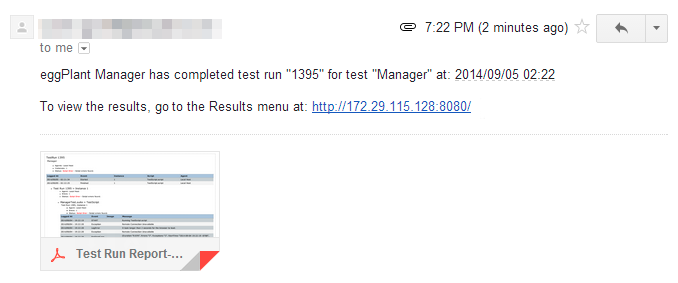
You can configure individual tests in eggPlant Manager to send an email notification at test completion. The email notifications include both a link to the eggPlant Manager web interface and a PDF attachment that includes the complete results of the test execution. To read more about configuring email in an eggPlant Manager test, see Creating Tests in eggPlant Manager.
Special Considerations
If you are using a Microsoft Exchange mail server, the mail server must be configured for SMTP, which is disabled by default.
Currently, eggPlant Manager does not include an option to use no authentication with the SMTP server, so eggPlant Manager cannot send email messages through servers without authentication.
This topic was last updated on 4月 26, 2018, at 03:56:29 午後.

Copyright © 2018 Eggplant