Add a new Space
DAI provides the option to create private spaces. Private spaces, and any assets you add to them, are restricted to members of the spaces. Information about adding private spaces is provided below.
If you want to add assets that are available to all users and spaces, you can add them in the Shared space. Each DAI instance contains a Shared space. For more information, about the Shared space or the resources that belong to a space, see About DAI Spaces.
You must be a DAI Administrator to create a private space in DAI. While there is now a Space Admin role, its scope is limited to a space. Users with that role cannot create spaces. See Shared Space and Private Space Roles for more information about the different roles and spaces.
Add a Private Space
To add a new space, you must use an account with the DAI Admin Role (dai:admin) assigned to perform the steps below:
-
Log into Eggplant DAI with your Admin user account.
-
Go to Spaces > New space. The New space page is displayed.
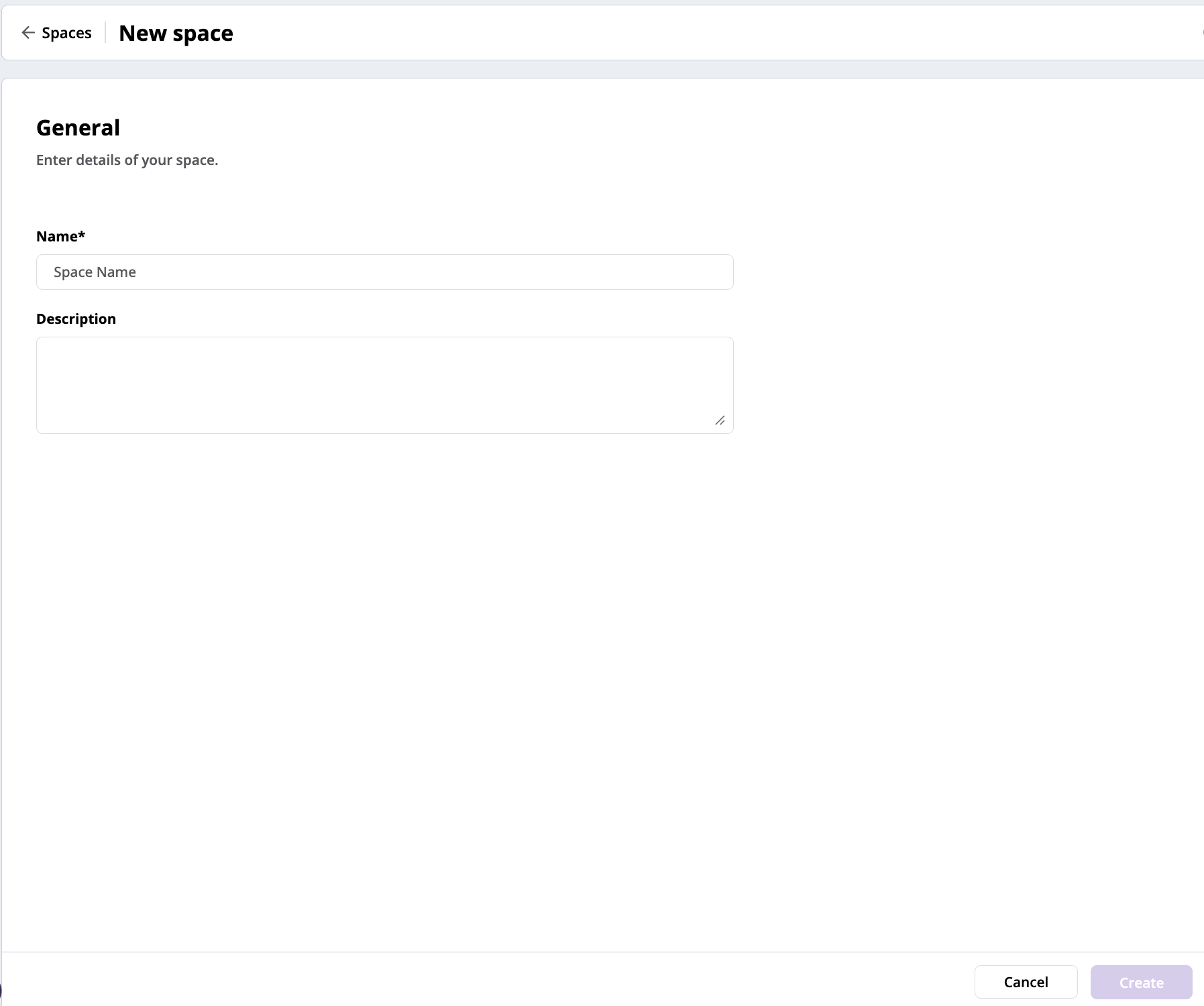
The New DAI Space page
-
Name*: Enter a name for your new space. This is a mandatory field. The Create button becomes available.
-
Description: Enter an optional description of the space.
-
Click Create to create the space. A summary page appears with the message "Your new space is created and ready to go!" This page provides the following options:
- You can click Manage members on this page to display the space's Members tab, where you can add members or assign roles, which will only apply to this space. You can also do this later. See Members Tab on the Manage a Space page for instructions.
- You can click View all spaces to display the Spaces page.
- You can also start using the space. Click Enter space at the bottom right-corner of the page. The Test case dashboard page opens and the menu on the left expands with the DAI model, Designer, Controller, and other options.