Using the Schedule
The Schedule is a calendar that shows all scheduled runs that only occur in current and future dates. Runs that happen before current date will not be shown in the calendar.
Setting Up Runs
To display runs in the calendar, follow these steps:
- Create Test Configurations. Refer to setting up Test Configurations for further info.
- Schedule runs. Refer to scheduling runs from Runner for further info.
- Go to Controller > Schedule to check the calendar.
Different Views of the Schedule
The Schedule has three views; Week, Day and Agenda. The views can be changed from the  buttons located at the top right corner of the calendar.
Week View
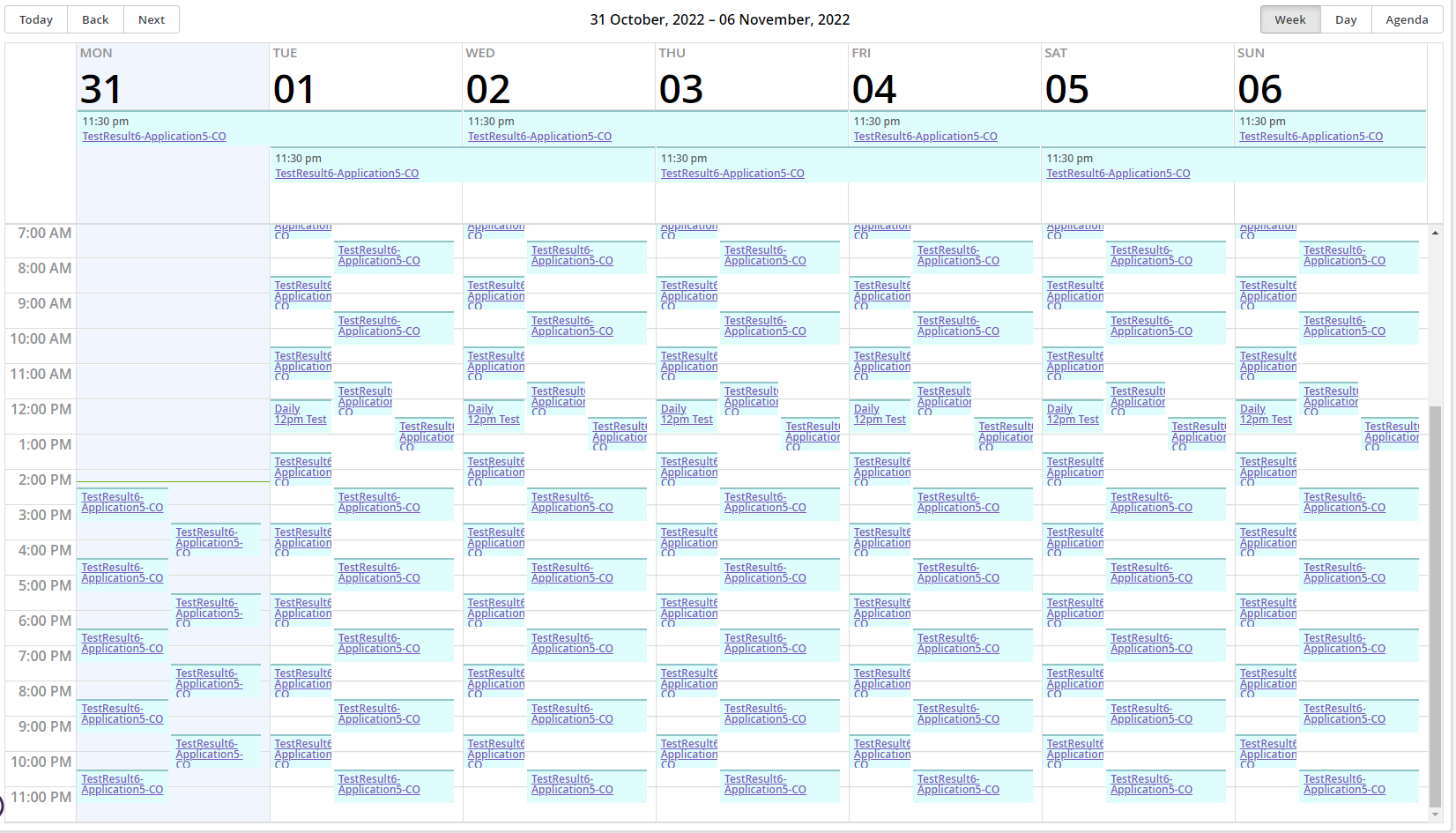
- This view displays all runs for current week.
- Runs older than current day will not be shown.
- Each row represents an hour from the range of 12AM until 11PM.
- Any runs that happens after 11PM will be rendered at the top, near the column headers.
- This is because each column ends at 11PM.
Day View
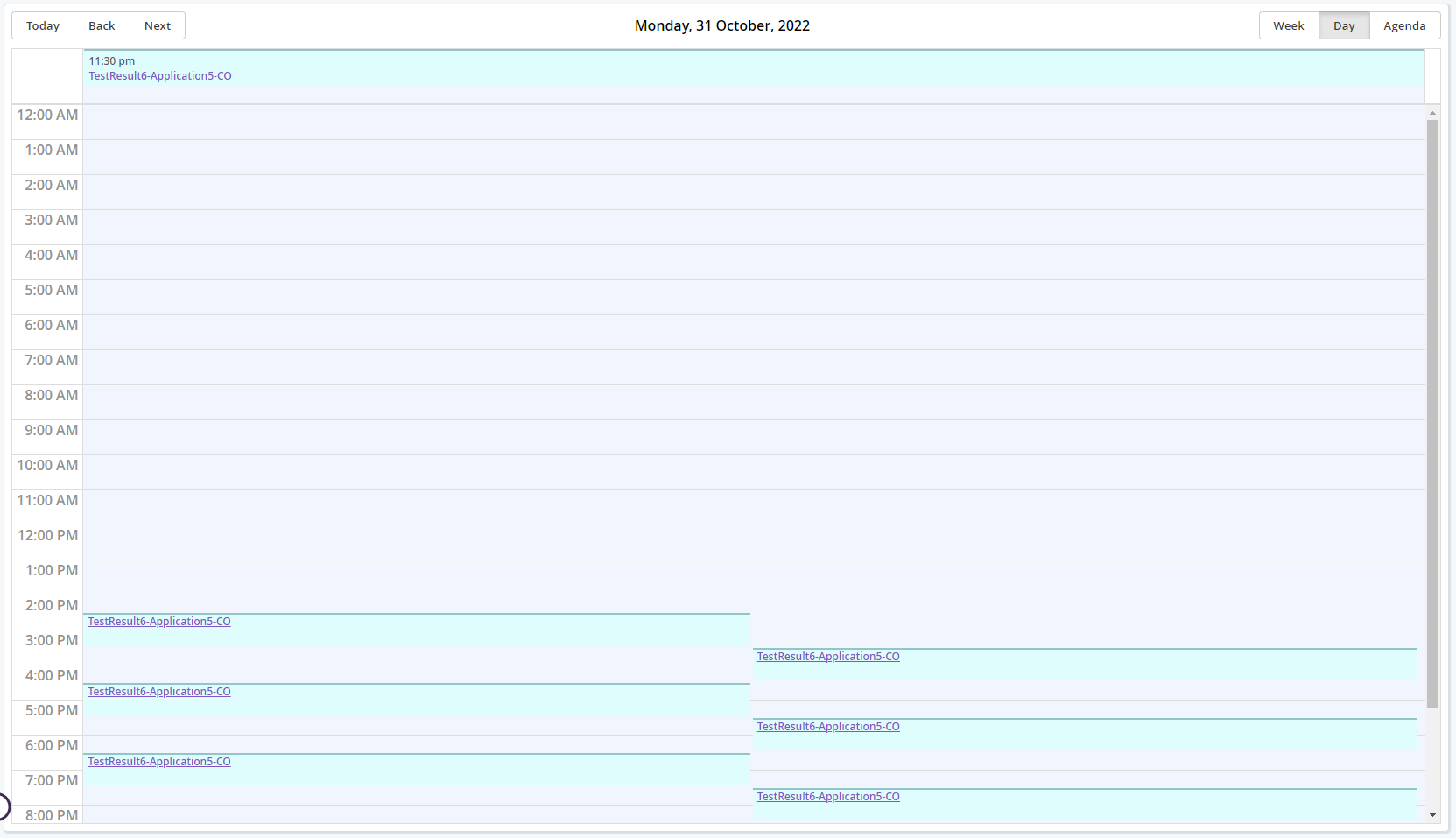
- This view displays all runs for current day.
- Each row represents an hour from the range of 12AM until 11PM.
- Any runs that happen after 11PM will be rendered at the top, above the 12AM row header.
- This is because the time ends at 11PM.
Agenda View
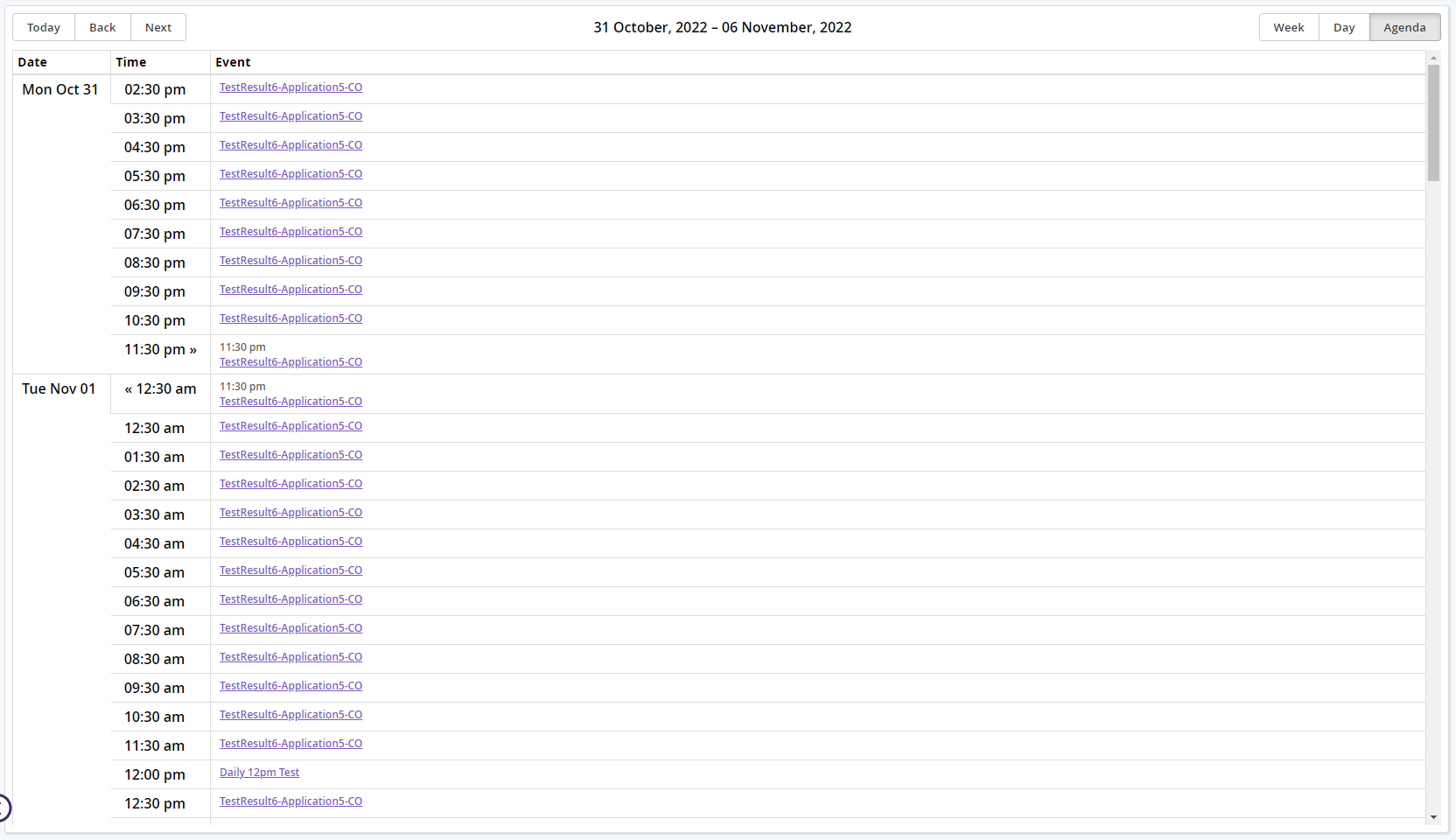
- This view displays all runs for the current week in a table fornat.
- Each row does not represent an hour from the range of 12AM until 11PM.
- Instead, they are rendered sequentially based on the times the runs are being scheduled.
Additional Features
-
Date Manipulation
- The dates in the calendar can be pushed forward or backward by clicking on the
 buttons situated at the top left corner of the calendar.
 - In Week and Agenda views, clicking Back or Next will push or pull the calendar by 1 week. Clicking Today will move the calendar to current week.
- The same applies for Day view, with only difference being the number of days that are being pushed or pulled. In this view, it is only 1 day.
- The dates in the calendar can be pushed forward or backward by clicking on the
-
Link to Edit Test Configuration
- Clicking on any Test Configuration name in any view will redirect you to the Edit Test Configuration page.