Test Management Tool Integrations
DAI supports integrating with test management tools to streamline test case synchronization and reporting. Once you connect DAI to a test management tool, DAI will keep your test cases, requirements, and test results automatically synchronized between the two systems.
To manage test management tool integrations in DAI, navigate to System > Test Mgmt Tools to display the Test management tools page.
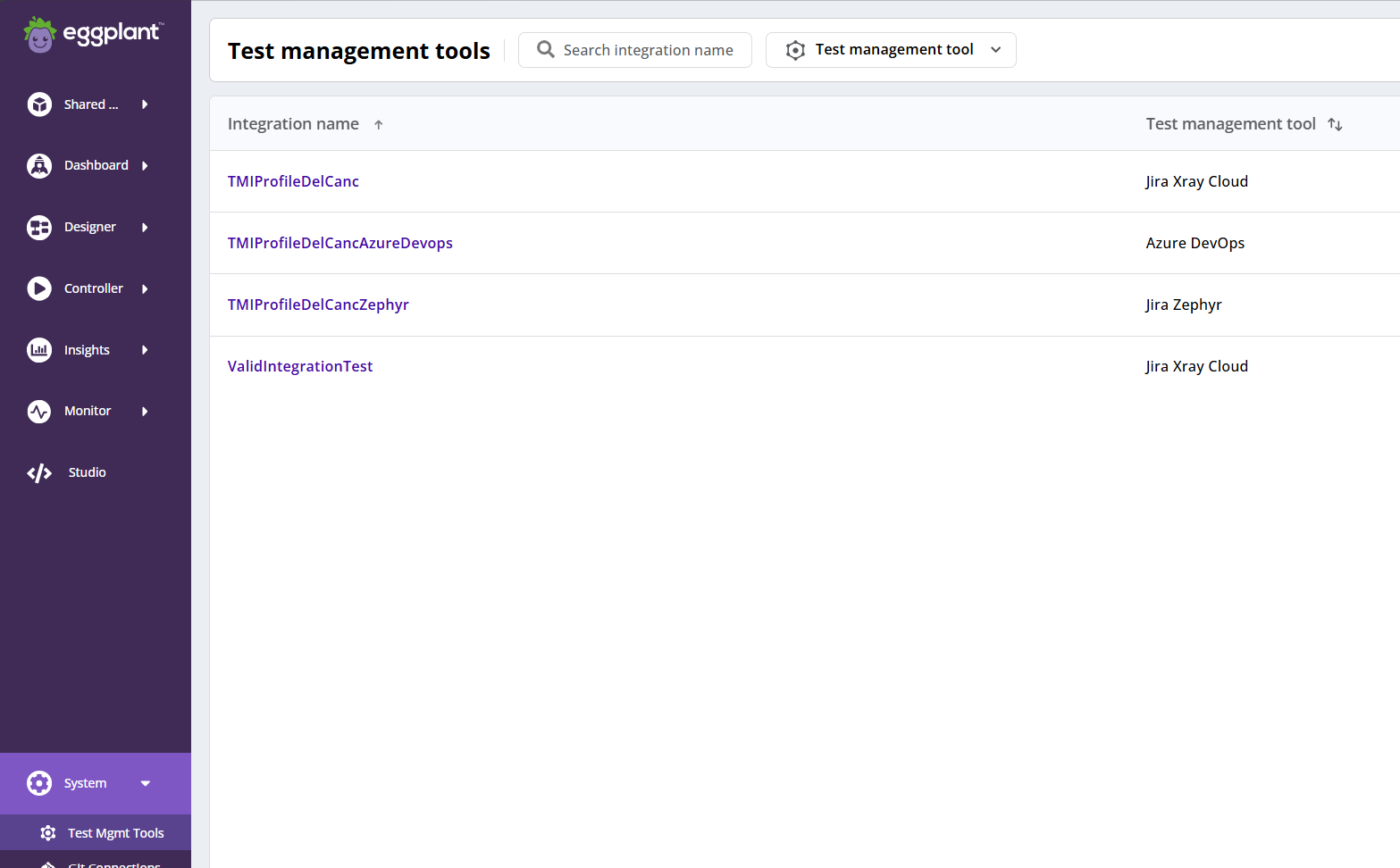
The DAI Test management tool page
Here, you can see the following details about your test management tools at a glance:
- Integration name: The display name of the test management tool.
- Test management tool: The type of test management tool specified for the integration, such as Jira Xray Cloud or Jira Zephyr.
You can also add, view, edit, and delete integrations from the Test management tools page.
-
Click the name of an integration to view its details.
-
Click
 (the Actions menu) to Edit or Delete an integration.
You can filter the integrations listed on the Test management tool page by name or tool type as follows:
- Search integration name: Type part of an integration name in this field. DAI filters the integration names you see as you type.
- Test management tool: Select the test management tool type from the drop-down list to filter by it.
Adding a Test Management Tool Integration
You can integrate a test management tool into DAI by connecting it within DAI. The streamlined tool synchronizations are established automatically when the integration is used in a test case (under Designer > Test Case) and run in a test configuration (under Controller > Runner).
Follow these steps to add a new test management tool integration:
-
Go to System > Test Mgmt Tools. The Test management tools page opens.
-
From the top menu, click + New test management tool. The New test management tool page opens.
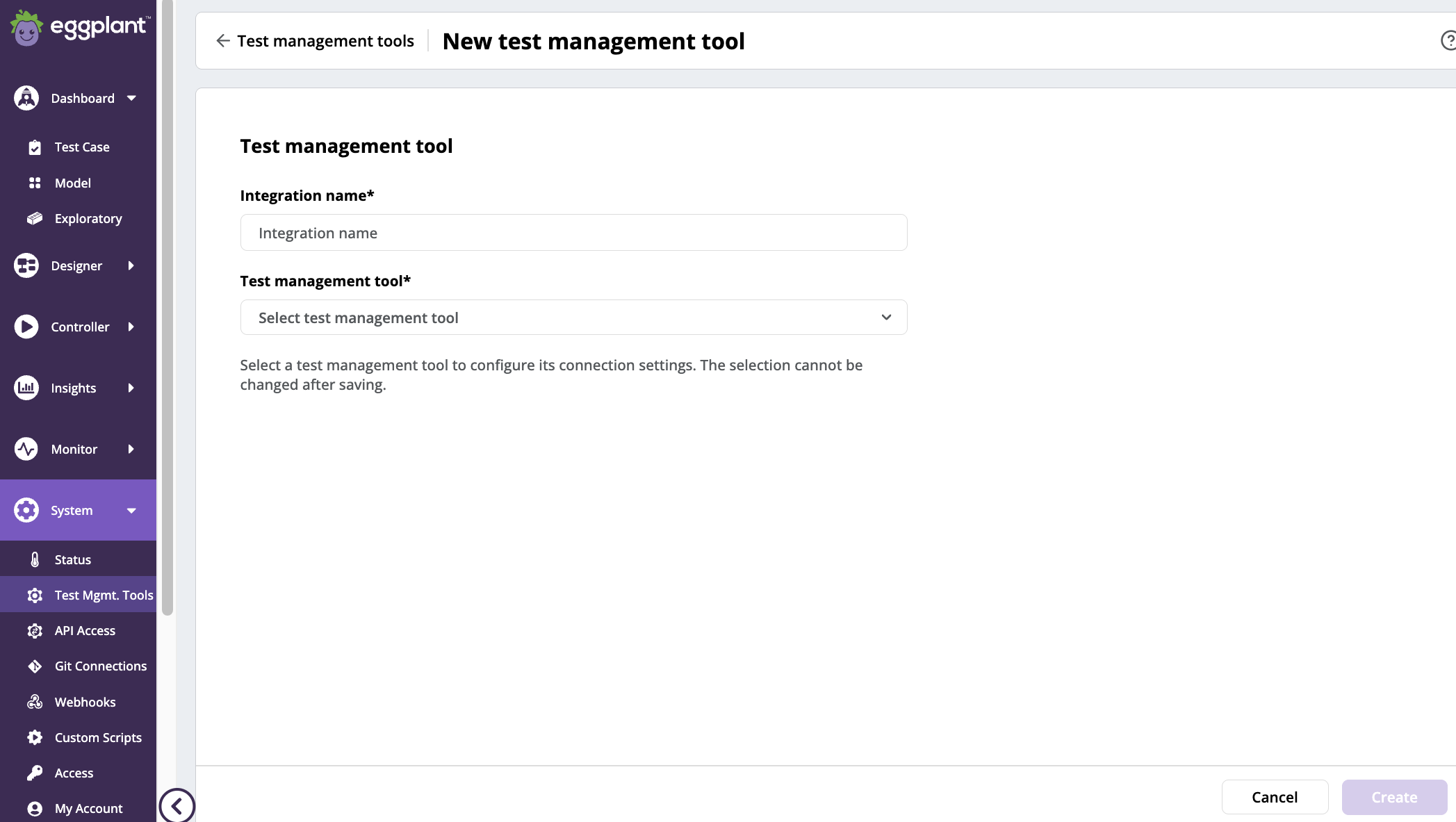
DAI New test management tools page
-
Enter a display name for the integration in Integration name* field (required) so that you can easily identify it in your list of test management tool integrations.
-
Select a Test management tool to connect a test management tool type* (also required) for your integration. The available options for this DAI release are as follows:
- Jira Xray Cloud: Select for integration with Jira Xray Cloud.
- Jira Zephyr: Select for integration with Jira Zephyr.
More fields appear on the Test management tool page when you select an integration type. The fields you see depend on the integration type you select. The fields are described in the specific integration section below.
ノートThe selected test management tool cannot be changed after saving.
-
Provide the information for connecting to the selected integration tool as described in the step-by-step instructions below.
-
Click Create and close.
The newly added test management tool integration appears on the Test Management tools page.
Adding a Jira Xray Cloud Integration
Jira Xray Cloud is one of the test management tools that you can integrate with DAI. The information you need to supply when you add a Jira Xray Cloud integration is described in Adding a Test Management Tool Integration and is provided below. Included is a table describing the Jira Xray Cloud integration settings, followed by step-by-step instructions for adding a Jira Xray Cloud integration.
Jira Xray Cloud Settings
| Jira Xray Cloud Setting | Description |
|---|---|
| Client ID | The Client ID to connect to Jira Xray Cloud. |
| Client secret | The client secret for client ID to connect to Jira Xray Cloud. |
| Region | The Jira Xray Cloud region you want your integration to use, such as AU, EU or US. |
| Version | The fix version to assign to a test run. |
| User | The user to assign to a test run. |
| Test Environment | The associated test environment to assign to a test run. |
Step by step: Entering Jira Xray Cloud Connection Information
-
From the Test management tool list, select Jira Xray Cloud. Additional fields appear on the New Test management tools page for you to enter information about the Jira Xray Cloud system that you want to integrate. Information about each of the settings is provided in the Jira Xray Cloud Settings table above.
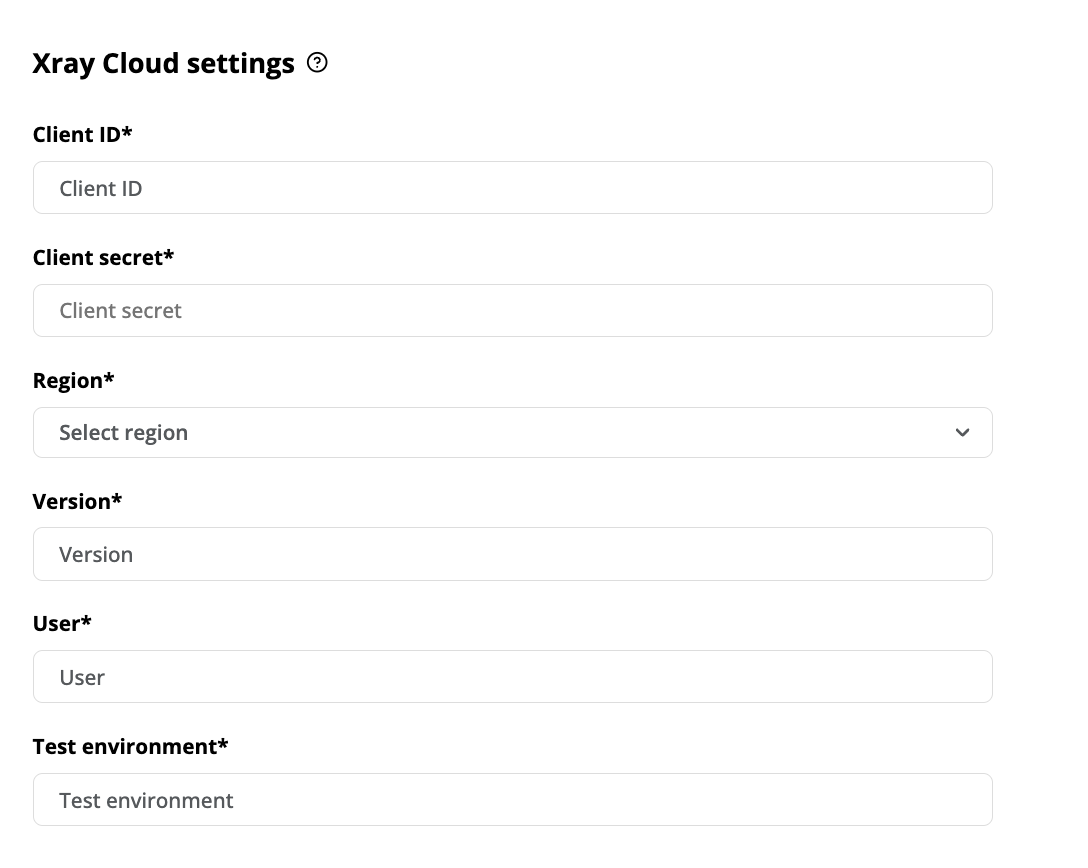
Jira Xray Cloud integration fields on the DAI Test management tool page
-
Enter the Jira Xray Cloud client ID and secret in the Client ID and Client secret fields, which are required for DAI to securely authenticate and to make REST API requests to Jira Xray Cloud.
ノートTo obtain Client ID and Client secret for Jira Xray Cloud, please refer to Xray > Global Settings - API Keys in the Jira Xray Cloud documentation.
-
Select a Region.
-
Enter Version, User, and Test environment. Once all the Jira Xray Cloud fields are filled with values, the Test connection section becomes visible.
-
(Optional) Click Test connection to validate the connection of the integration in Eggplant DAI to Jira Xray Cloud.
ノートYou do not need to successfully connect to the test management tool to create the connection. If the connection fails, you can still create it now and fix it later as described in Editing a Test Management Tool Integration.
Adding a Jira Zephyr Integration
The Zephyr Scale plugin for Jira from SmartBear (hereafter called "the Jira Zephyr plugin") is another test management tool that you can integrate with DAI. The information you need to supply when you add a Jira Zephyr integration is described in Adding a Test Management Tool Integration and is provided below. Included is a table describing the Jira Zephyr integration settings, followed by step-by-step instructions for adding a Jira Zephyr integration.
The Jira Zephyr Scale plugin is the tool DAI supports for integration; the Zephyr Enterprise version is not supported.
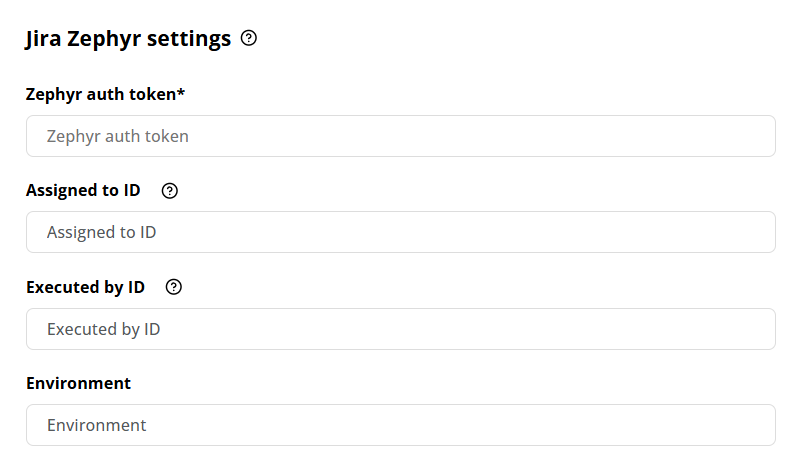
Jira Zephyr integration fields on the DAI Test management tool page
Jira Zephyr Settings
| Jira Zephyr Setting | Description |
|---|---|
| Zephyr auth token | The authentication token used to connect to Jira Zephyr. You retrieve this token from the API page in the Jira Zephyr app when you create the API token. This field is required. |
| Assigned to ID | The Jira site user ID for the user assigned to the test run. This field is optional. |
| Executed by ID | The Jira site user ID for the user who executed the test run. This field is optional. |
| Environment | The environment assigned to the test case in the Jira app. This field is optional. |
Editing an Integration
To edit an existing test management tool integration:
- Go to System > Test Mgmt Tools.
- Find the test management tool integration that you're interested in updating, then from the (Actions) menu, select Edit.
- From here you can update the test management tool integration details.
Viewing an Integration
To view the details for an existing test management tool integration:
- Go to System > Test Mgmt Tools.
- Find the test management tool integration that you want to view, then click on the integration name.
Deleting an Integration
- Go to System > Test Mgmt Tools.
- Find the test management tool integration that you want to delete, then, from the (Actions) menu, select Delete. A dialog box appears asking you to confirm the deletion.
- To confirm that you want to delete the integration, click Delete on the dialog box. Or, click Cancel to cancel the deletion.