Deploying Eggplant Studio in the Cloud
You can deploy Eggplant Studio in the cloud to make it available remotely to multiple test developers. To ensure your site's success with Eggplant Studio cloud deployments, Keysight provides an Eggplant Studio cloud reference architecture. The reference architecture consists of Eggplant Studio hosted in Coder, which is an open-source platform for hosting cloud-based development environments. Once you deploy the cloud reference architecture, your test developers can log into Coder with a browser, create a workspace from our Eggplant Studio Coder template, and start writing, debugging, and running Eggplant test scripts in the cloud. They can create as many workspaces as they have Eggplant Functional Developer licenses, and can delete the workspaces when they are no longer needed..
Intended Audience: Because of the tools involved, we recommend that a system administrator or developer familiar with using Coder and Docker containers perform this deployment.
We provide this cloud reference architecture and the associated Eggplant Studio Coder workspace template for you to implement at your site. This template is our recommended Eggplant Studio hosted/cloud deployment option.
The instructions below assume you have an operational Coder environment but also include information about where to go if you need to set one up. Note that Eggplant Studio is also available for a do-it-yourself container deployment. However, such a configuration is for advanced users and is not our recommended cloud implementation. For more information about how we support Eggplant Studio in cloud deployments, see Troubleshooting Cloud Deployments.
Cloud Deployments
If your site chooses a cloud deployment, where your test developers are accessing Eggplant Studio from remote systems, you as an administrator will need to think about authentication, provisioning, and lifecycle management of the components. The Coder platform gives you control over all of these functions.
Securing Your Deployment
For information about ensuring your Coder environment is secure, see Security best practices Make your Coder deployment more secure.
Eggplant Studio Coder Workspace Reference Architecture
This Eggplant Studio cloud reference architecture consists of a deployable Coder workspace template. The workspace template contains instructions to configure an Eggplant Studio workspace within Coder. Within this workspace, Eggplant Studio runs as an extension inside Visual Studio Code (VS Code) Server in a Docker container. The workspace template also includes a Docker container running Fusion Engine (Eggplant Functional) which Eggplant Studio requires for running test scripts, as well as container that runs the Coder web app. More information about each of the components in this deployment is provided below.
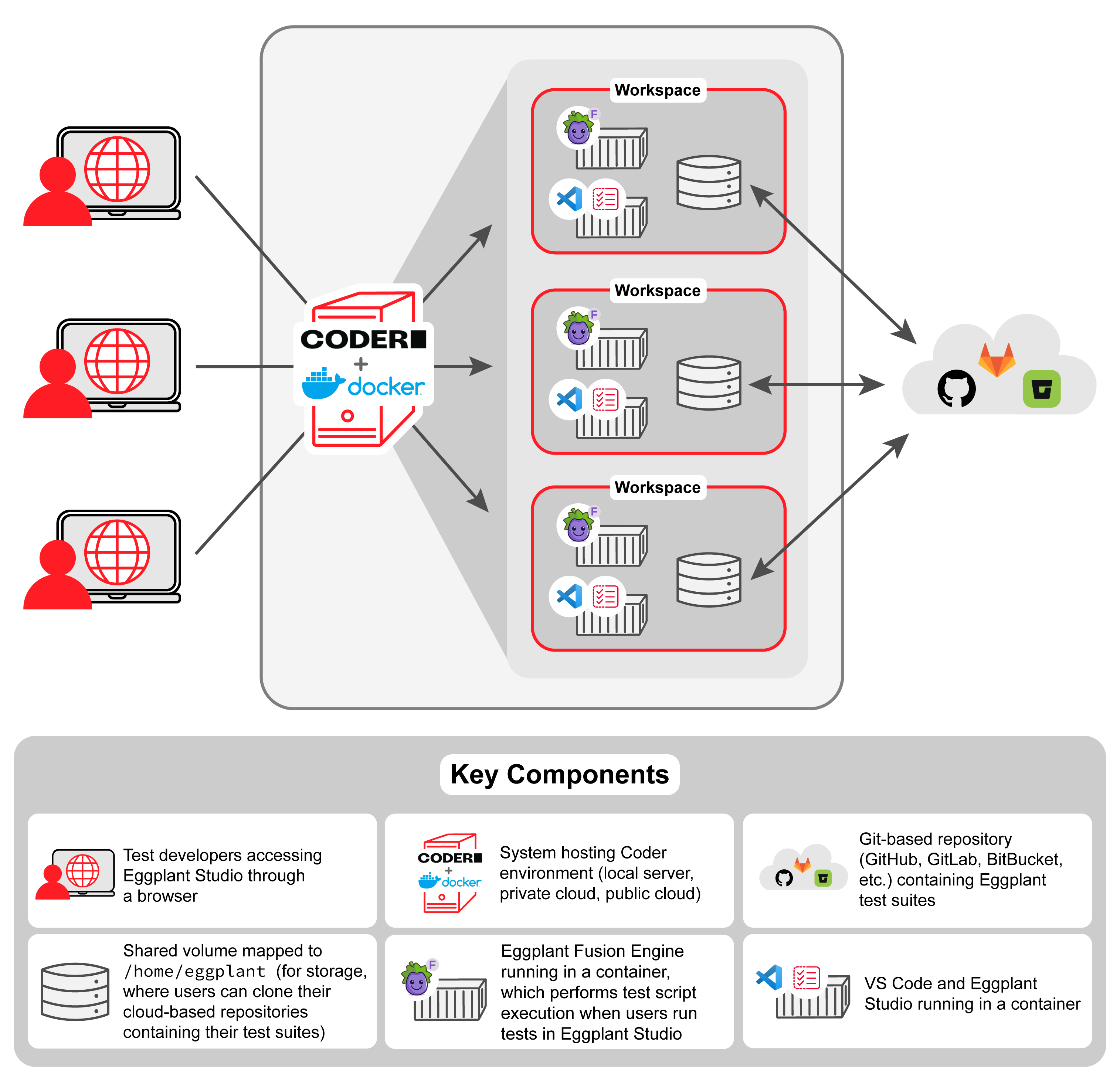
The Eggplant Studio cloud reference architecture utilizes the following components:
-
Coder: Coder is a self-hosted, open-source cloud development environment. For more information about Coder, see Coder About. A single Coder environment can manage multiple workspaces.
-
Workspace: In Coder environments, a workspace is a self-contained development space. Workspaces are instantiated, on-demand, from templates. The Eggplant Studio cloud reference architecture provides a Coder template which allows developers to use Coder to instantiate fully functional Eggplant Studio workspaces. For more information about Coder workspaces, see What's in a Coder Workspace.
-
VS Code Server is a free implementation of the VS Code IDE which runs as a cloud-hosted application. See Visual Studio Code Server for more information. Eggplant Studio runs as an extension in VS Code Server.
-
Docker and Docker containers: Docker is the containerization software that manages the containers in the cloud reference architecture of which there are three: one hosting VS Code and Eggplant Studio, and one hosting Fusion Engine, and one hosting Coder's web app.
- The VS Code and Studio container provides the script editing and SUT connection capabilities.
- The Fusion Engine container provides script execution capability.
- The Coder web app container provides the workspace administration functionality.
noteIn this configuration, each Studio workspace requires a Fusion Engine (Eggplant Functional) Developer's license so that the Studio users can edit, debug, and execute tests, as well as use the Optical Character Recognition (OCR) features. This requirement is analogous to the situation where your test developers had installed Eggplant Studio directly on their desktops along with a local copies of Eggplant Functional. For more information about licensing, see License Eggplant Studio in the Template.
Also note that this containerized Fusion Engine runs in Debug Adapter Mode, which allows Eggplant Studio to communicate with it for script execution and debugging, OCR features, and licensing, on port 4771.
Setting Up the Coder Host System
As mentioned above, the Eggplant Studio Coder workspace template defines everything you need to deploy Eggplant Studio in the cloud. All you need to provide is a Coder deployment together with Docker for running the associated Eggplant and Fusion Engine containers. This section provides details on installing the Eggplant Studio workspace template into your Coder deployment.
Intended Audience: As stated above, because of the tools involved, we recommend that a system administrator or developer familiar with using Coder and Docker containers perform this deployment.
Prerequisites
Below are the prerequisites for the system that will host Coder to support our Eggplant Studio reference architecture.
| System | Description |
|---|---|
| Coder host system | Supported Linux OSs running on Intel (x86_64) systems only. |
| Disk space | Minimum of 16 GB of available storage per user recommended, but varies with the number of assets your test developers will be using. |
| Coder deployment | Installed and fully operational. If you need to install Coder, please follow their Quickstart instructions to install and start Coder. Note, Coder provides support for external authentication, so you can integrate it with your existing identity provider. Part of the Coder deployment is the web app that test developers will use to create workspaces. Note the URL for the Coder web app. Your test developers will need this to log in. |
| Docker Engine | Installed and running. If you need to install Docker Engine, please follow the Install Docker Engine instructions in the Docker documentation. The Coder Quickstart mentioned above also provide instructions for installing Docker. |
| Eggplant Functional Developer license | One developer license is required for each Eggplant Studio/Fusion Engine workspace. See License Eggplant Fusion Engine for information about ways to apply licenses. If you need to purchase licenses, contact your account manager or ep-sales@keysight.com. |
Upload the Template into the Coder Environment
The instructions below assume that Coder and Docker are installed and running on the system (local machine, or private or public cloud) you want. If you need to install Coder or Docker, please follow the Coder Quickstart and Docker Install Docker Engine instructions.
-
Download the Eggplant Studio Coder template
.zipfile from the Eggplant Studio Downloads page to the system where Coder is running. -
Log into the Coder web interface, visit the Templates tab, and click New Template.
-
Upload the
.zipfile template that you downloaded into Coder from your system. -
Give the template a name (for example,
eggplantstudio), a display name (Eggplant Studio), a description (Develop with Eggplant Studio in your browser), and an icon (https://docs.eggplantsoftware.com/es/brand/favicon.webp). Note that template names are arbitrary. You can name them appropriately for your site. -
Click Create. Coder creates a workspace template from our Eggplant Studio template that you uploaded.
noteBy running this template, you are opting in to the Eggplant Privacy Policy and EULA. Please review these before proceeding.
License Eggplant Studio in the Template
When you deploy Eggplant Studio in a Coder environment, each Eggplant Studio workspace launched by a tester requires a Fusion Engine (Eggplant Functional) Developer's license. While you can edit scripts in Eggplant Studio without a license, a Developer's license is required to run or debug scripts, or use the Optical Character Recognition (OCR) features.
If you need to purchase licenses, contact your account manager or ep-sales@keysight.com.
See Licensing Eggplant Functional for an explanation of the different license types, including Developer licenses, and the node-locked and Reprise License Manager (RLM) Server license schemes discussed below.
You can license Fusion Engine in a couple of different ways depending on how you want to apply the licenses at your site:
-
An administrator can set licensing variables for the Eggplant Studio template after uploading it into Coder. Setting the variables in the template applies the license for all users, eliminating the need for testers to add license information each time they create a workspace.
noteIf you are using a Reprise License Manager (RLM) Server to serve floating licenses, we recommend the option above. Having the Administrator set the licensing variables in the template after uploading it into Coder means any workspace created from the template is already configured with the RLM Server connection information. When a tester launches a workspace, Eggplant Studio can automatically obtain a floating license, as long as one is available. If a floating license is not available, the workspace user will not be able to run or debug scripts, or use OCR features until Eggplant Studio can acquire a license. Eggplant Studio will release a license when the tester shuts down the workspace.
See Setting License Variables in the Template Settings for instructions.
-
Or, testers can provide a license each time they create a workspace from the template.
noteIf you are using full, node-locked licenses at your site, your testers should add licenses each time they create a workspace from the template (instead of having the Administrator configure the license variables in Coder as described above). The license will be available for the life of the workspace, as long is the license is still valid. See License Eggplant Studio in the Workspace for instructions for this process.
Setting License Variables in the Coder Template Settings
The variables you set for the Eggplant Studio template in Coder depend on the license scheme you are using:
-
If you are using a Reprise License Manager (RLM) Server to serve floating licenses at your site, you specify the connection information for the RLM Server by setting the RLM Host and RLM server password variables.
-
If you are using a license key, you specify the key in the Eggplant Fusion Engine License Key variable.
To set the variables for either license scheme on the Eggplant Studio template in Coder:
-
Open your Coder Environment, if it is not already open.
-
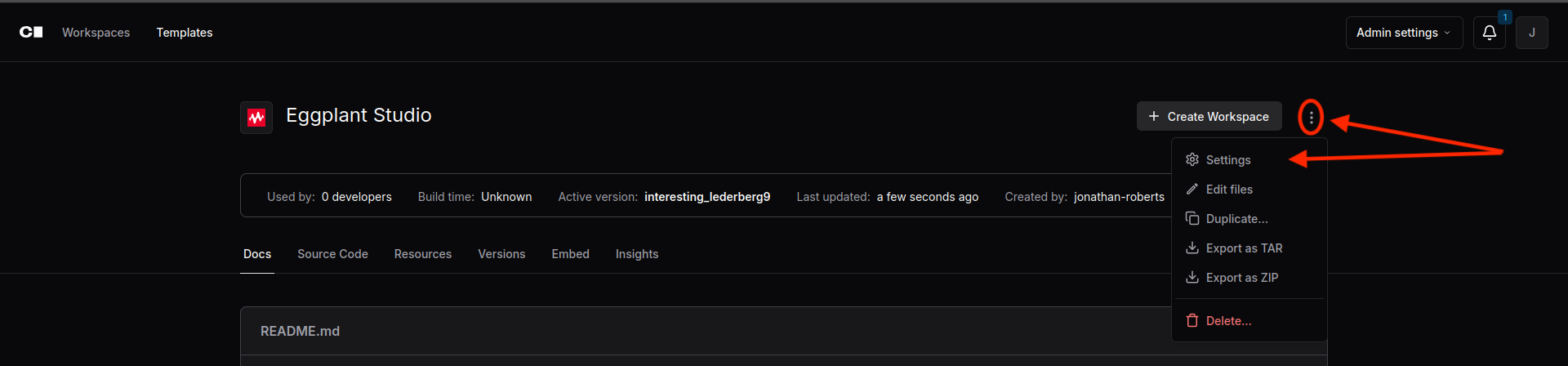
Go to Templates > Eggplant Studio to display the Eggplant Studio template, where Eggplant Studio is the name assigned to the template when it was uploaded.
-
Click the 3 vertical dots button to display the drop-down menu and choose Settings as shown above. The settings for the Eggplant Studio template will display.
-
Click
<>Variables to display the Template variables tab shown below.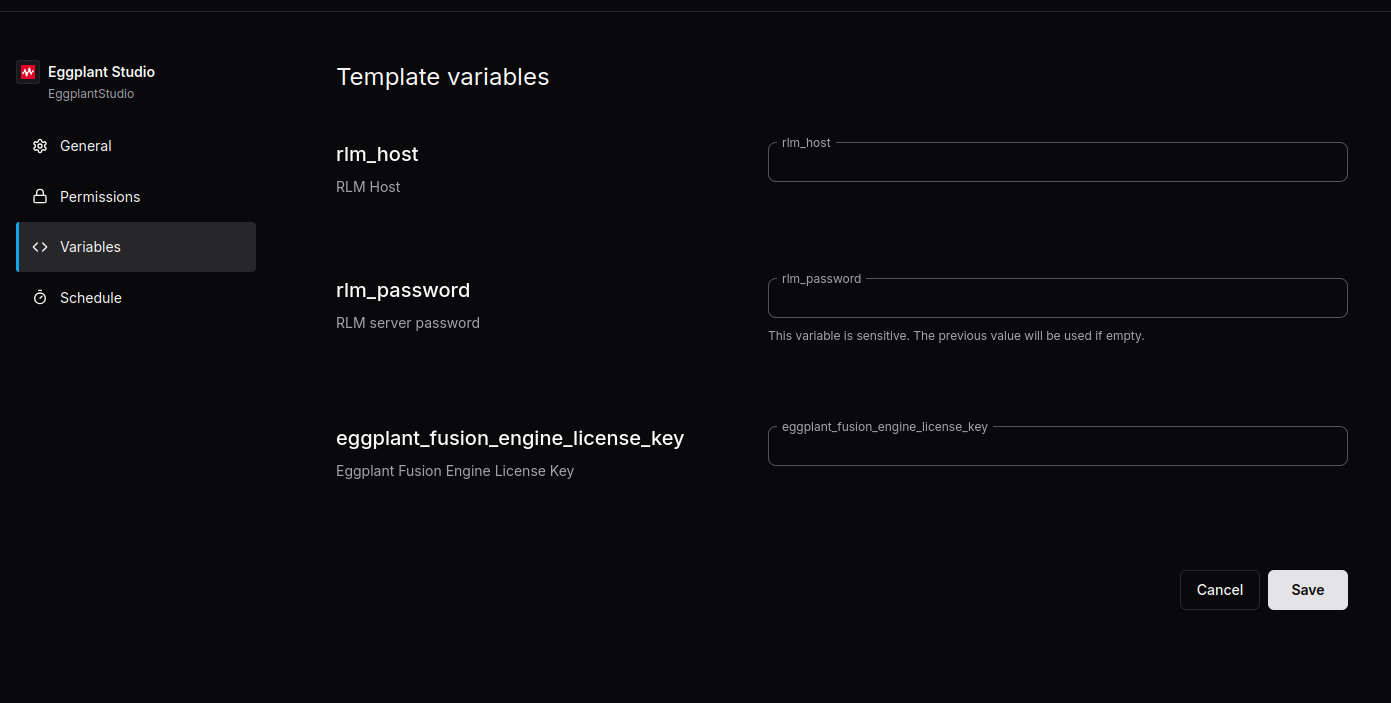
-
Provide the license information depending on the type of license you are applying:
- If you are using an RLM server at your site, provide the IP address or hostname of the system where the RLM Server is running in the RLM Host (rlm_host) field (required), and the password for the RLM Server (if required by the RLM Server) in the RLM server password (rlm_password) field.
- If you are using a license key, provide the key in the Eggplant Fusion Engine License Key (eggplant_fusion_engine_license_key) field.
-
Click Save to save the license information in the variable settings.
You now have completed the configuration of the Eggplant Studio cloud reference architecture. Your test developers are now enabled to create Eggplant Studio workspaces.
Next Steps
See Create and Launch an Eggplant Studio Workspace for information about creating an instance of an Eggplant Studio workspace.