Creating Eggplant Studio Workspaces in the Cloud
If your site implemented Eggplant Studio as a cloud deployment, it means you can create and destroy as many Eggplant Studio hosted instances as you have licenses. These instances are technically Coder workspaces that you can create from a template in the Coder web app. Once you create a workspace you can start writing and editing test scripts. However, you must have an Eggplant Functional Developer's license to use the Optical Character Recognition (OCR) features, and to run and debug scripts.
Intended Audience: Because of the tools involved, we recommend that you be a test developer familiar with using Coder and Gitlab workflows to use Eggplant Studio in the Cloud.
The instructions below assume that a system administrator or developer at your site already set up the Coder environment to host your Coder workspaces. If this environment is not configured and your site plans to implement Eggplant Studio in the cloud, please work with a system administrator or developer at your site who is familiar with Coder and containerized applications. Instructions for setting up this environment are provided in Deploying Eggplant Studio in the Cloud.
Eggplant Studio Coder Workspace Template
Keysight provides a deployable Coder workspace template as an Eggplant Studio reference architecture for cloud deployments. When you create and launch a workspace created from this template, Eggplant Studio runs as an extension inside Visual Studio Code (VS Code) Server in a Docker container. The workspace also utilizes a Docker container running Fusion Engine (Eggplant Functional) which Eggplant Studio requires for running test scripts, as well as a Docker container running the Coder web app with the Coder administration interface.
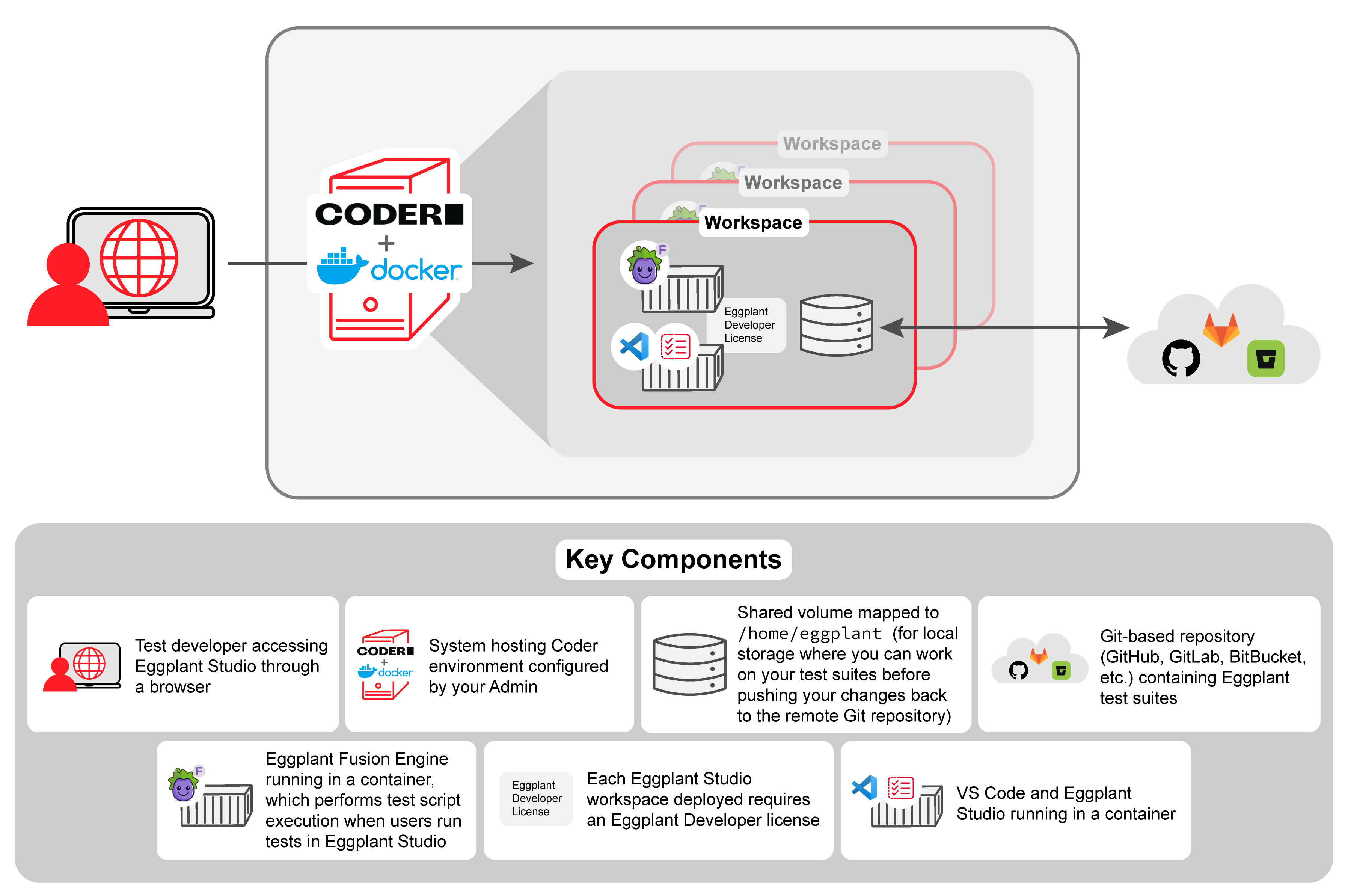
Create and Launch an Eggplant Studio Workspace
The steps below assume a system administrator or developer at your site already uploaded the Eggplant Studio workspace template into Coder as described in Deploying Eggplant Studio in the Cloud. You can also see these instructions in Step 5: Launch your Workspace on the Coder Quickstart page.
-
Using your web browser, log into the Coder web interface. Your Administrator should provide the URL for the Coder Web interface. Check with them, if you need the URL for your site.
-
Select Workspaces and then, at the top of the page, click Create from template. A page opens showing you the list of available templates, one of which should be Eggplant Studio, or whatever name the template was given at your site. This starts the workspace creation process.
-
When the workspace creation process is complete, you can click Eggplant Studio (or whatever name) to launch your new workspace in a new window.
Your hosted Eggplant Studio instance, including VS Code and Fusion Engine (Eggplant Functional), is now ready to use.
Clone the Repository Containing Your Test Suites
To make your test suites available to Eggplant Studio in Coder, you need to download
them to your workspace. If your organization is using Git, downloading your test
suites involves creating a clone of the repository in your Eggplant Studio Coder
workspace. Eggplant Studio takes advantage of the full Git functionality support
built into VS Code. To perform this task, follow the
VS Code Git workflow
instructions for cloning a repository. The Eggplant Studio workspace provides a
shared directory at /home/eggplant that you can use to store your repository clone.
Once you have finished making your changes to the suite, it is important that you
push them back up to your remote Git repository, again using the native Git support
in VS Code.
License Eggplant Studio in the Workspace
You must have a valid Fusion Engine (Eggplant Functional) Developer license to run or debug scripts, or use the Optical Character Recognition (OCR) features in Eggplant Studio.
You can see any licenses applied in the
License Registry
view of the Eggplant Studio in your workspace. If you need to purchase licenses,
contact your account manager or ep-sales@keysight.com.
When you first launch Eggplant Studio in a workspace, Fusion Engine (Eggplant Functional) starts at almost the same time. You can use Eggplant Studio without a license to edit test scripts. However, you cannot run or debug them, or use the Optical Character Recognition (OCR) features without a license. See Licensing Eggplant Functional for an explanation of the different license types, including Developer licenses, and the node-locked and Reprise License Manager (RLM) Server license schemes discussed below.
If you are using a Reprise License Manager (RLM) Server to serve floating licenses at your site, your Administrator may have already configured access to that server in the Coder template. (In fact, we recommend this approach for sites that use RLM.) When licenses are applied in a template, any workspace you create is automatically configured with access to your site's RLM Server. Your workspace will automatically try to check out a license when it launches. If Eggplant Studio can obtain a license, it is ready for you to use. If it cannot, you will have to wait for a license to become available. Eggplant Studio holds on to a license until you shut down the workspace.
You can check with your administrator to see if the template is already configured. Or, create a workspace and try to run a script in Eggplant Studio. If it runs, the Coder template is configured for a RLM Server and a floating license was available for your workspace. You can continue to Next Step to start using Eggplant Studio.
How you apply the Developer license in Eggplant Studio depends on which license scheme you are using at your site:
| License Scheme | Notes |
|---|---|
| Node-Locked licenses | If you are using node-locked licenses at your site, you will need to add a license key for each Coder workspace you create. The workspace will then use the license every time you launch it, as long as the license is valid. See Adding Node-Locked Licenses on the Add License Panel for instructions. |
| Reprise License Manager (RLM) Server floating licenses | If you are using a RLM License Server at your site, the workspace needs the connection information for the RLM Server to check out a license. As described in the note above, your Codertemplate may already be configured f or access. Or, you may need to provide the connection information as described in Configuring Access to a Reprise License Manager. |
Next Step
You can use the Eggplant Studio in-app walkthroughs or see Eggplant Studio Walkthrough in this guide to get started using Eggplant Studio.