7. Working with Helper Suites
A helper suite is a suite that you reference in another suite so you can use its resources. Helper suites enable code reuse and improve the organization of your tests across multiple test suites. When you add a helper suite to your main suite, its scripts, images, and other resources become available to the tests in the main suite.
Helper suites are particularly useful when you have:
- Common utility scripts or functions shared across multiple test suites
- Standard image libraries used by different projects
- Reusable test components that multiple teams need to access
Automatic Reloading and Workspace Management
Eggplant Studio automatically loads helper suites into the workspace when it detects them in an open suite:
- When you open a suite folder, Eggplant Studio reads the SuiteInfo file.
- All direct helper suites are resolved and loaded into the workspace.
- Each helper suite's SuiteInfo file is checked for additional helpers (indirect helpers).
- The complete dependency tree is loaded, with each suite appearing as a workspace folder only once.
- All SuiteInfo files get monitored for changes.
When a helper suite gets added or removed, Eggplant Studio automatically reloads the affected helper suites, adding or removing them from the workspace.
Understanding Helper Suite Relationships
When working with helper suites in Eggplant Studio, it's important to understand the two types of helper relationships:
- Direct helpers: Helper suites that you explicitly add to your main suite. These are referenced directly in your suite's SuiteInfo file.
- Indirect helpers: Helper suites that are referenced by your direct helpers (helpers of helpers). These are automatically discovered and loaded by Eggplant Studio.
When you open a suite with helper suites configured, Eggplant Studio automatically loads all direct and indirect helpers into your VS Code workspace. The main suite is labeled (Main) and helper suites are labeled (Helper) in the workspace's Explorer view.
Adding a Helper Suite
To add a helper suite to your current suite:
-
Open the Command Palette (
Ctrl+Shift+PorCmd+Shift+P). -
Type and select:
Eggplant Studio: Add Helper Suite.
Running the command
Eggplant Studio: Add Helper Suite -
If you have multiple suites open, select which suite you want to add the helper to.

Selecting the parent suite to add the helper to
-
In the folder picker dialog, navigate to and select the .suite folder you want to add as a helper.
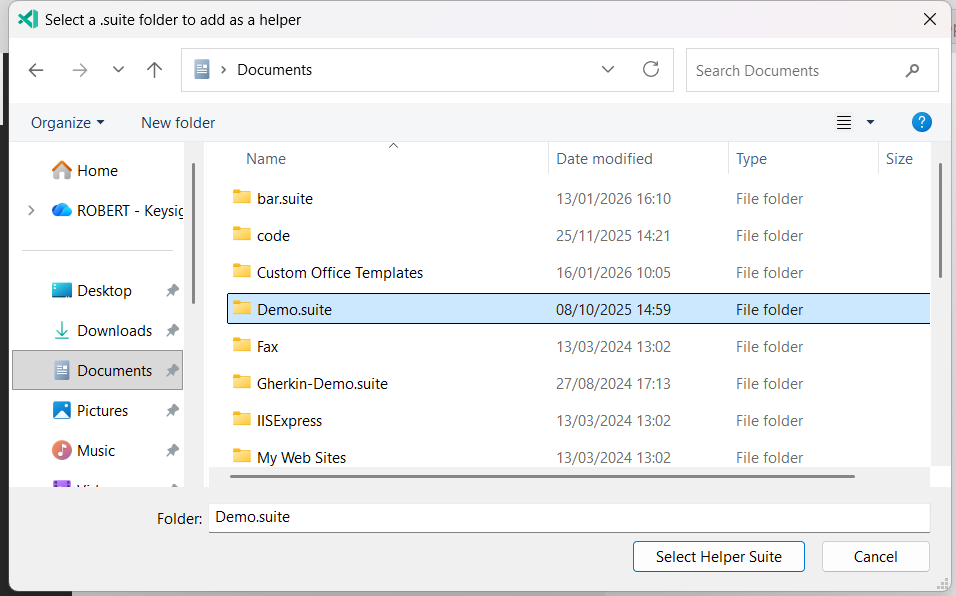
- Click Open.
Eggplant Studio will add the helper suite to your SuiteInfo file and automatically reload the workspace. The helper suite will appear as a new workspace folder labeled (Helper).
You cannot add a suite as a helper to itself. Eggplant Studio will validate this and show an error message if you attempt to do so.
Removing a Helper Suite
To remove a helper suite from your current suite:
-
Open the Command Palette (
Ctrl+Shift+PorCmd+Shift+P). -
Type and select:
Eggplant Studio: Remove Helper Suite
Running the command
Eggplant Studio: Remove Helper Suite -
If you have multiple suites open, select which suite you want to remove the helper from:

Selecting the parent Suite to remove a helper from
-
In the quick pick list, select the helper suite you want to remove:
- Direct helpers show their file path
- Indirect helpers show which suite includes them (for example, "Included by: Asteroids.suite" in the following image)
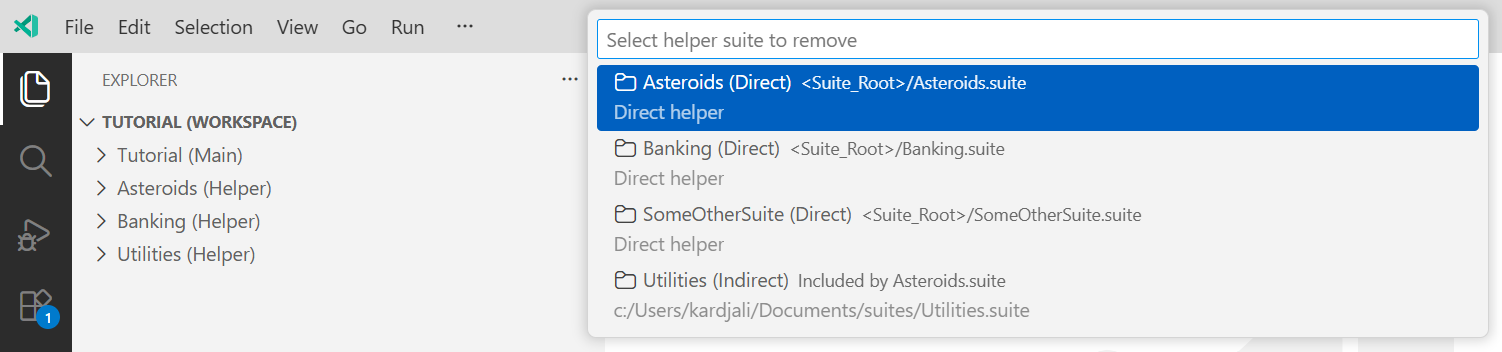
Selecting the helper Suite to remove
-
Press Enter to confirm.
Eggplant Studio will remove the helper suite from the SuiteInfo file and automatically reload the workspace. If you remove a direct helper that has its own helpers (indirect helpers), Eggplant Studio will remove those as well.
Viewing Helper Suite Information
To see detailed information about all helper suites in your current suite:
- Open the Command Palette (
Ctrl+Shift+PorCmd+Shift+P). - Type and select:
Eggplant Studio: Show Helper Suite Information
Eggplant Studio will open a text document displaying:
- Direct helpers: All helper suites you explicitly added, with their file paths
- Indirect helpers: Helper suites referenced by your direct helpers, showing which suite includes them
- Any invalid paths or errors encountered while resolving helpers
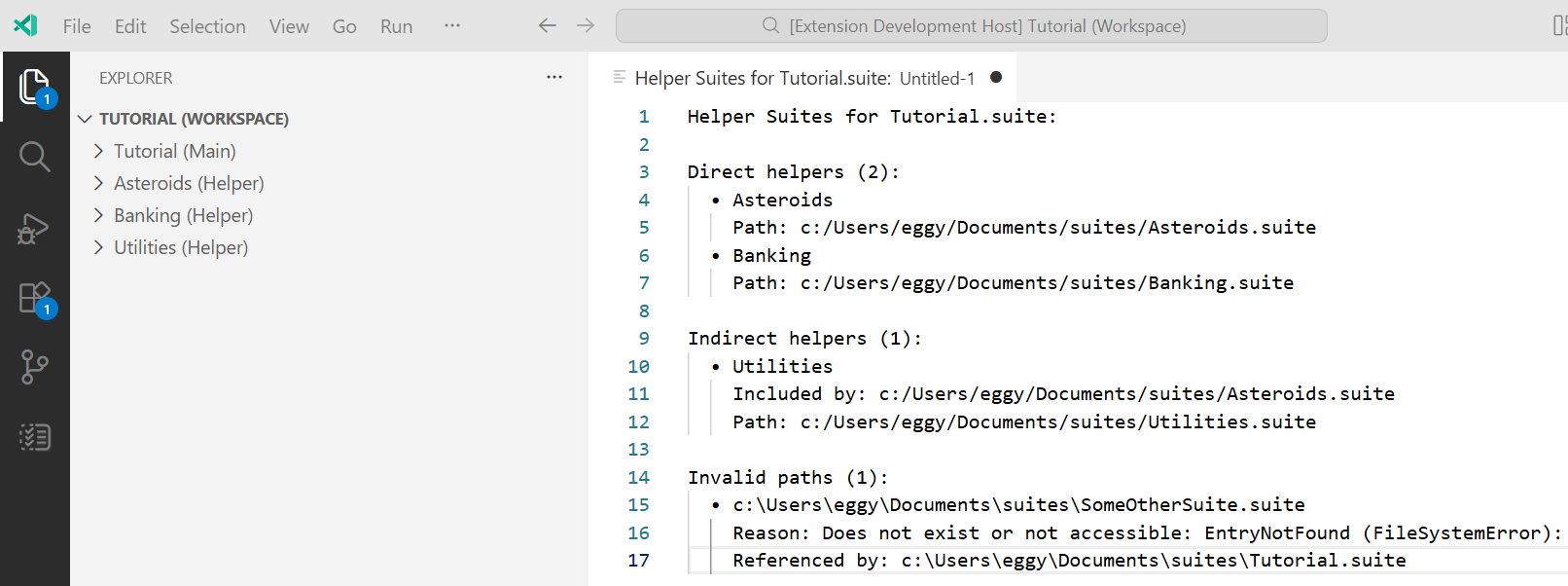
This information is useful for understanding your suite's dependency structure and troubleshooting any issues with helper suite loading.
Troubleshooting Helper Suites
Invalid Helper Suite Paths
If a helper suite path in your SuiteInfo file cannot be resolved, Eggplant Studio will:
- Continue loading other valid helper suites
- Show a warning notification with an error count
- Include details about the invalid path when you run
Show Helper Suite Information
To fix invalid paths, either:
- Remove the invalid helper using
Remove Helper Suite - Use
Add Helper Suiteto re-add the helper with the correct path for your system - Manually edit the SuiteInfo file to correct the path