Managing Generator Licenses
You, as an Eggplant Generator administrator, can use the License management page to perform the following tasks within the Generator web app:
The License management page is accessible to administrator users only.
Access protection — Generator validates the presence of a valid (non-expired) license on every request. If a valid license does not exist, access to Generator's generation features is blocked until a valid license is added.
View Installed Licenses
You can see all the currently installed licenses in the system, with each entry showing the License ID, the license Type, and its Expiry date. The list refreshes automatically every 60 seconds, so the displayed status always reflects the current state.
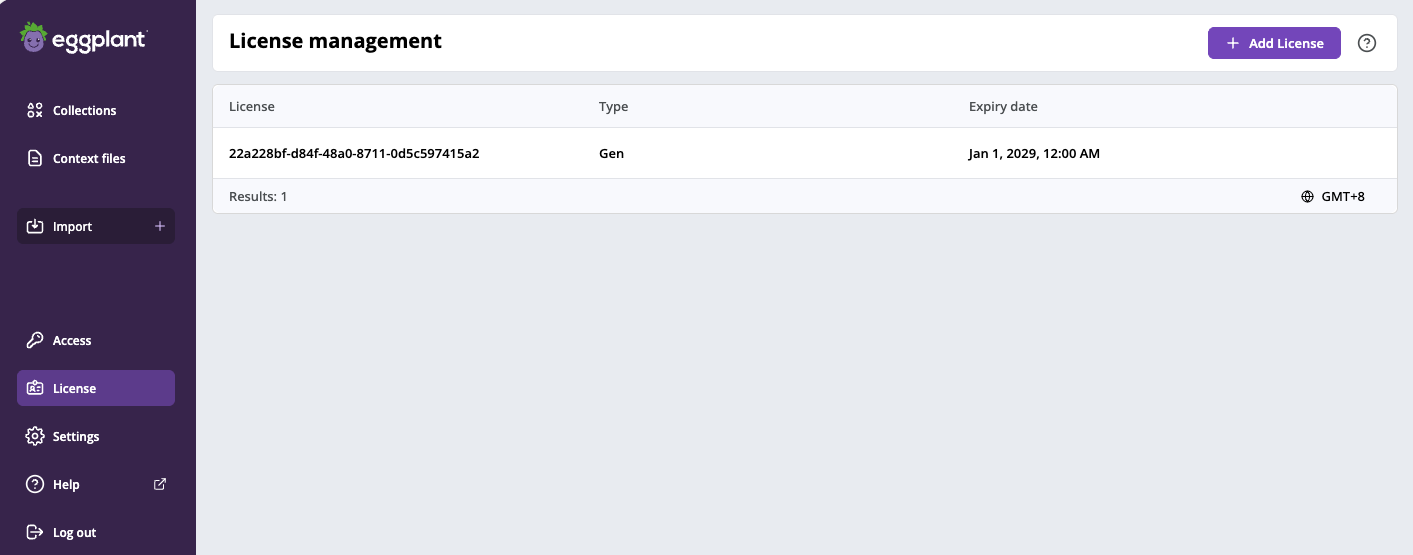
The License management page displaying installed licenses, where you can view, add and remove licenses
Add a License
To add a license in Generator:
- Launch Generator as described in Launch Eggplant Generator.
- Display the License management page by navigating to Licenses in the side menu.
- Click + Add License in the upper-right corner of the License management page. The Add License page opens.
- Paste your license into the License Key field, accept the EULA, and submit.
If you submit a license that shares a serial number with an existing license (for example, when renewing), Generator automatically replaces the existing entry and confirms the renewal with a success notification.
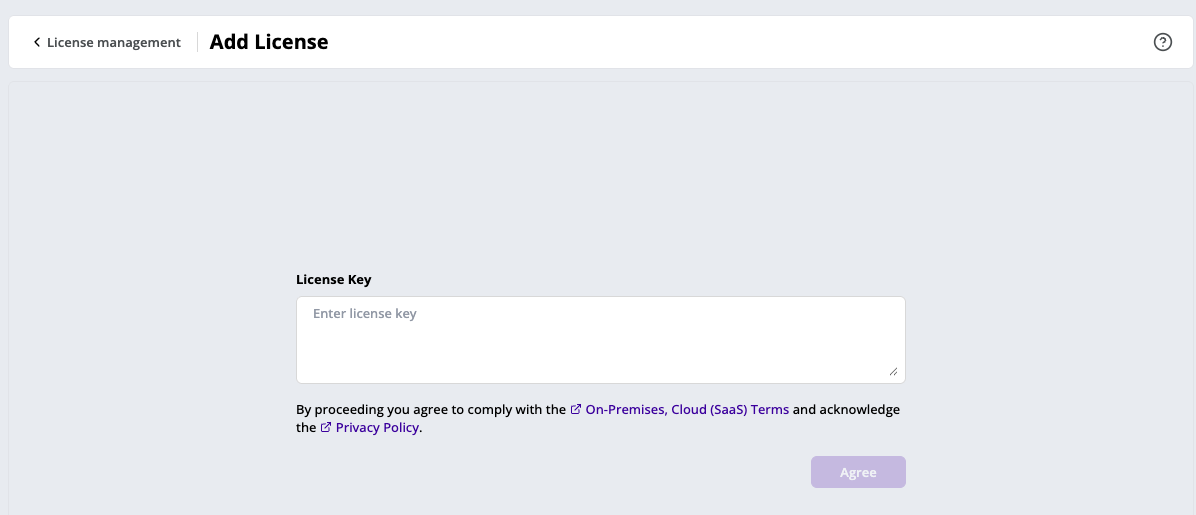
The Add License page with the license key input field and terms and conditions acceptance
Delete a license
As a safeguard, the delete action is only available when more than one license is installed; the last remaining license cannot be deleted through the Generator web app, preventing accidental loss of access.
To delete a license in Generator:
- Launch Generator as described in Launch Eggplant Generator.
- Display the Generator license page by navigating to Licenses in the side menu.
- Locate the license entry you want to remove.
- Click the delete icon for that license and confirm the action in the delete confirmation dialog box.
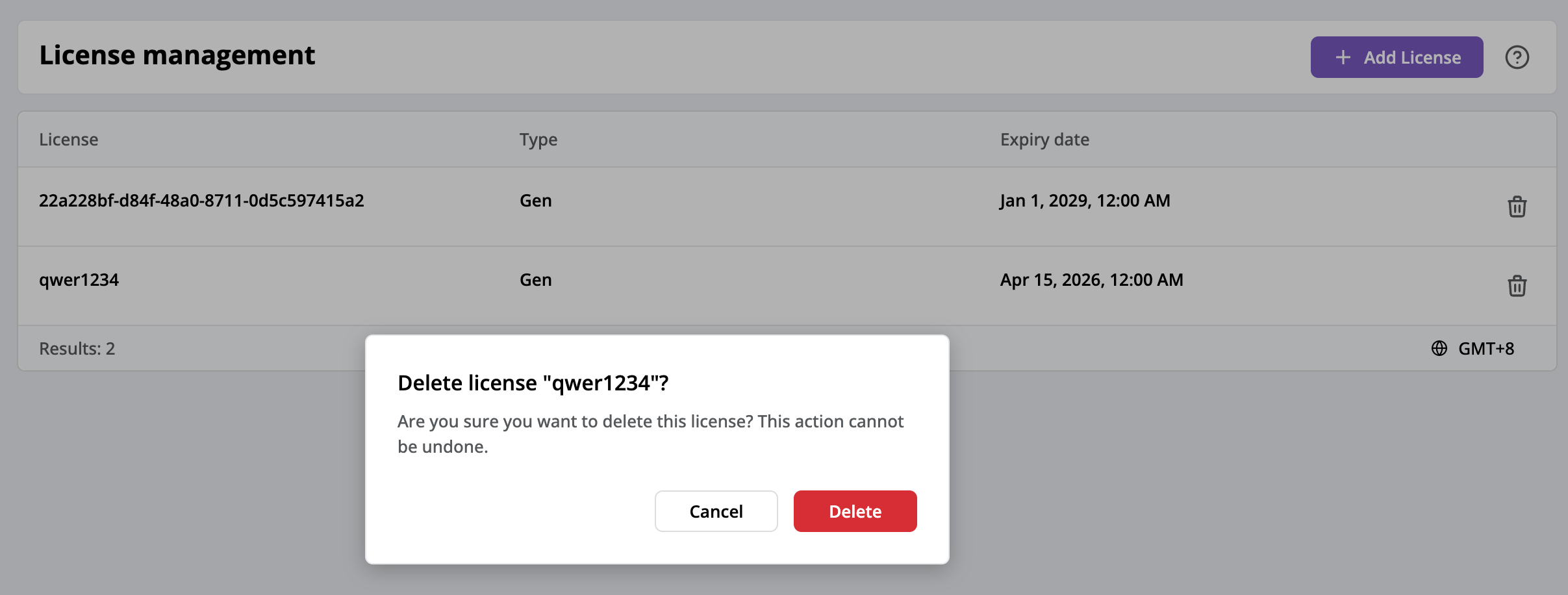
The Delete license confirmation dialog box you see when removing a license