When you're about to start recording a Citrix server using the Citrix Recorder or the Citrix StoreFront Recorder, the Citrix Connection Properties window appears.
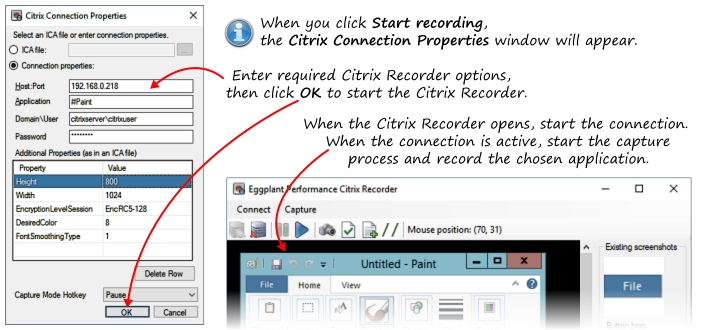
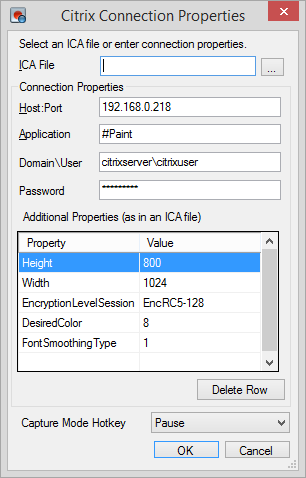
The screenshot below shows a dialog box for the published application #Paint hosted on the Citrix server 192.168.0.218.
After completing the dialog box entry, click the OK button or use the Enter key to launch the Citrix Recorder.
| Dialog Field | Description |
|---|---|
|
ICA File |
Optional. The path to an ICA file for the server and application. |
|
Host:Port |
The IP address or hostname of the Citrix (XenApp) server. This value is the same as the Address property of the Citrix Virtual User. |
|
Domain\User |
The Windows domain, user name and password. |
|
Capture Mode Hotkey |
The Hotkey is used for toggling in and out of capture mode during the recording and defaults to the Pause key. |
|
Additional Properties |
These properties can be any values allowed in an ICA file. See Understanding ICA file contents Double-clicking a field to edit it, or to add a new entry in the bottom blank row. |
|
Height/Width |
768 x 1024 is recommended to minimize the overhead of managing larger screens. The ICA file uses the properties DesiredHRES and DesiredVRES fields for these values. |
|
EncyptionsLevelSession |
EncRC5-128 sets128 bit encryption and is the default. Some servers require this level but you may be able to remove this row to use basic encryption or use the value 40 or 56 in place of 128. |
|
DesiredColor |
8 is the value for 32bit true color. |
|
FonSmoothingType |
The value 1 turns off font smoothing, also known as ClearType or text anti-aliasing. |
|
Capture Mode Hotkey |
A key that will switch into and out of capture mode. The default is the Pause key. Using the Hotkey in means the mouse position is not changed when entering capture mode. |
 If the Connection Properties dialog box becomes hidden behind other application windows, use Alt+Tab to regain focus (look for the Start Recording application in the Alt+Tab list).
 Eggplant.io | Documentation Home | User Forums | Support | Copyright © 2019 Eggplant