Typically, you will probably find it easiest to create an Eggplant Performance test by using the Objectives feature in Eggplant Performance Studio. However, as you get more familiar with all the elements that make up a performance test, and as you develop more test assets across your workspace and projects, you might choose to create your tests from scratch instead.
Here we take you through the process of manually creating a test in Eggplant Performance Studio, step-by-step. The test creation method presented below is one of a number of ways you can create a test in Eggplant Performance. This example test focuses on the functionality of Eggplant Performance Studio and how you can use it to manage virtual users (VUs) and tests.
The following tasks related to creating a test are discussed below:
- Creating a Workspace
- Creating a Virtual User (VU)
- Creating a Project
- Creating a New Script
- Generating a Script From Your Recording
- Creating a Workflow
- Creating and Configuring a Test
- Building Your Project
Creating a Workspace
Before you can create an Eggplant Performance test, you must either open an existing workspace or add a new one in Eggplant Performance Studio.
The workspace contains all environment-specific data such as injector details, default editors, compiler locations, and custom VU types. A workspace allows you to switch between different environments easily. For example, you can switch between a test and a live environment, both of which can have different injector configurations.
To create a new workspace, perform the following steps:
- In Eggplant Performance Studio, select File > New > Workspace.
- When the Add Workspace dialog box opens, enter a name for your new workspace in the Name field.
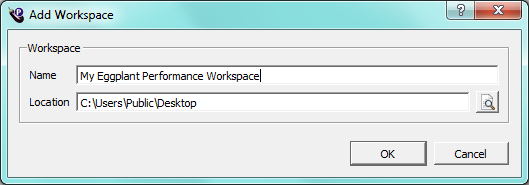
- Enter location where you want to save your new workspace in the Location field.
- Click OK. A message displays to tell you whether or not your new workspace was created successfully. If it succeeded, the message prompts you to switch to the new workspace.
- Click Yes. Your new workspace opens in Eggplant Performance Studio.
Creating a Virtual User
Before you can generate scripts for use in your test, you need a virtual user (VU). You need to create a new VU type before you can create your first script, but it is not necessary to create a new VU before creating each new script.
For the purposes of these instructions, you will add a new web VU type, which supports the record and replay of user interactions with web-based applications and servers using HTTP and HTTPS protocols. You can create either a Java or C# web VU, depending on your preference.
To create a new VU, perform the following steps:
- If the Workspace tree is not already displayed, open Eggplant Performance Studio and display the Workspace tree.
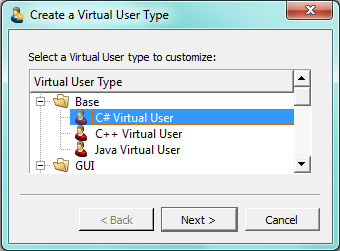
- In the Workspace tree, right-click Virtual Users and select New Virtual User from the drop-down menu. The Create a Virtual User Type dialog box opens.
- Select Web Java Virtual User or Web C# Virtual User (your preference) from the list and click Next. Note: These examples use the web C# VU. The name panel automatically opens with the Extends and Namespace fields populated. If you are creating a Java Web VU, you see a Package field instead of a Namespace field.
- Provide a Name for the new VU. The Class name field populates automatically as you type.
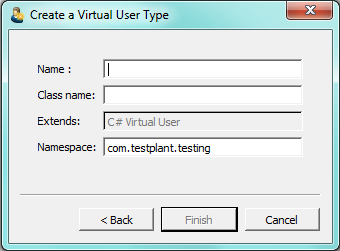
- Click Finish. Your new VU will be created and open in the main window.
Creating a Project
Eggplant Performance is a project-based, load testing tool. Scripts, workflows, data, and tests are all stored in a project. You must either open an existing project, or create a new one.
To create a new project, perform the following steps:
- Select File > New > Project or click the New Project button on the toolbar. The New Project dialog box opens.
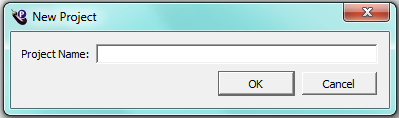
- Enter a name for your new project in the Project Name field.
- Click OK. Your new project will be created and open in the main window.
Creating a New Script
You can create virtual user (VU) scripts by using any of the these methods: use a script recorder, use a standard template, or import an existing source file. These instructions create a VU script from a recording.
To record a new script from a recording, perform the following steps:
- With your project open, right-click Recordings in the Project tree, and select New Recording or click the New Recording button on the toolbar.
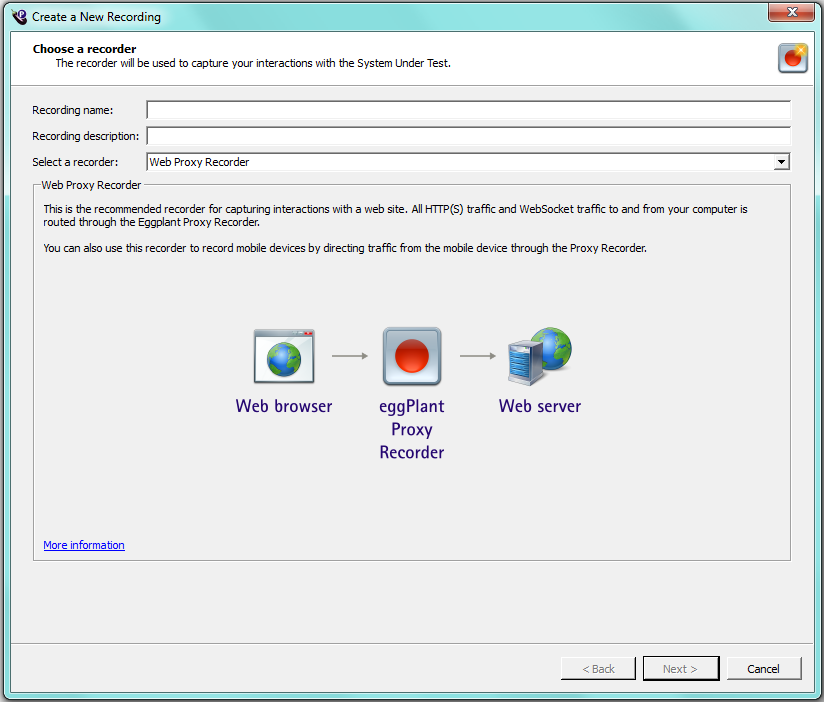
- Provide a name for your recording, select Web Proxy Recorder from the drop-down menu, then click Next.
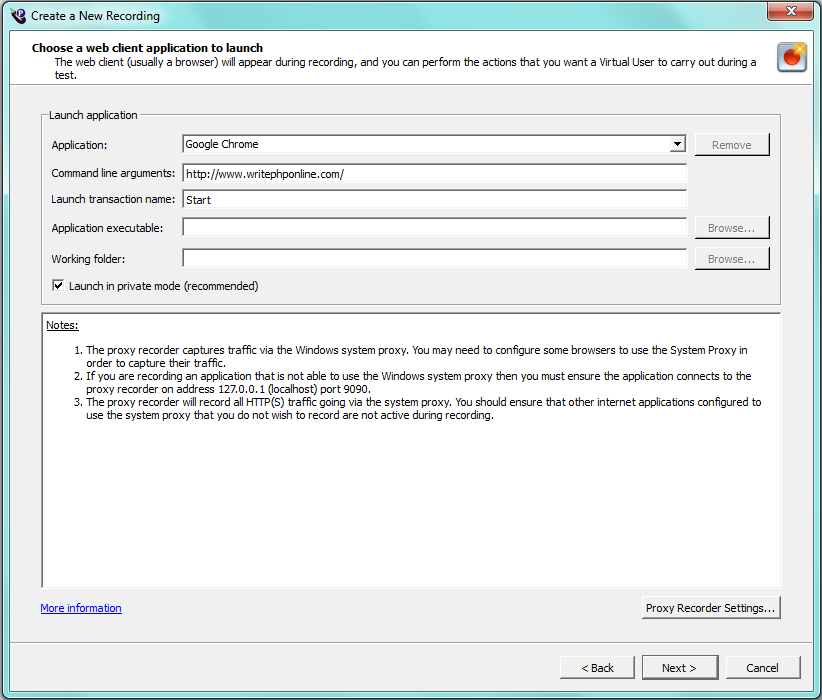
- Choose the web browser from the Applications drop-down list that you would like to record your script against, then click Next. The About to start recording panel opens.
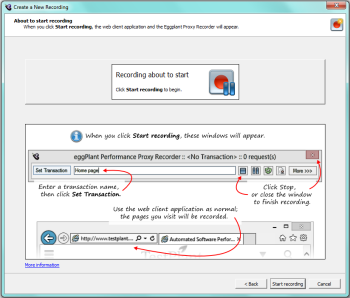
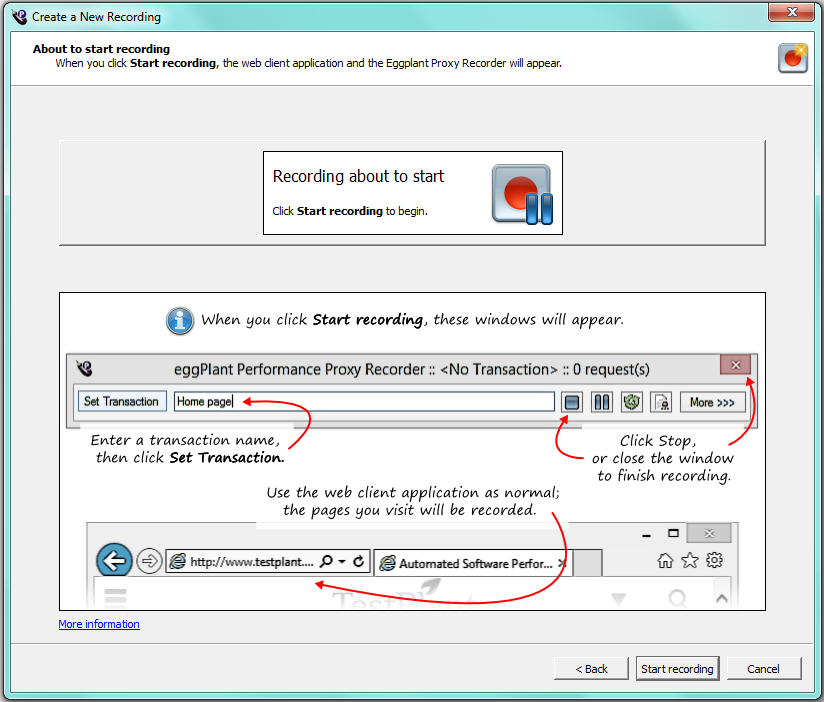
- Click Start recording. The browser opens to a blank page and the recorder user interface (Eggplant Performance Proxy Recorder) opens. Note you might be prompted to install a certificate to record the HTTP traffic. Install the certificate if necessary. The wizard remains open in the background displaying the Recording in progress panel.
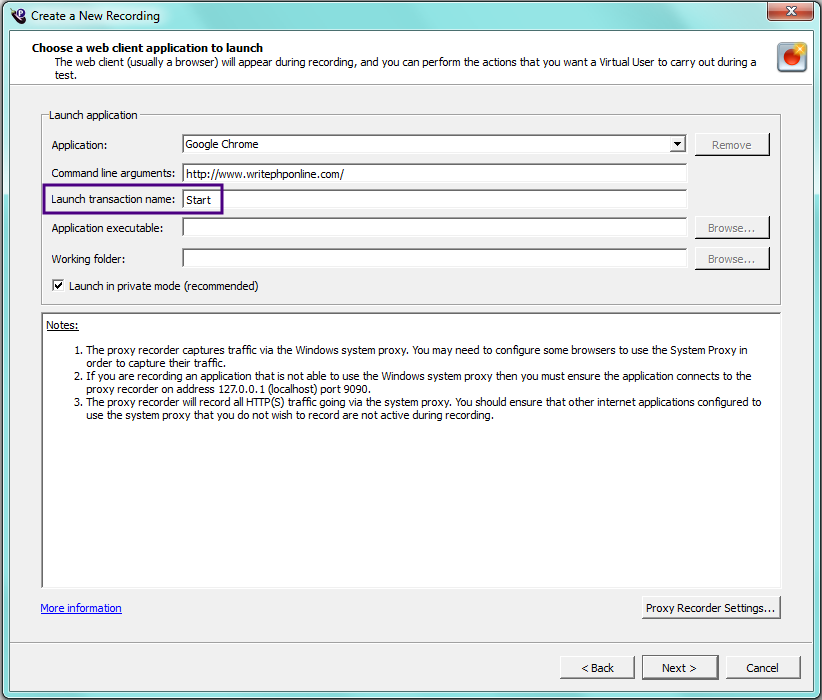
- In the web browser, perform the actions you want to record. These will be included in your first transaction. The default name of the first transaction, which is Start, was set on the Choose a web client application to launch panel. It is shown again below so you can see it.
- In the Set Transaction field at the top of the Proxy Recorder, enter the name you want for the second transaction you would like to record, then click Set Transaction.

- Perform the actions in the web browser that should be included in the second transaction.
- Repeat the two previous steps until you are satisfied with the content of your recording.
- Click Next. Note: You can cancel your recording at anytime and start the wizard over to create a new recording if you want. In this example, the transactions are entered as follows:
- Second transaction name: goToWebsite, click Set Transaction, and enter the URL for the Google home page in the Bing search window. (Internet Explorer was the browser we opened with the proxy recorder.)
- Third transaction name: performSearch, click Set Transaction, and enter the TestPlant website in the Google search window.
- Fourth transaction name: we entered selectResult, clicked Set Transaction, and then selected one of the results for the TestPlant website.
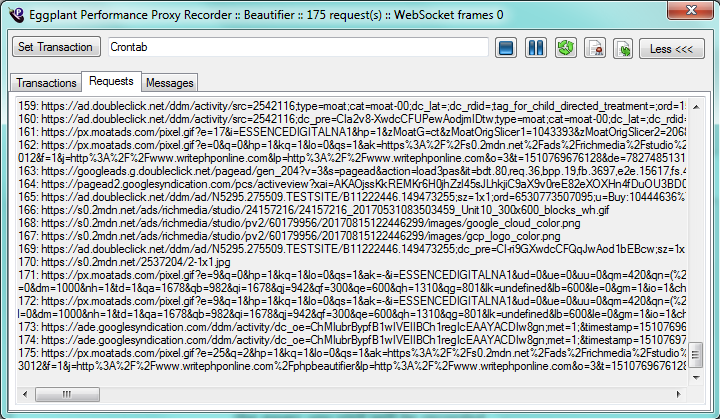
- Take a look at your recorded transactions by clicking More. Display the Requests tab to see the requests associated with your activity. The sample screen below shows our selectResult transaction and the URL for TestPlant. Note that the red dot button indicates we paused the recording.
- When you are satisfied with your recording, click the blue, square Stop button on the recorder toolbar, or click the close button on the recorder to stop recording. You may see a prompt to confirm that you want to exit the recorder. When you exit the recorder, the Recording finished panel opens in the wizard.
- Click OK to confirm you would like to end the recording.
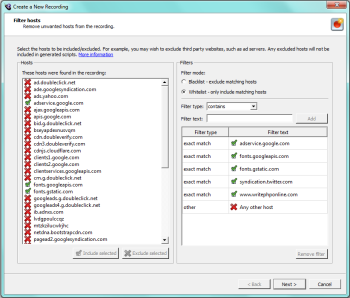
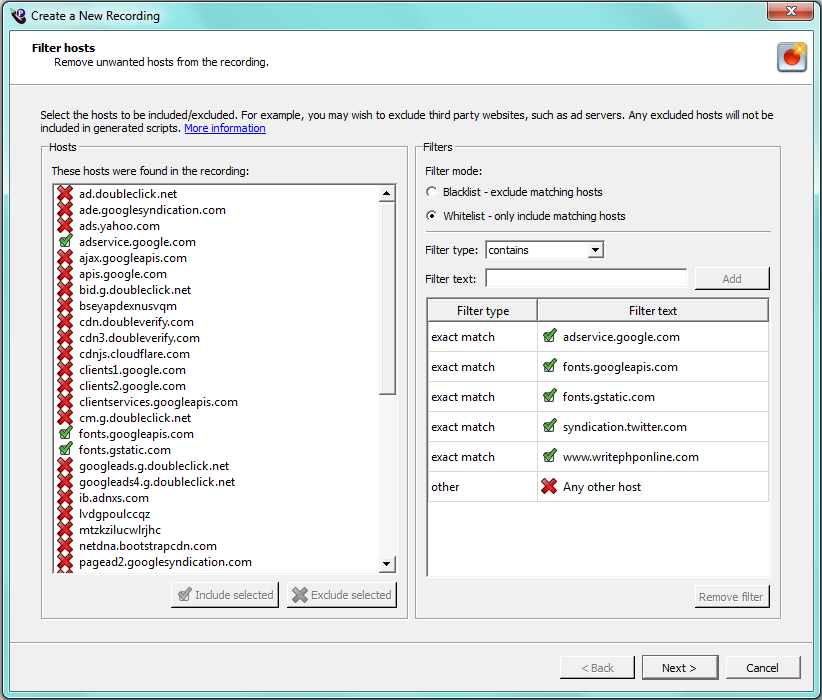
- Click Next to continue. The Filter hosts panel opens showing you the hosts that were found in your recording.
- Use the Filter hosts panel to specify which hosts you would like to have included in your final script. In the example below, the Whitelist filter mode was selected to specify that you only want to include the specified hosts.
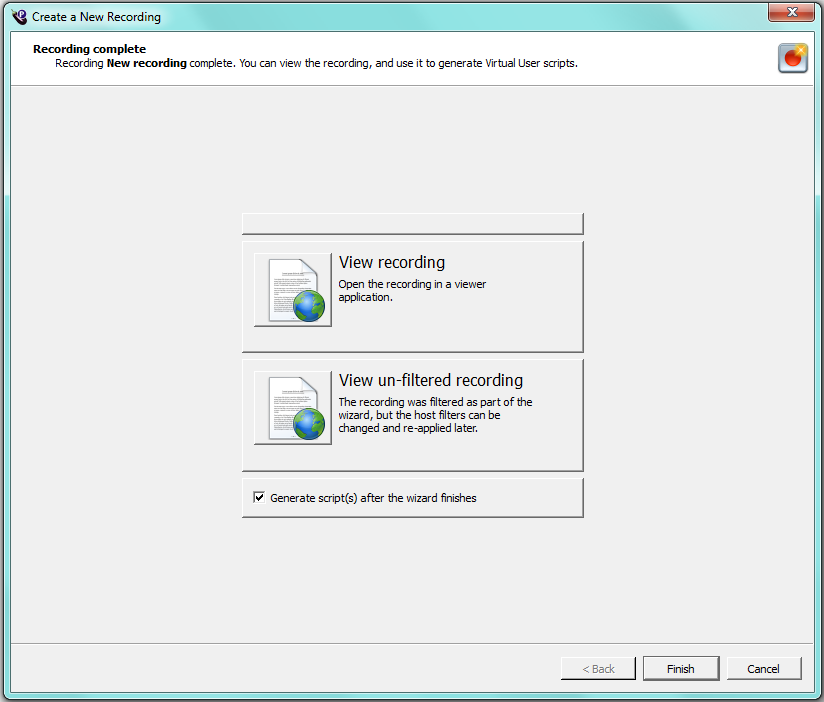
- When you finish specifying host filters, click Next. The Recording complete panel opens, providing you the option to view the recording in its filtered or unfiltered form. Notice that the option to Generate script(s) after the wizard finishes is also selected by default. Leave it selected for our example. Doing so will automatically launch the Generate Script from Recording wizard when you finish the Create a New Recording wizard.
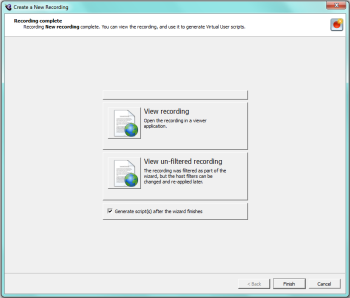
- Click Finish to continue to script generation. The Generate Script from Recording wizard opens immediately when the Generate script(s) after the wizard finishes option was selected.
Generating a Script From Your Recording
Recording a web session simply creates a raw recording. You use the Eggplant Performance Web script generator to create the final Web script. The Generate Script from Recording wizard helps you create this script.
To generate a script from your recording, perform the following steps:
- Run the Generate Script from Recording wizard. It opens to the Choose a language panel. As described in the previous section, the Generate Script form Recording wizard opens automatically when you choose Generate script(s) after the wizard finishes on the Recording complete panel in the Generate a New Script wizard.
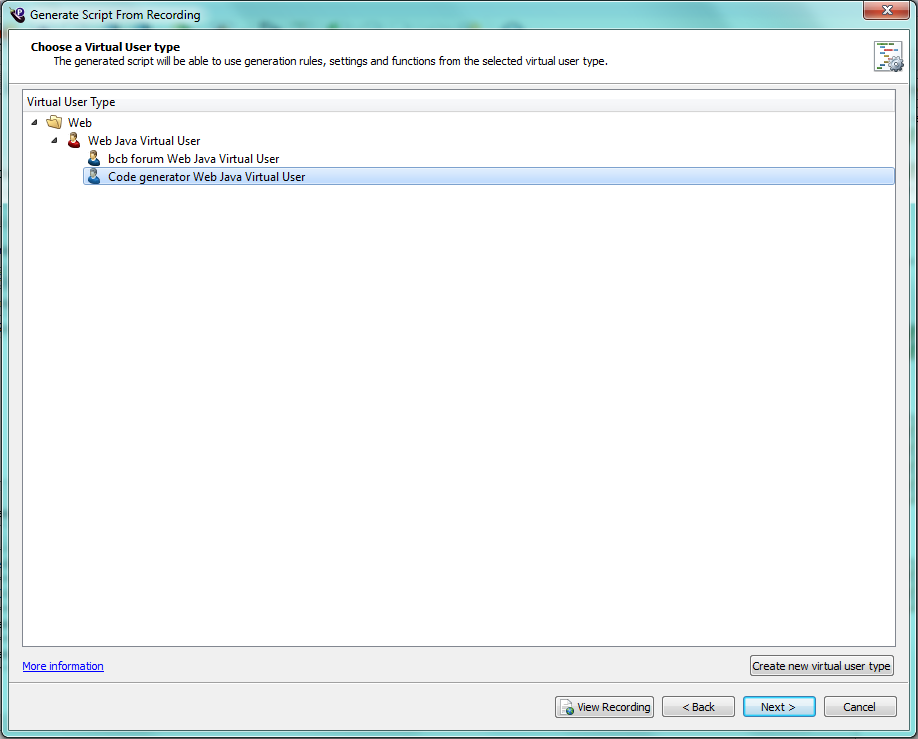
- Choose the programming language (Java or C#) in which you would like your script generated and click Next. The Choose a Custom Virtual User type panel opens. We use a C# VU in our examples.
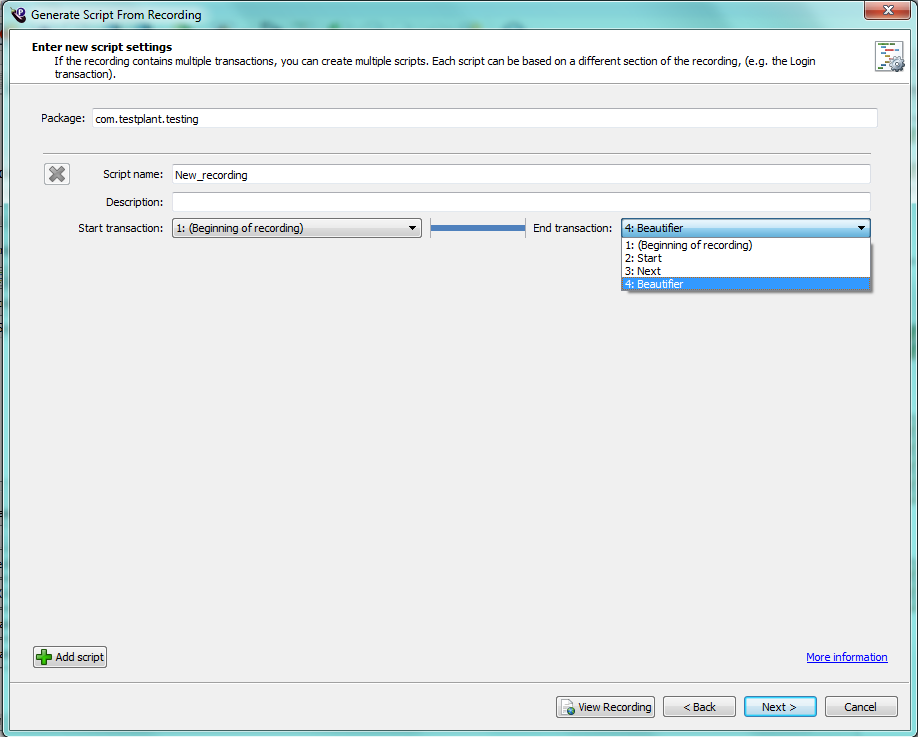
- Select the web VU you created from the Virtual User Type list and click Next. The Enter new script settings panel opens.
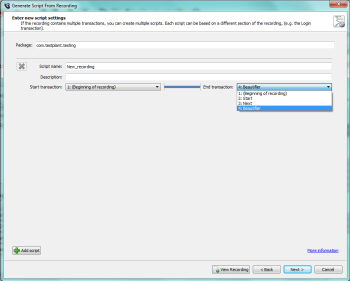
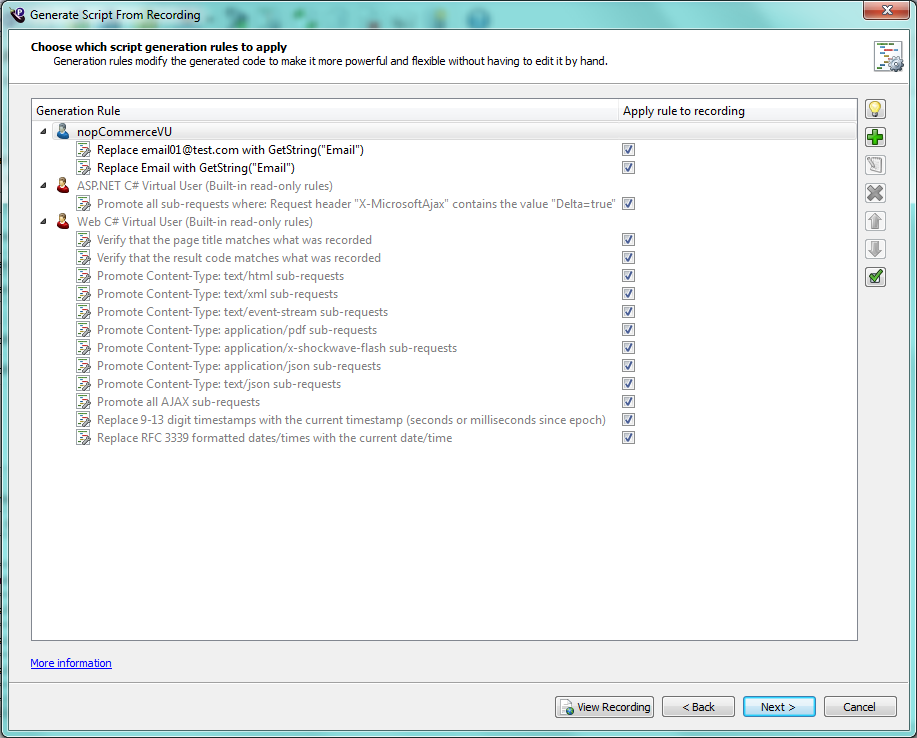
- Select the transactions from your recording that you would like to include in the generated script and click Next. The Choose which script generation rules to apply panel opens.
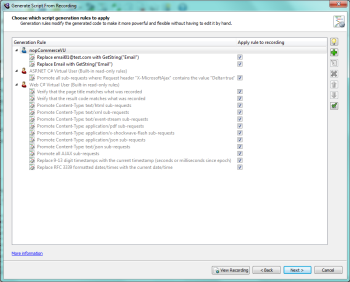
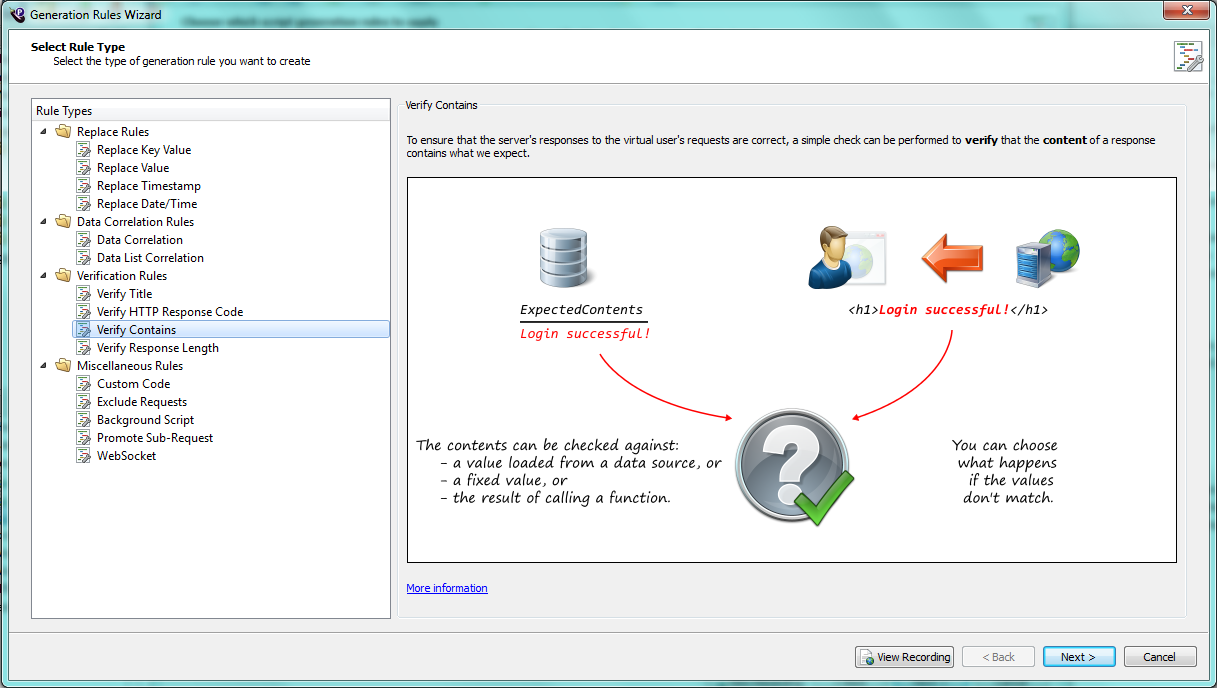
- Click the Add (green plus) button to add a new generation rule for your VU. The Generation Rules Wizard opens to the Select Rule Type panel. Generation Rules enable you to automatically handle tasks such as parameterization, correlation, and validation each time a new script is generated. For our example, we will use the Verify Contains rule type.
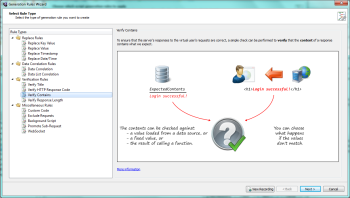
- Select the Verify Contains rule in the Rule Types pane. This Generation Rule type is relevant to any recording regardless of the specific content of the recording.
- Click View Recording to view the filtered recording, display the Text tab, and review the recording to determine the literal string you want to verify, and where in your recording it occurs.
- Close the Web Log Viewer window when you finish viewing the recording, then click Next on the Select Rule Type panel. The Set the expected response content panel opens.
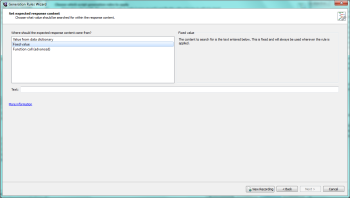
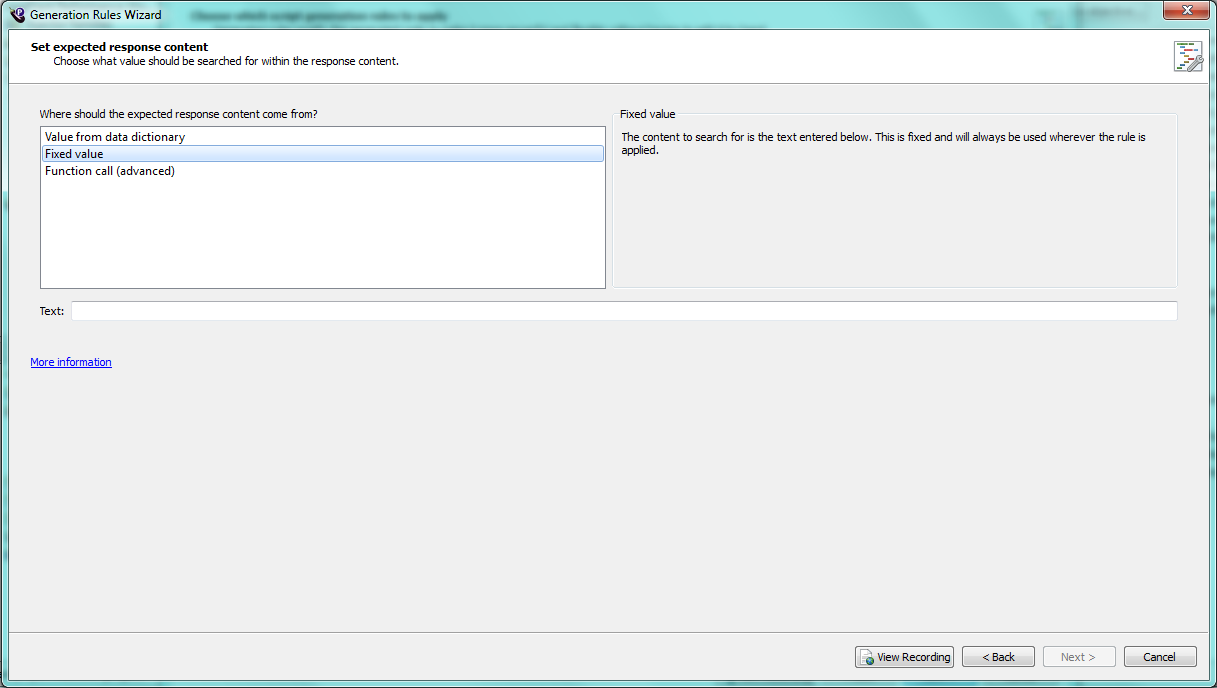
- In the Set the expected response content panel, use the default Fixed value, enter the literal string that you would like to verify during replay, and click Next. The Select the success/failure options panel opens.
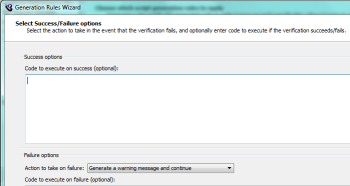
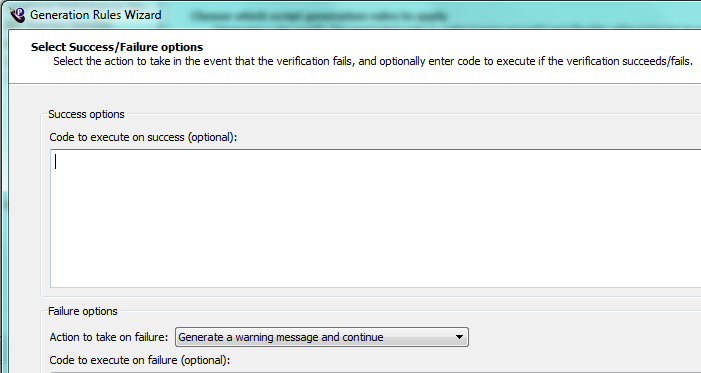
- From the Action to take on failure drop-down list, select the action that you want to occur if the content cannot be verified. For example, Generate a warning message and continue causes a warning message to appear in the run-time results, but the execution otherwise continues. Click Next. The Create a request filter panel opens.
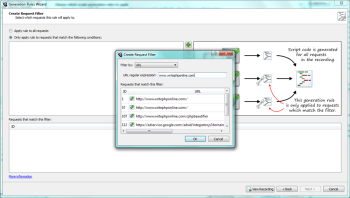
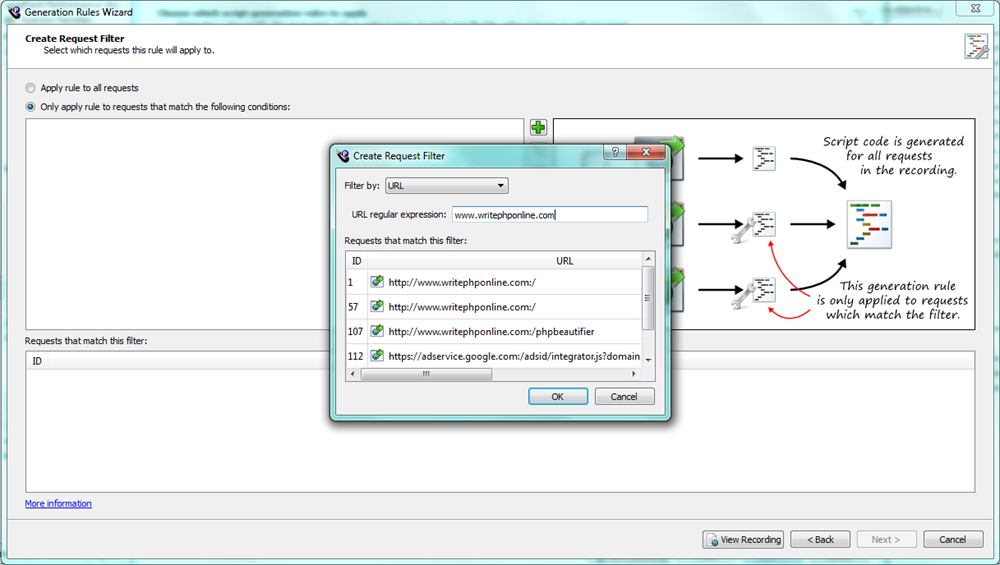
- For our example, we choose Only apply rule to requests that match the following conditions and click the Add button to create request filter that limits the requests to which your generation rule is applied. The Create a request filter dialog box opens.
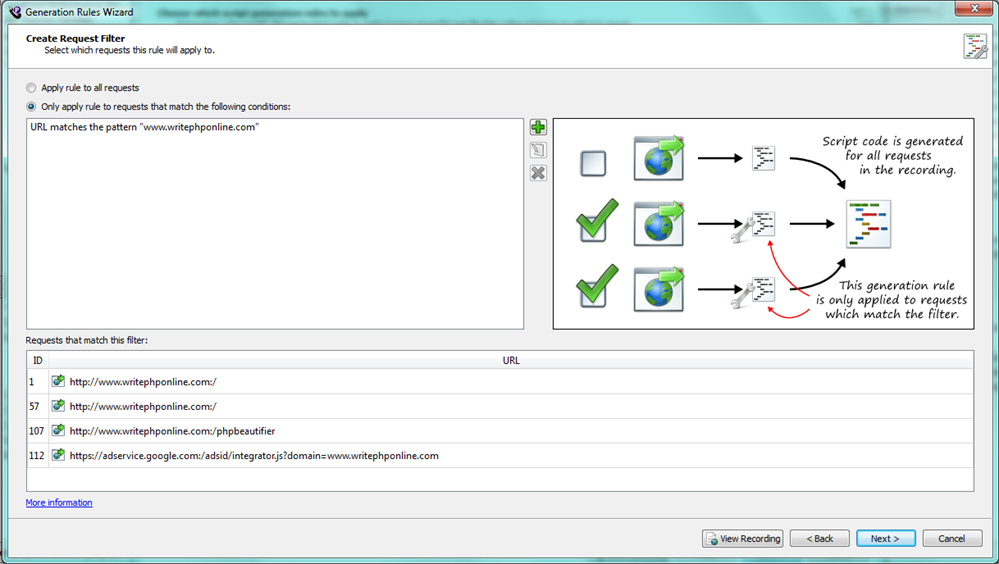
- Review the matching requests and adjust the request filters until the requests you want are displayed. When you are satisfied with the filters, click OK to create your filter. The filter and its matching requests are added.
- Click Next. The Enter a name for this rule panel opens.
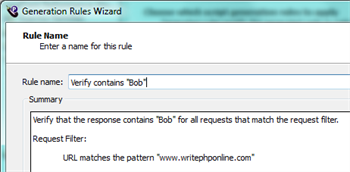
- Review the summary of your new generation rule and click Finish to add your completed rule. You will see your new rule on the Choose which script generation rules to apply panel of the Generate Script from Recording wizard, which remained open while you were using the Rules Generation wizard.
- Click Next. The Advanced web script generation options panel opens. For our example, we accept all the default values on this panel and its tabs.
- Click Generate to generate your script. The Generation in progress panel opens showing you the script generation progress. When it finishes, you should see a message saying "Script generation complete!" If you see errors or a failure instead, troubleshoot accordingly.
- When the script generation finishes, click Finish. Your new script will be open in the main window and appear under Scripts in the Project tree view. You can see the rules your script was generated with in the main window.
Record and generate at least one more script so that you can create a workflow and then proceed to the next section.
Creating a Workflow
It is possible to create a simple test consisting of one script directly, without using a workflow. However, using a workflow gives you a greater degree of control over your scripts when you run a test. In a workflow, you can place scripts in three different categories:
- Initial: Scripts placed in the initial section run only once at the start of a test.
- Repeated: Scripts in the repeated section are iterated the number of times specified in the Virtual User Group Runtime Settings.
- Final: Scripts in the final section run once at the end of the workflow.
To create a workflow, perform the following steps:
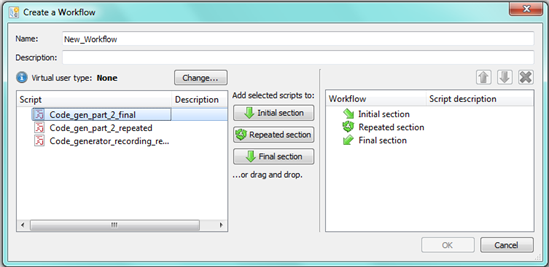
- Right-click Workflows in the Project tree, then select New workflow. The Create a Workflow dialog box opens.
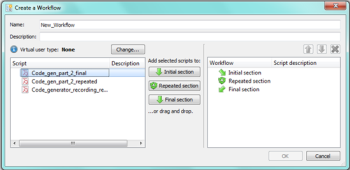
- Give your workflow a name.
- Build the desired workflow from your scripts using the Initial, Repeated, and Final selectors, then click OK. Your new workflow opens in the main Studio window and is listed under Workflows in the Project tree.
For more detailed information about workflows, see Working with Workflows.
Creating and Configuring a Test
Designing a test allows you to configure how your VU scripts will be used during the execution. You can reuse and configure a set of scripts in different ways to allow an infinite number of different tests.
To create and configure a test, perform the following steps:
- Right-click your new workflow and select Create Test. The Create test from script dialog box opens.
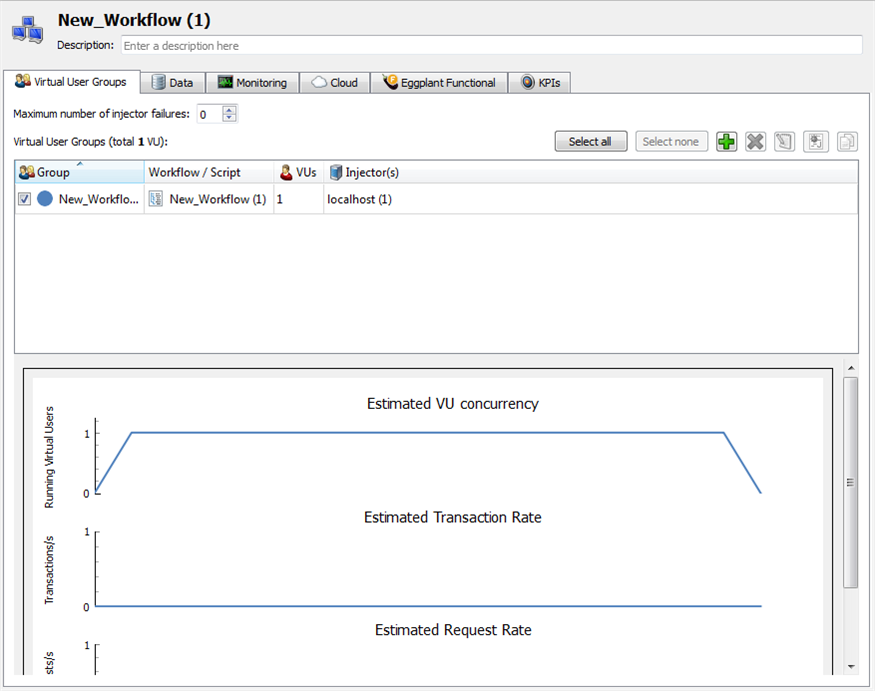
- Enter a name for the test and click OK. In our example, we entered a name but accepted the default group. The test opens in the Main window.
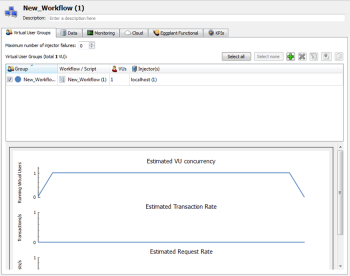
- Double-click the VU Group for your new workflow. The Group Specification panel opens.
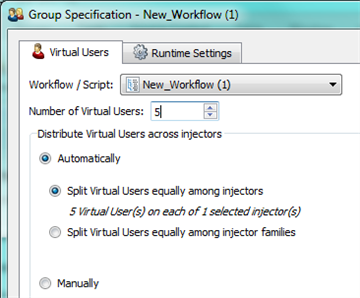
- On the Virtual Users tab, increase the number of VUs in the VU group to a conservative number, such as 5, so you don't tax the localhost Injector. Also be mindful of the maximum VUs allowed by available licenses.
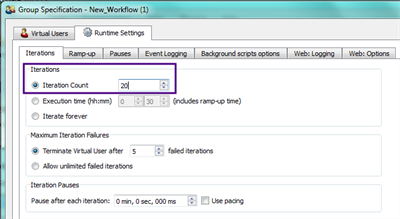
- On the Iterations tab on the Runtime Settings tab, raise the number of iterations to 20 to increase the amount of data gathered and available for later analysis, and click OK to commit the changes.
Building Your Project
You must build your project to ensure it compiles correctly.
To build your project, perform the following steps:
- Click Build in the toolbar to build your project.

- Confirm that the build was successful.
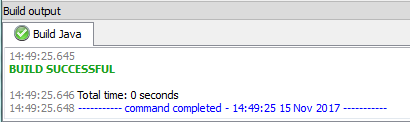
Your test should now be ready to run. Continue to Running an Eggplant Performance Test in this sample quick start guide for information about running your test.
 Eggplant.io | Documentation Home | User Forums | Support | Copyright © 2019 Eggplant