Display the Eggplant Functional Runtime Options by doing the following:
- Display the Group Specification window by double-clicking a virtual user group in the Test view.
- On the Group Specification window, click the Runtime Settings tab to display it, and then click the Eggplant Functional Options tab.
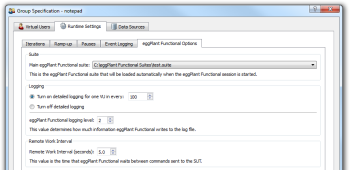
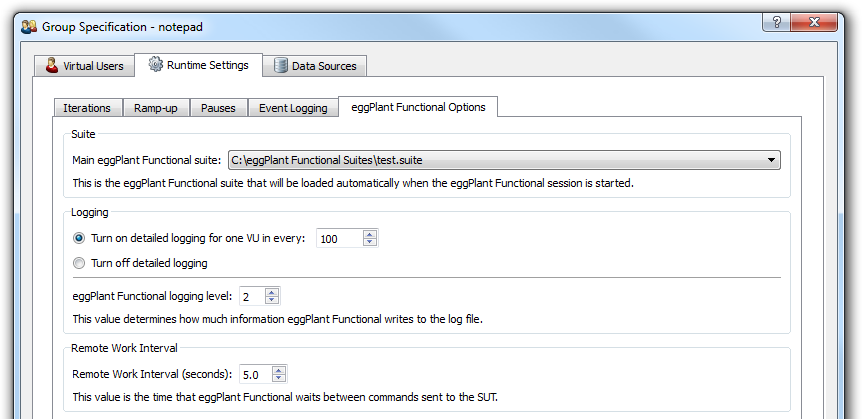
For each group of Eggplant Functional virtual users (VUs), you can specify a main suite. When an Eggplant Functional VU starts up, it automatically loads the main suite. The scripts and images in this suite will then be available for use in the test run. If a test includes Eggplant Functional VUs, and the suite used in the scripts includes a helper suite, then that helper suite is transferred to the required injectors before the test begins.
When detailed logging is enabled, Eggplant Functional records screenshots of every action performed. You can use the Eggplant Functional Viewer to view these screenshots in real-time or browse a history of screenshots. Only a certain proportion of VUs will save screenshots, because the amount of data accumulated can become very large. It is recommended to keep the proportion low.
The logging level corresponds to the detail reported by Eggplant Functional.
The Remote Work Interval is the time between individual commands executed by Eggplant Functional. This value can be changed to speed up or slow down a group of VUs.
 Eggplant.io | Documentation Home | User Forums | Support | Copyright © 2019 Eggplant