Stored Credentials
The information you enter in Stored Credentials is stored encrypted. The first time you click Stored Credentials, you are required to create a password to protect your stored cloud credentials. Enter the password twice identically, then click OK.
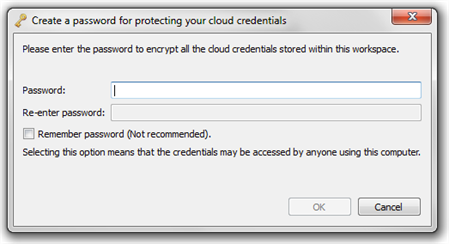
Although there is an option to save your password, it isn't recommended. Keep in mind that this password protects your cloud environment, and using such environments incurs costs from the providers. If you save your password here, anyone with access to this computer will be able to create, start, and stop cloud instances on the associated cloud account.
Entering Cloud Credentials
After you enter a password, you see the Cloud Credentials screen in the Studio window. If you already entered cloud credentials, they're listed in the top box.
To add new cloud credentials, click the Add credentials button (the plus sign, +) on the right side of the window to open the Add Cloud Credentials dialog box.
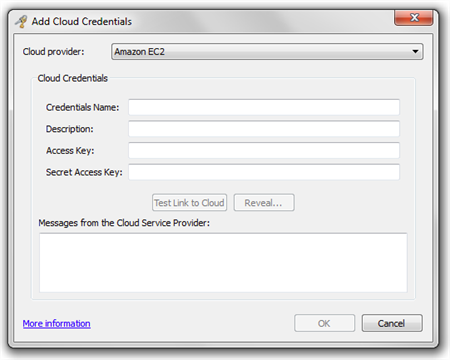
- Cloud provider: Your choices on the drop-down list are Amazon EC2 or Microsoft Azure. Note that both of these services require a subscription from the vendor.
- Credentials Name: Enter a name to identify the stored credential.
- Description: Enter a description for this credential.
The next two options are different depending on whether you're using EC2 or Azure:
- For EC2: Access Key & Secret Access Key
- For Azure: Subscription ID & Certificate Path (see the information on Microsoft Azure Certificates)
The information you input in these last two settings is your access credentials for the chosen service. You will have to work with your service provider to ensure you have the correct information to enter here.
After you've entered your access credentials, the two buttons beneath this section become active:
- Test Link to Cloud: Click this button to test the access information on the current form; as the test is running, status information appears in the message box below the buttons, and a final message lets you know whether a valid connection was made.
- Reveal: Click this button to show the actual characters of your access credentials above, which can be useful if you need to troubleshoot an invalid connection. Note that after you click Reveal, the button changes to Hide so that you can conceal the information again.
When you're satisfied that your cloud credentials are entered correctly, click OK to proceed. Your new stored credentials appear in the list at the top of the Cloud Credentials screen in Studio.
When you select an item in the list, the information for that stored credential appears below in the Cloud Credentials section. The access credentials are concealed by default; however, you can click the Reveal button to show the actual characters. Use the Test Link to Cloud button to verify your connection.
The information displayed in the Cloud Credentials section of Studio isn't editable. To edit an existing credential, select it in the list and click the Edit button to the right of the list. The Edit Cloud Credentials dialog box is essentially the same as the Add Cloud Credentials dialog box. You can't change the cloud provider of an existing credential, but any other setting can be changed.
To delete an existing credential, select it in the list and click the Remove credentials button to the right of the list. Removing a stored credential requires confirmation.
The last button on the right side of the credentials list is the Reset password button. Clicking this button lets you reset the password you established to protect your stored credentials. However, note that by doing so, it also strips all access credentials that you currently have stored, so you will have to enter this information again if you reset the password. Resetting the password requires confirmation.
 Eggplant.io | Documentation Home | User Forums | Support | Copyright © 2019 Eggplant