The Eggplant Performance Test Controller user interface (UI) is where you run and monitor your performance tests. Here you will find:
- The ability to start and stop tests.
- Real-time monitoring of the current test run.
- The ability to create and view user-defined metrics.
- Access to previous test run data.
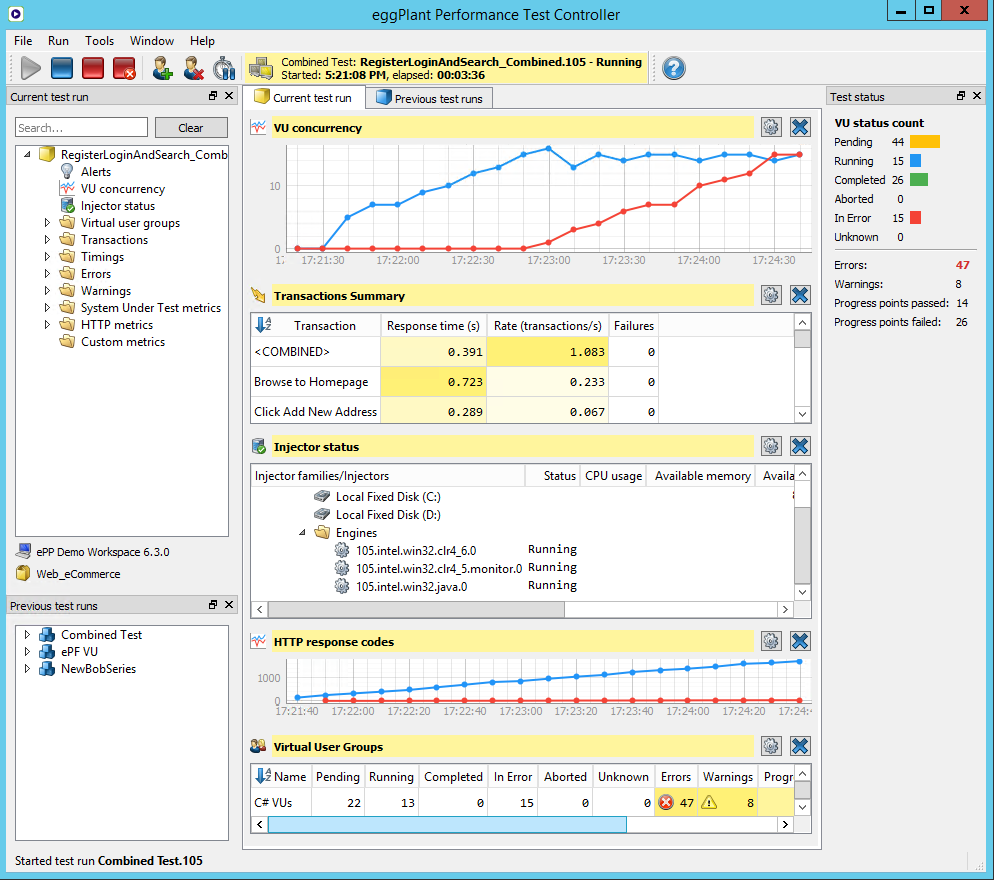
UI Elements
What follows is a description of the areas of the Test Controller UI.
The Toolbar

The toolbar includes the buttons you use to start a test, stop a running test, or make changes to virtual users (VUs) while a test is running. For a complete description of these toolbar options, see Running Tests in Test Controller Test Controller.
To the right of the toolbar buttons, you'll see the status area, which provides information about the current test. While a test is running, this section displays the elapsed time for the test.
The Alert section shows if any errors occur during a test run. The alert displays at least part of the text of the alert:

To see the complete alert text, click in the Alert area to add the Alert report to the Current test run tab. If there are multiple alerts, all of them are displayed in the report. (Note that this is the same report view you see if you open Alerts from the Current test run section on the left sidebar.)
Use the Help button on the right side of the toolbar to access the Test Controller Test Controller documentation.
Current test run
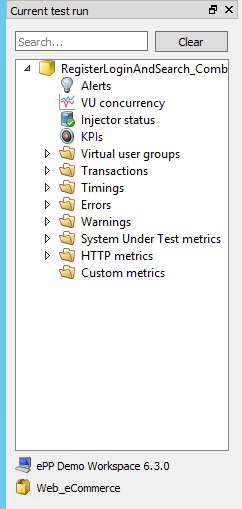
The Current test run section shows a tree view for the test you currently have open in Test Controller. The nodes under the test represent the metrics for the test, which you can view as tables and charts in the Current test run tab in the center part of the Test Controller window for live monitoring while the test is running.
To open a test metric, navigate to it in the tree for the current test, then double-click it. Optionally, you can right-click your choice, then choose from several options for how you want the table or chart to appear, including opening in a new window. You can open and close your various metrics both when a test is running and when it is not.
Note that Custom metrics is found on the bottom of the tree. If you have created custom metrics for a test, they will show under this node. To create custom metrics, right-click the Custom metrics folder, then select Create custom metric chart. For detailed information about custom metrics, see Custom Metrics.
For information about live test monitoring, see Real-Time Test Monitoring in Test Controller.
Previous test runs
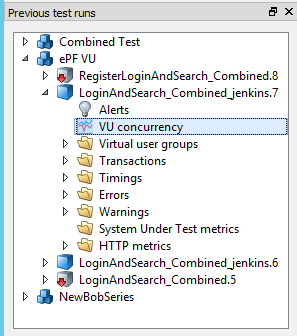
The Previous test runs section is where you can access monitoring data from any of your previous test runs. Tests are listed by the series in which you ran the test. Navigate in the tree to the test and specific data you want to view, then double-click it. Charts and tables for previous test runs open in the Previous test runs tab in the center part of the Test Controller window.
For complete information about viewing previous test run data, see Previous Test Runs.
Center (Main) Window
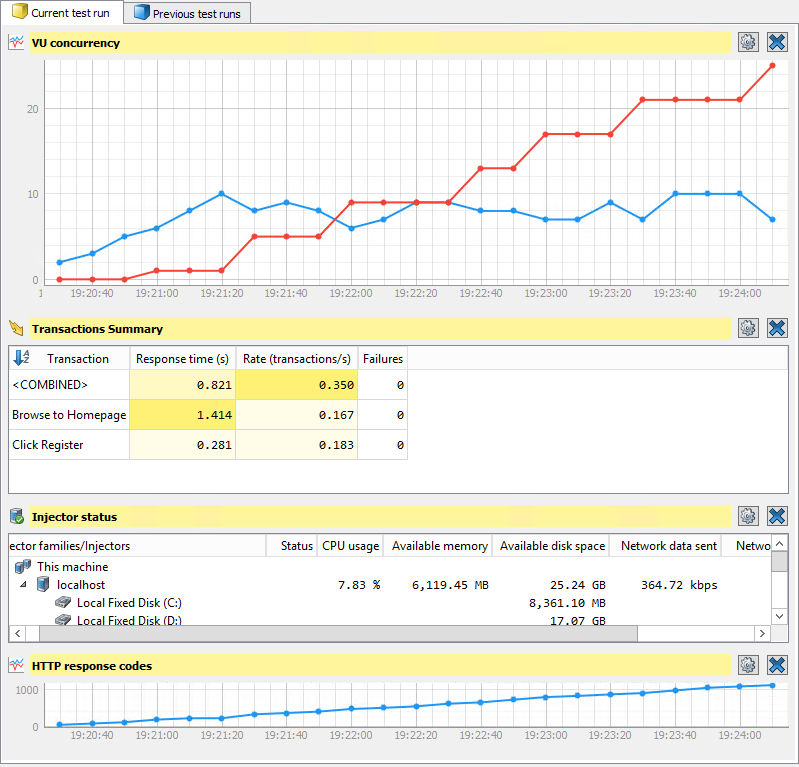
In the center window section of Test Controller, you will find the Current test run tab and the Previous test runs tab. Any metrics you open for the current test open in the Current test run tab, and data for previous tests opens in the Previous test runs tab.
These tabs are fully customizable by which tables and charts you choose. When you open a test for the first time, Test Controller selects metrics that seem most appropriate to the test, but in most cases you will probably see:
- VU concurrency
- Transaction summary
- Injector status
- HTTP response codes (web tests only)
You can adjust the viewing size of any table or chart by grabbing the slider between metrics and dragging to your preferred size. You can rearrange metrics by dragging from the header into a different location within the window. You can also open any metric in its own window.
When you customize the view for a test, Test Controller remembers your choices. When you open the same test again, Test Controller opens the same metrics with the same placement.
For more information about live test monitoring, see Real-Time Test Monitoring in Test Controller.
Test status
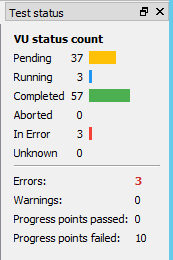
In the right sidebar, you'll find the Test status area. This section provides a snapshot view of the progress of VUs during the test: how many are Pending (not yet started), Running, and Completed. It also show the number of VUs Aborted or In Error (if any). If your test includes progress points, you see those tracked on the bottom of this section along with Errors and Warnings for the test as a whole.
Resetting the Window Layout
You might run into a situation that requires you to set the Test Controller window layout to its default state. Do the following:
- Select Window > Reset window layout....
- Click Yes when asked if you want to reset the application to its default layout.
Completing the above steps sets the toolbar back to its default appearance. It docks the Current test run, Previous test run, and Test status sections back to their default state and location. It also restores the default view associated with the type of test you currently have loaded. After resetting the layout, Test Controller appears as it did right after you installed it and opened it for the first time.
 Eggplant.io | Documentation Home | User Forums | Support | Copyright © 2019 Eggplant