Results Pane
The Results pane of the Eggplant Functional (EPF) Suite window contains records of the tests you have run in the current suite. You'll see statistics for each test you've run for each script and table by date and time; the complete log for each test; usability logs, if you use Usability Mode; and images for any image-based step in the log, including full-screen images captured in cases of failure.
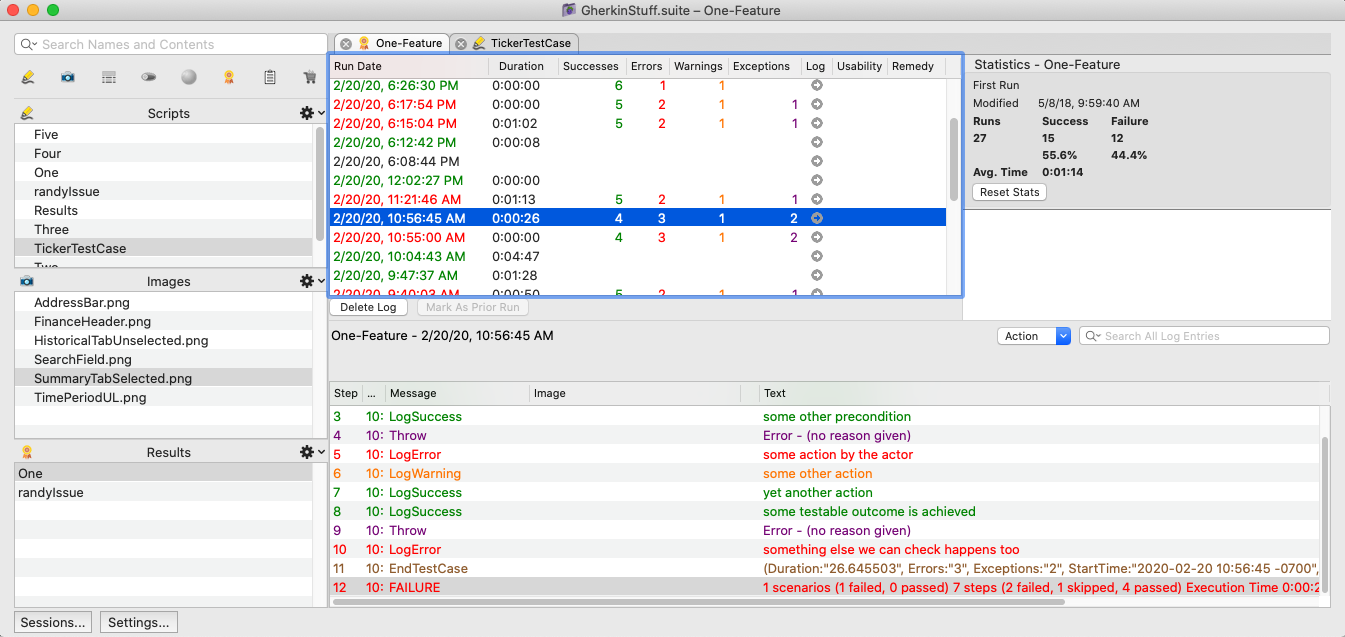
The Suite window displaying the Results pane for a specific test
The Results List and Script Run List
Every script and table that you test is recorded in the Results list in the Suite window's left sidebar. When you click an item in the Results list, it opens the script run list in the main pane of the suite window. This lists a separate entry for each execution of the test selected in the Results list to the left.
The script run list is color-coded to denote test results:
- Green: Success
- Red: Failure (for tables, if any row fails, the result shows as Failure)
- Black: Aborted or Interrupted
For each test run listed, various information is displayed in the following columns:
- Run Date: The date and time of the test run
- Duration: The length in hours, minutes, and seconds of the test run.
- Successes: The number of successes logged during the test run. This includes any
LogSuccesscommands executed, as well as successfulAssertcommands. - Errors: The number of Errors that occurred during the test run. This includes any
LogErrorcommands executed as well as failedAssertcommands whenthe AssertionBehaviorglobal property is set toError, as well as some other less common situations. - Warnings: The number of warnings that occurred during the test run. This includes warnings caused by
LogWarningcommands, as well as from a number of other places, such as a failed connection or failedAssertcommand ifthe AssertionBehaviorglobal property is set toWarning. - Exceptions: The number of exceptions that occurred during the test run. Exceptions are caused by the Throw Command and any other commands that throw exceptions, such as a Click Command when the image to be clicked is not found and there is no fall-back method in place to remedy the image search.
- Log: Each test run produces a log, which contains a line-by-line record of the test's execution. Click the arrow in the Log column to open the log filefor a given test run. The log information is also displayed in the Log Area at the bottom of this pane. To control which events are recorded in the log file as the script runs, use The ScriptLogging Global Property.
- Usability: Running in Usability Mode creates an additional .json log file for each test run. Click the arrow in the Usability column to view this log file.
- Remedy: In test runs where the Image Update settings are set to Auto Update (Log Changes), and Auto Update engages during that run, an arrow will appear in this column. Click the arrow to view the Auto Update panel, which allows you to apply image search settings used by Auto Update, saving them permanently for future use. In order to save changes made to OCR searches, you must edit your script directly. For more information, see the Image Update Panel.
You may need to expand the suite window to view all of the columns.
Delete Log
The Delete Log button deletes the selected script or table logs. This action requires confirmation.
Mark As Prior Run
The Mark As Prior Run button lets you choose any of the run dates to serve as the "prior run" when using the Prior Location diagnostic in the Image Update panel. Only one run date at a time can be chosen as the prior run. If no prior run is selected, the Prior Location diagnostic uses the most recently completed successful run.
Statistics Area and Image Well
The Statistics area shows statistics related to the script or table selected in the Results list. In addition to the date and time the test was first run and last modified, you can see the total number of times it has been run, including number and percents of successes and failures.
You can click the Reset Stats button if you want to clear all the run statistics for the current script or table.
Below the Statistics is an image well. When you select a script step in the Log Area (described below) that includes an image, that image appears in the image well. If the image is part of an image collection, the number of images in the collection appears in the top right corner of the image well.
The Log Area
When you select an item in the Run Date list, the Log Area at the bottom of the Suite window shows the detailed log for that run. The log shows each step that executed an Eggplant Functional command or function.
When you view log results for table runs, you'll still see a line for each step, but note that when you call a script as a table action, that script can perform many steps; each step in the script appears as a line in the log of the table run.
You can double-click any step to open the Script Editor tab with that step highlighted. For each numbered line, the Log Area provides the following information:
-
Step: The step number of the given action in the script.
-
Time: The Time column shows the local system time when each step occurred. Times are recorded to the nearest thousandth of a second. Note that you might have to widen the column to see fractional seconds.
-
Message: The Message column displays the name of the function or command that was executed. (In SenseTalk, command and function calls are referred to as
messages.)- If an error occurred in the line, Exception is displayed. If the exception wasn't caught, the following lines display
EndTestCaseandFailure.
- If an error occurred in the line, Exception is displayed. If the exception wasn't caught, the following lines display
-
Image: The Image column displays the name of any image used by the command or function in that step.
-
Resource Link: When the Image column displays the name of an image, the Resource Link column—the narrow, unlabeled column to the right of the Image column—contains a link that opens the image's tab in the Image Viewer.
ノートIf the image is the result of a
CaptureScreencommand, the image opens in your default image viewing application. -
Text: The Text column displays additional information, such as the coordinates where images were found and descriptions of errors encountered.
Action Drop-Down List
The Action drop-down list above the Log Area contains several actions that you can perform on the selected log entry in the Log Area:
- Show Script Line: Opens the Script Editor and highlights the line of the script associated with the selected log entry.
- Show Image: Switches to the Image Viewer tab for the image associated with the selected log entry.
- Apply Fix: For log entries that were generated by the Image Update panel, this action permanently applies an Image Update panel fix to the selected image.
- Copy Info: Enabled if Auto Update is triggered for optical character recognition (OCR). Use this option to copy out the OCR parameters that were successful so you can paste them into your script.
- Show Screen Differences: Opens the Compare Screen panel if a
CompareScreencommand has logged an error or warning for the script run. See Using Compare Screen in Eggplant Functional for UI Testing for information about this feature.
Searching for Log Entries
To search for log entries, type a search term (such as a command or image name) in the Search field above the Log Area. To set a search filter, click the magnifying glass beside the Search field, and choose All Entries, Interesting Entries, Errors & Warnings, Usability, or Non-Usability from the drop-down list. (Interesting Entries include: warnings, errors, exceptions, log commands, start, and end.)
To save your search term to the Search drop-down list, press Return after you type the term.