Using the Eggplant Virtual Assistant
You can now enjoy the benefits of an AI-assisted workflow in your Eggplant tests with the Eggplant Virtual Assistant. The Eggplant Virtual Assistant enables you to use AI capabilities with your system under test (SUT) connections. For example, you can start or stop the Connection Service, capture screenshots, and trigger keyboard and mouse events.
Information about enabling the Eggplant Virtual Assistant in Eggplant Studio, what it can do, how to use it, how it works, and security and data implications you should be aware of, are all provided here.
The Eggplant Virtual Assistant uses third-party AI assistants, which come with some security implications and may require that you coordinate with your company's IT or security team. See Security and Data Responsibility Notice for more information.
What the Eggplant Virtual Assistant Can Do
When you enable the Eggplant Virtual Assistant, you can use AI to provide more accurate suggestions and help automate parts of your testing workflow by optimizing the following tasks:
-
List all available system under test (SUT) connections.
-
Start or stop the system under test (SUT) Connection Service in Eggplant Studio.
-
Capture screenshots using Eggplant tools.
-
Trigger keyboard events such as typing a single key, typing text, and typing key combinations (for example, 'Ctrl+C', 'Ctrl+V').
-
Trigger mouse events such as sending a pointer, single click, double click, scrolling, and swipe/drag events.
-
Suggest automated steps based on the context of your testing workflow.
-
Help streamline repetitive setup or teardown actions.
Getting Started
Information about how to set up and enable the Eggplant Virtual Assistant in Eggplant Studio is provided below.
Prerequisites
The items listed below are required to use the Eggplant Virtual Assistant. The Eggplant Virtual Assistant cannot operate without any of the items listed.
| Requirement | Description |
|---|---|
| The Eggplant Studio prerequisites | The Eggplant Studio prerequisites listed on the Prerequisites page. |
| A third party AI assistant | You must install a third party AI assistant because Eggplant Studio alone does not provide this capability. You can use any Model Context Protocol (MCP)-compatible AI assistant that supports computer vision in VS Code. See Supported AI Assistants in VS Code for the latest list of supported AI assistants. |
| A valid Eggplant Developer license | You must have a valid Eggplant Developer license to use the Eggplant Virtual Assistant. If your license is missing or expired, the Eggplant Virtual Assistant will not be available, even if the setting is enabled. See Licensing Eggplant Studio for more information about licensing. |
| The Enable AI Assistance setting for Eggplant Studio enabled in VS Code | You must enable the Enable AI Assistance setting for Eggplant Studio in VS Code. Instructions for doing so are provided below in 3. Enable the Virtual Assistant. |
Currently, the Eggplant Virtual Assistant provides capabilities related to system under test (SUT) connections. As the capabilities of the assistant expand, the name(s) of the settings you need to enable may change.
1. Install the Eggplant Studio Extension
-
Open Visual Studio Code (VS Code).
-
Navigate to Extensions (Ctrl+Shift+X or ⇧+⌘+X).
-
Search for “Eggplant Studio” and install the extension. For details, refer to our Installation Overview page.
-
After installation, open the Primary Side Bar in VS Code to access Studio. See Primary Sidebar in the VS Code documentation if you are unfamiliar with VS Code.
Before using the Eggplant Virtual Assistant, ensure Eggplant Studio has a valid Developer license. If the license is missing or expired, you will not be able to use these AI features, even if the setting is enabled.
2. Install a Third Party AI Assistant
You must install a third party AI assistant because Eggplant Studio alone does not provide this capability. You can use any Model Context Protocol (MCP)-compatible AI assistant in VS Code that supports computer vision. See Supported AI Assistants in VS Code for the latest list of AI assistants we've tested.
3. Enable the Eggplant Virtual Assistant
To enable the Eggplant Virtual Assistant, you must enable the Enable AI Assistance setting as described below:
The current implementation of the Eggplant Virtual Assistant provides support for connection-related functionality. As the capabilities of the assistant expand, the name of the enabling setting may change.
-
In VS Code, go to File > Preferences > Settings (or Code > Settings on macOS).
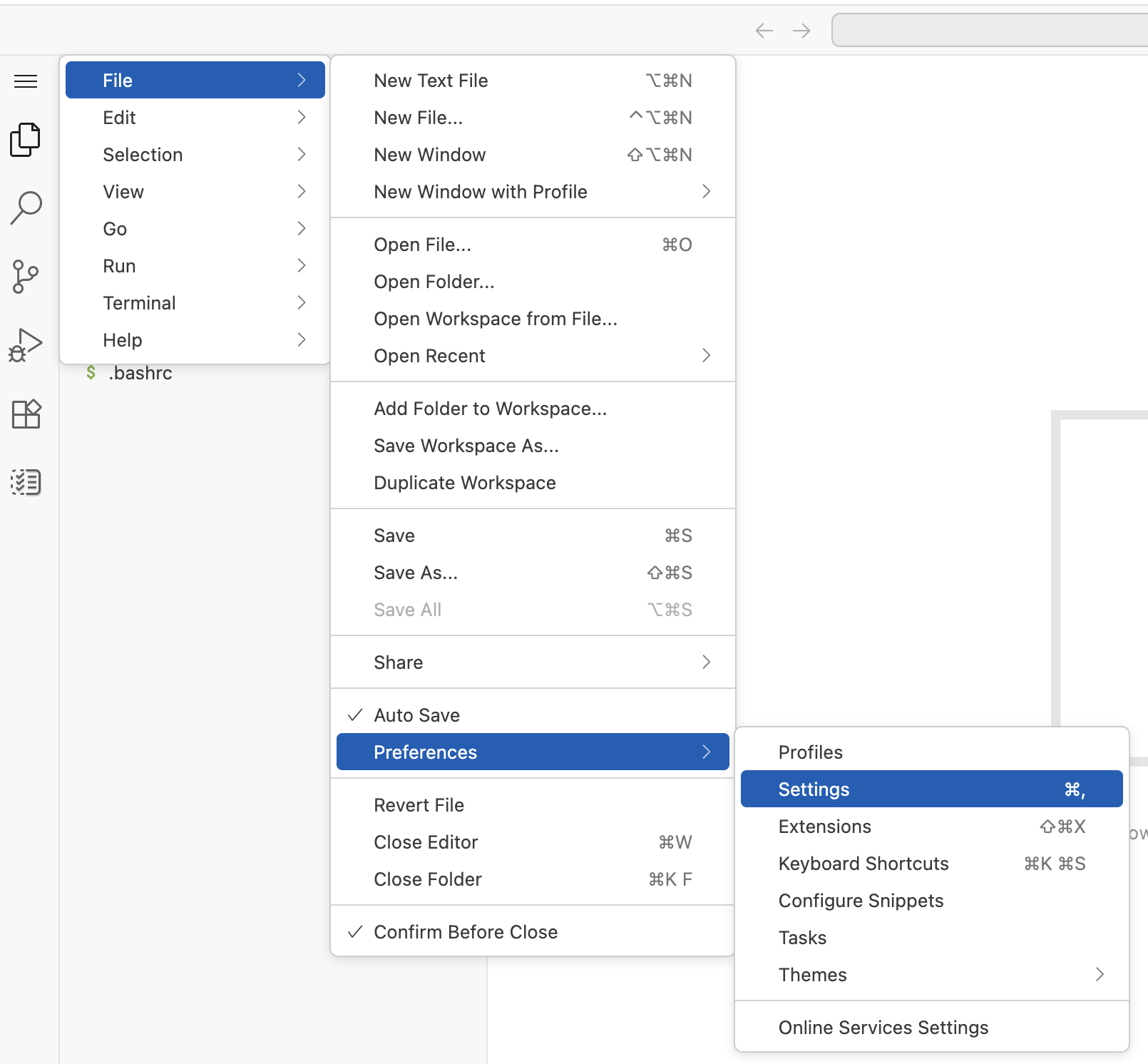
VS Code settings showing the AI Assistance option
-
In the search bar, enter:
eggplantStudio.enableAIAssistance.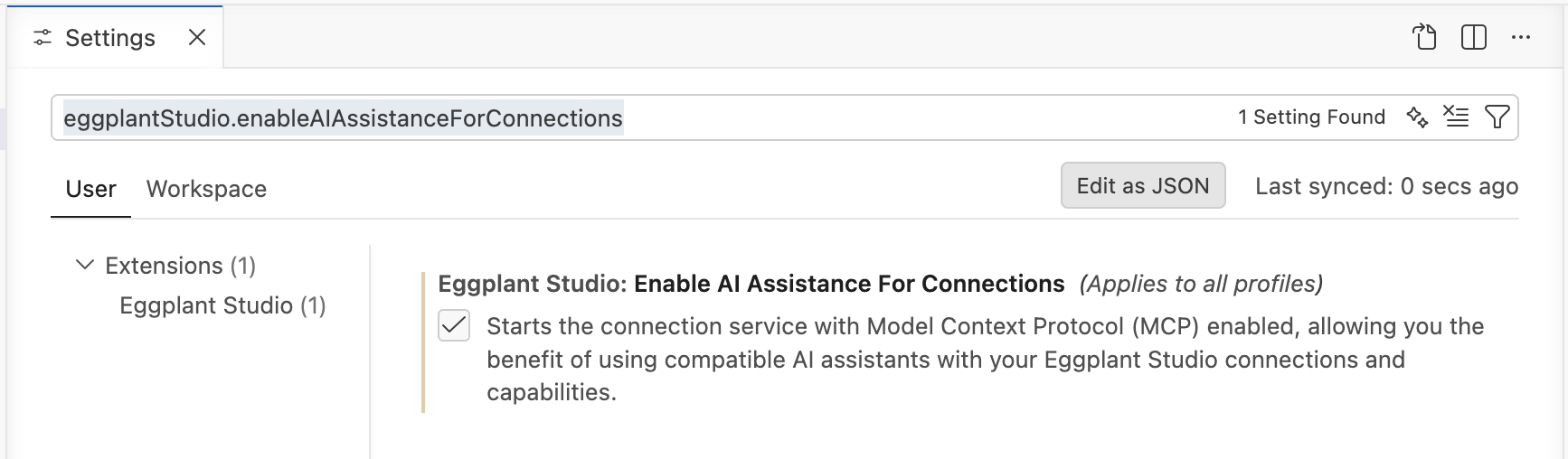
Eggplant Studio AI Assistance setting in VS Code
-
Enable the setting by checking the corresponding box.
infoThe Enable AI Assistance checkbox is disabled by default. Enabling it allows Eggplant Studio to communicate with third-party AI assistants/models, and controls both the Studio and Eggplant Gateway MCP servers.
4. Use Eggplant Virtual Assistant to Support Your Testing Workflow
Before using the Eggplant Virtual Assistant, review the Security and Data Responsibility Notice. Then follow the steps in Using the Eggplant Virtual Assistant with SUT Connections below.
Using the Eggplant Virtual Assistant with System Under Test (SUT) Connections
With AI Assistance enabled, follow the steps below to prompt the Eggplant Virtual Assistant.
See What the Eggplant Virtual Assistant Can Do for a list of tasks AI assistants can help you with in Eggplant Studio.
Follow the steps below to set up Eggplant Studio to work with and prompt AI assistants:
If you haven't already, enable AI Assistance in your VS Code Settings. See Step 3: Enable the Eggplant Virtual Assistant for instructions.
-
Open a workspace that includes Eggplant Studio configuration.
-
Launch your AI assistant inside VS Code (for example, GitHub Copilot Chat, Claude Code, or Roo VS Code Extension).
-
Interact with the Eggplant Virtual Assistant to request actions or ask questions, such as:
Start the SUT connection.Take a screenshot using Eggplant tools.Trigger a left‑click on the screen.
- Review and approve any AI‑generated actions before execution.
Security and Data Responsibility Notice
Eggplant Studio provides access to AI capabilities through the Model Context Protocol (MCP). When AI Assistance is enabled, the extension can communicate with third‑party AI models.
Your Responsibilities
You are responsible for:
-
Any data you submit to external AI services.
-
Ensuring your usage complies with your organization’s security, governance, and privacy policies.
-
Understanding the terms of use, data handling practices, and retention policies of the third‑party AI models you choose to use.
Key Considerations
-
Eggplant does not control or store data sent to external AI models.
-
If your organization has strict data handling requirements, ensure AI features are used in accordance with those policies.
-
Sensitive or confidential information should only be provided if approved by your IT or security team.
Supported AI Assistants in VS Code
Eggplant has tested the following third party AI tools that support computer vision for use with the Eggplant Virtual Assistant:
| Tested Third Party AI Assistants | Description |
|---|---|
| GitHub Copilot / GitHub Copilot Chat | Provides conversational AI assistance and supports MCP to interact with tools exposed by extensions. |
| Roo VS Code Extension | A third party VS Code assistant capable of interacting with browser automation workflows that can use MCP to execute additional tool actions. |
| Cline VS Code Extension | A third party VS Code assistant capable of interacting with browser automation workflows that can use MCP to execute additional tool actions. |
| Claude Code | A third party assistant available as a VS Code extension or a command line tool, which uses MCP to execute additional tool actions. Eggplant Studio registers its MCP servers in the workspace's .mcp.json file. The first time you use Claude Code in a workspace folder, Claude Code asks whether you trust the files in that folder, and then asks you to approve the Eggplant MCP servers; after you have done this once, later sessions connect without prompting. Claude Code also loads MCP servers when a session starts, so a session that was already running may need to be restarted, or reconnected with /mcp, before the Eggplant tools appear. |
Troubleshooting
For information about troubleshooting issues with AI assistants and Eggplant Studio, see Troubleshooting the Eggplant Virtual Assistant.