Manage a Space
Manage a Space
To change a space, you must use an account with the Admin Role (dai:admin) to perform the steps below:
-
Log into Eggplant DAI with your Admin user account.
-
Go to Spaces. The Spaces page opens in the Admin view, showing the Shared space common to all DAI instances and private spaces created by individual users.
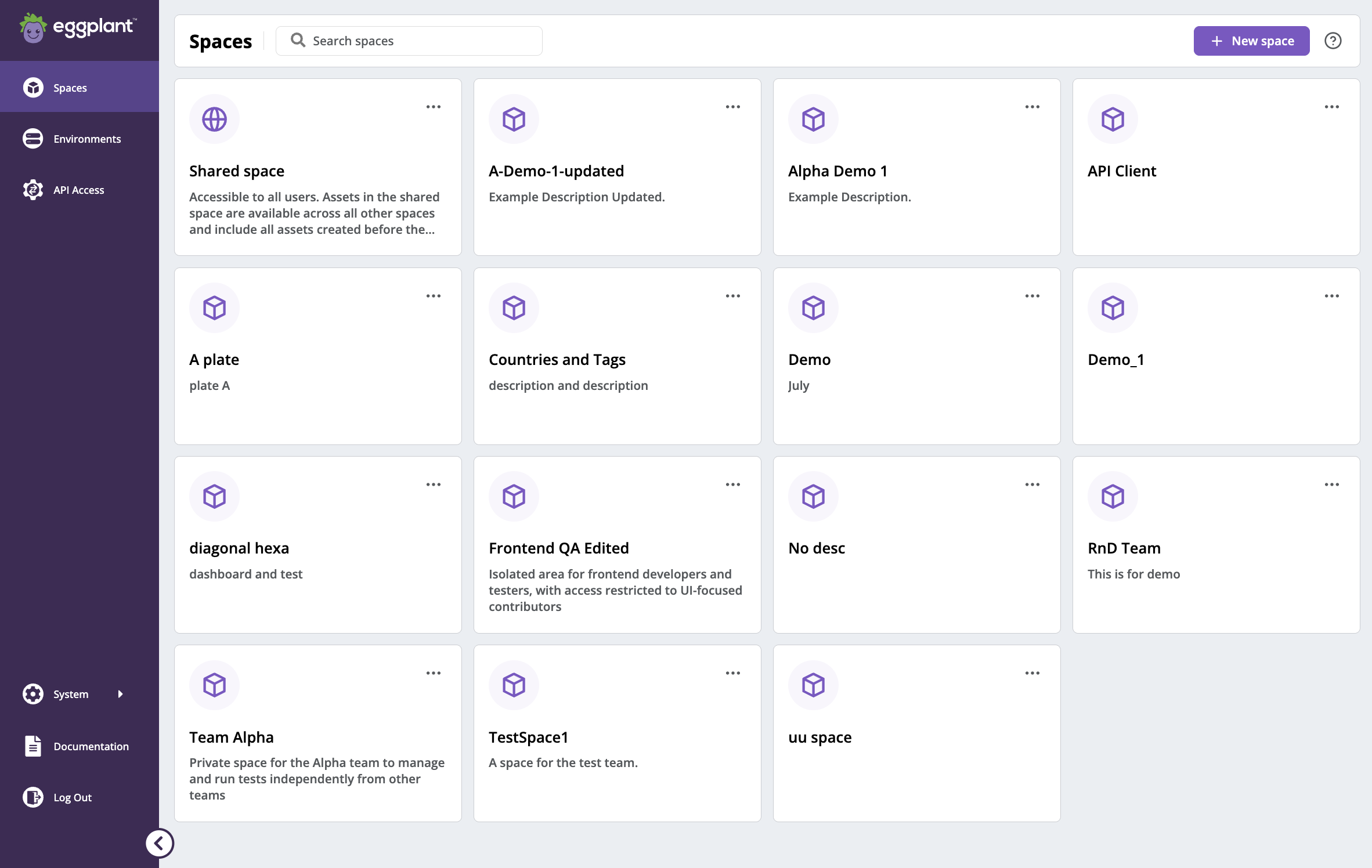
The DAI Spaces page, showing the Shared space common to all DAI instances and private spaces created by individual users
-
Locate the space you want to manage. You can use the search bar at the top of the page if there are numerous spaces.
-
Click the Actions button (
 ) in the top-right corner of the square for the space you want to manage, and select Manage from menu. Your space opens in the Manage space page. The Manage space page provides three tabs: General, Members, and Assets. The tabs are independent, which means you must save any changes you make on one tab before moving to the next tab or other pages.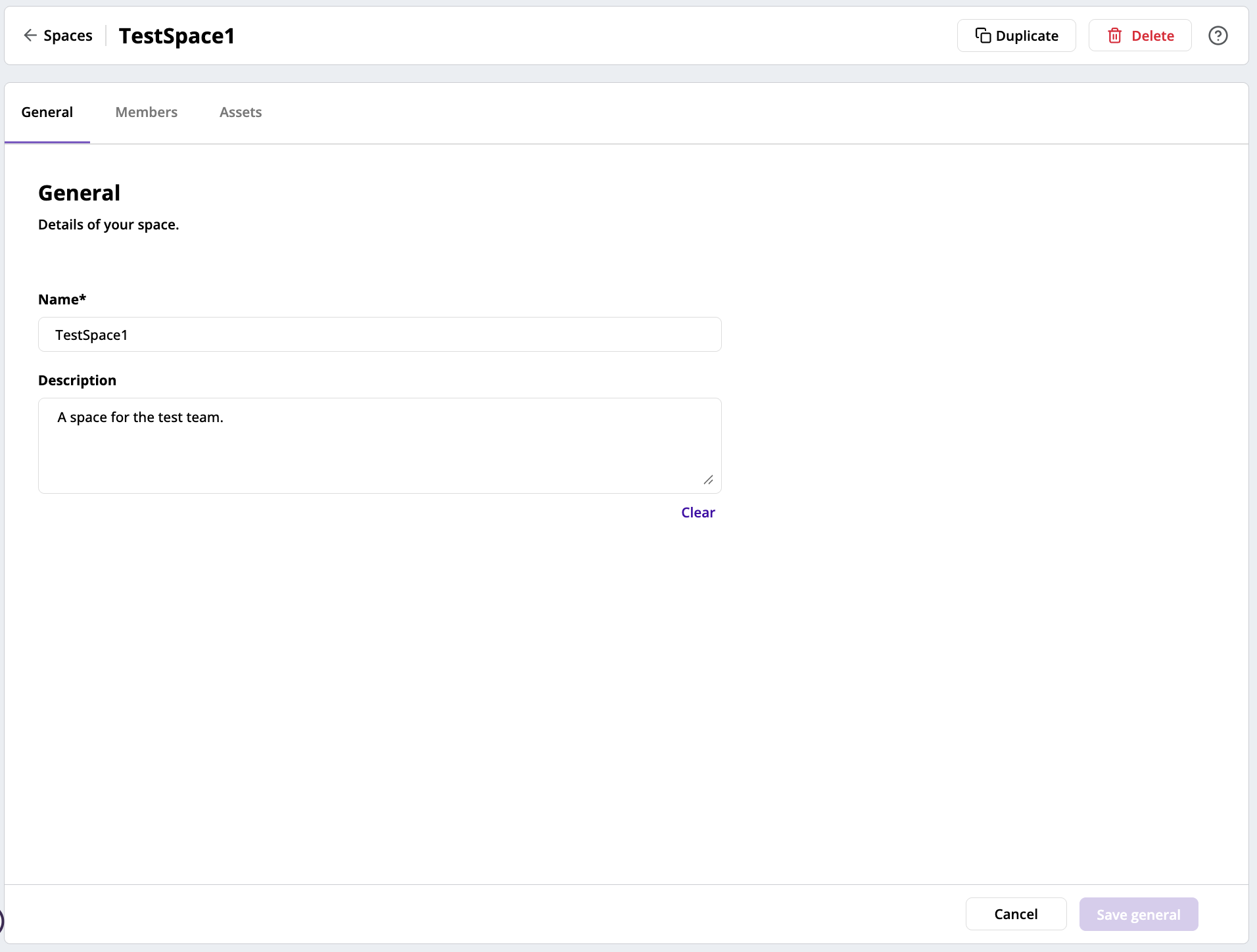
A private space open in DAI where Admin users can manage it, with the General tab in focus
-
Change the information you want on the different tabs and sa. Information about each of the tabs follows.
General Tab
You can update the name and description of the space on the General tab, shown above. Note that Name is a mandatory field. If you delete it, you will not be able to save your changes. If you change any of the fields and clicked other pages or tabs, you will see an unsaved changes dialog. You can choose to discard changes and continue or Save and continue.
Members Tab
You can manage members and their assigned roles in the space on the Members tab. The assigned roles only apply to the specific space since DAI also has its own set of global roles and permissions. The DAI user who creates the space is assigned to the members list by default and its default role is Space Admin.
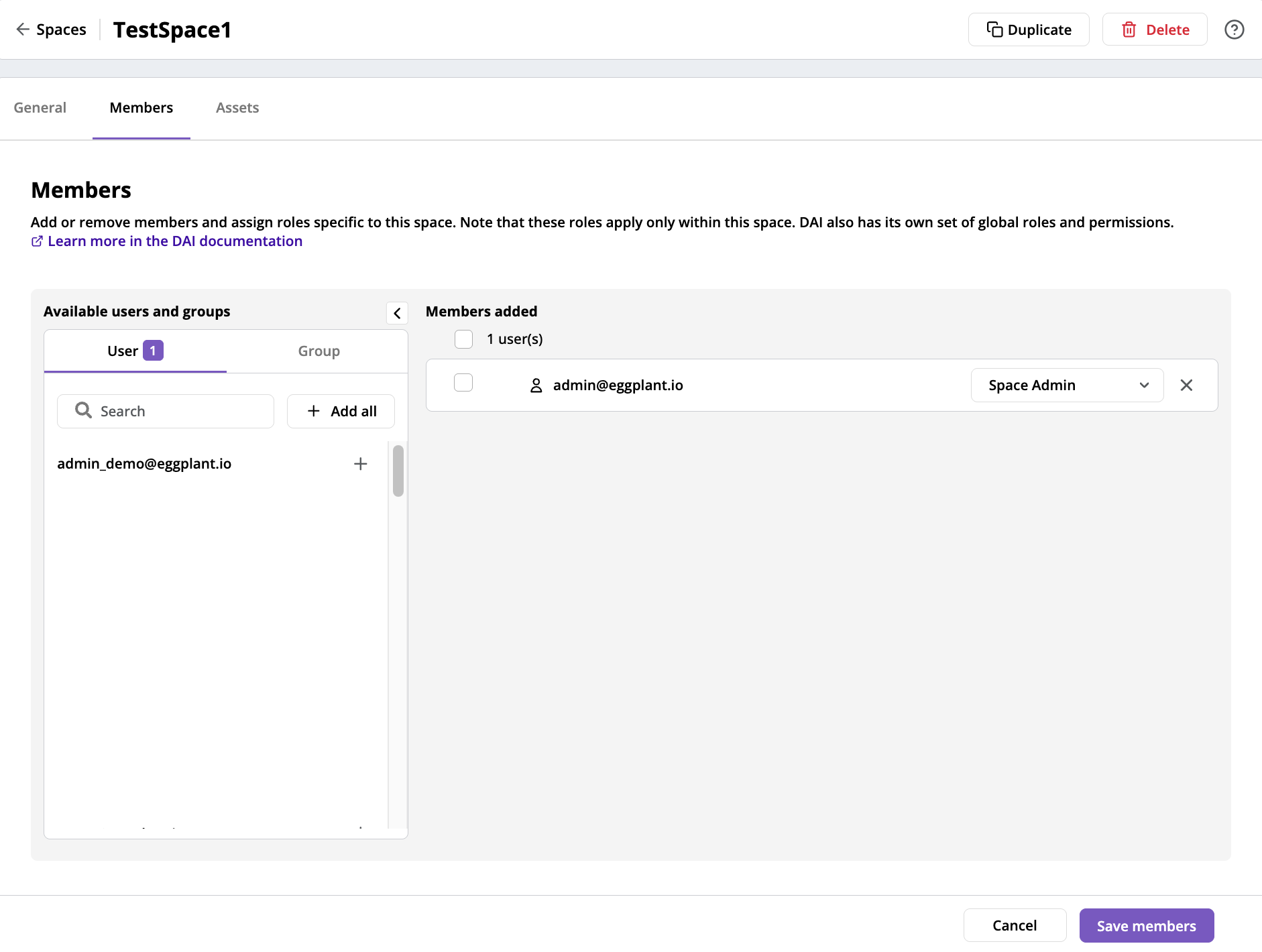
The Members tab on the Manage space page, where Admins can manage members and their roles
To assign other members, you need to perform the following steps:
- Select User or Group from the list of available users and groups.
- Identify the user or group and click it. The selected user or group appears in the list of members added. Space User is the default role for each newly-assigned member.
- To change the role, click Space User and a drop-down menu appears.
- Select a new space role.
- To remove any member, click the x symbol at the end of each member row.
At least one member must be assigned to the Space Admin role. You will not be able to save if none of the members is assigned the Space Admin role.
Shared Space and Private Space
DAI roles apply to the whole instance of DAI, while Space roles only apply to that specific space. The table below shows how these roles work with each other under shared space and private space. For information about DAI roles, see About Eggplant Roles.
| Roles | In Shared Space | In Private Space | Notes |
|---|---|---|---|
| DAI Admin | Follows existing DAI access | Full access regardless of space role | Has full access even if DAI admin is a space user in a private space. |
| DAI User | Follows existing DAI access | Follows access granted by space role | - |
| DAI Viewer | Follows existing DAI access | Is always a space viewer | Has access of a space viewer regardless of any space role assigned. |
| Space Admin | - | Full access | - |
| Space User | - | Similar to DAI user, but only to a private space | Cannot create new SUTs, but able to create/edit/delete models, test cases, test configs, and so on. |
| Space Viewer | - | Similar to DAI viewer, but only to a private space | Can view spaces, but not able to create, edit, or delete spaces. |
DAI Admin and DAI Viewer will always retain their roles regardless of what roles they are assigned in private spaces. For example, a DAI Admin will always be a Space Admin even if they are assigned as Space Viewer in a private space. Likewise, a DAI Viewer will always be a Space Viewer even if they are assigned as Space Admin in a private space.
Delete a Space
To duplicate a space, you must use an account with the Admin Role (dai:admin) assigned to perform the following steps:
- Log into Eggplant DAI with your Admin or User account.
- Go to Spaces. Identify the space you want to manage.
- Locate the group actions button (the three horizontal dots) in the top-right corner of the space square and click it.
- From the menu, select Delete space. You will see a confirmation dialog.
- Click Delete space. Since this process is irreversible, a second confirmation message appears.
- Click Confirm delete a second time. The space is deleted.