Creating VNC Connections
The Eggplant Test VNC connection type is available for use with desktop and mobile device systems under test (SUTs). This page provides all the information you need to know about VNC connection types, including what connection information you need to specify, and step-by-step instructions for how to create the connection.
VNC Connection Specifications
When you create a VNC-type connection you need to supply the connection information for the SUT to which you want to connect. Some of the fields are common for all Eggplant Test connections types, and some are unique to VNC.
VNC-Specific Connection Information
The following fields only appear in Eggplant Test connection interfaces for VNC connections:
| Option | Description |
|---|---|
| Skip Availability Check | Select this checkbox if you don't want to poll the listed server to see if it's available. This setting isn't available for RDP connections. |
| Connect Securely (SSH) | Selecting this checkbox allows you to create a secure connection via SSH. This setting isn't available for RDP connections. To read more about creating a secure connection, see Opening Secure Connections below, as well as VNC Security. |
| Scale Remote Screen: | Select this checkbox to scale mobile VNC servers by 50 percent in each dimension. This option provides better performance when you are using mobile devices with large screens or high resolution. Note This option works only with iOS Gateway and Eggplant Functional's built-in VNC server for Android devices. |
| Blend Scaled Screen | Select this option to blend pixel colors when you are using Scale Remote Screen. This option should be used only for backward compatibility with older scripts or images. |
While the Port field is not a VNC-specific option, the default value 5900 is specific to the VNC connection types.
Common Connection Information
The following fields are provided in the system under test (SUT) or connection panels of the Eggplant Test applications for all connection types:
| Field Name | Description |
|---|---|
| Server (IP Address, Hostname, or Android Device) | Enter the SUT's IP address or hostname. |
| Port | The port number used to connect to the SUT. |
| Password | The password required for VNC, RDP, and Citrix connections. |
| Username | The username for VNC, RDP, and Citrix connections. |
| Display Name | Enter a name for this connection as you want it to appear in the Connection List. You can then use this name to reference the specific connection or device from your scripts when using the connect command. Note The Server information is used as the default Display Name. |
| Connection Type | The type of connection you are making. VNC connection types include: - VNC Automatic: Detects and assigns the appropriate VNC connection type. - VNC Standard (3.8), VNC Legacy (3.3): Different versions of the RFB protocol that the VNC server is using, for use when connecting to certain servers. |
| Color Depth | The depth of color with which the Viewer window draws a SUT. To read about changing this setting, see Changing Color Depth. |
| Connect | This button instructs Eggplant to attempt to make a connection with the current settings. |
| Save | This button saves the current SUT settings. Saved SUTs appear in the main Connection List window. |
| Remember This Connection | This option is enabled by default. With this option enabled, Eggplant saves this connection in the Connection List for use in the current and future Eggplant sessions. If you disable this option, Eggplant creates the connection as a temporary connection for the current session only; it will not be available in future sessions. Temporary connections display with their names in italics in the Connection List. |
Step by Step: Entering VNC Connection Details
- Open the SUT add/edit panel in the Eggplant product you are using.
- Enter the display name you want to use and the IP address or hostname of the SUT you want to connect to, along with the device's port number.
- For VNC connections, the Password and Username fields refer to the VNC server on the SUT. If this information is required to connect to the VNC server, enter it here.
- Select the appropriate VNC Connection Type from the drop-down list. VNC Automatic is the default.
- Make any other changes or selections for this connection, then click Save to save the connection details to the Connection List.
Configuring Secure VNC Connections
Secure Shell (SSH) is a network protocol that uses data encryption to transfer information securely. For Eggplant Functional (EPF) to make a secure VNC connection to a SUT, the SUT must be able to host an SSH tunnel or have a secure connection with another computer that can host an SSH tunnel. Also, you must have a user account on the SSH host computer.
Visit the VNC Security page for general information on VNC security in EPF.
Step by Step: Setting up an SSH Login
-
In the Connection List, select the SUT.
-
Click Edit.
-
Select the Connect Securely (SSH) checkbox, which opens the SSH login pane.
-
Fill in the Username and Password fields. Username and Password refer to your user account on the SSH host computer. On Windows, enter your SSH key in the Password field.
-
In the SSH Host field, enter the IP address or hostname of the SSH host computer.
-
Select the Remember SSH Password checkbox to save the password of the user account on the SSH host; otherwise, you must enter the password whenever you open a connection with the SSH host.
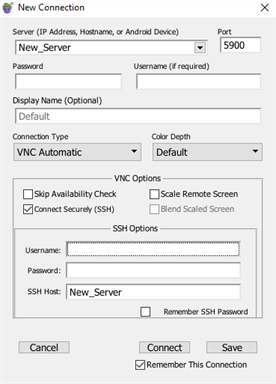
Setting up SSH in the SUT's VNC Server Application
When you use SSH to connect to a SUT, the SUT's firewall must allow connections on port 22, the standard port for SSH connections.
For more information about secure VNC connections, see VNC Security, or see the SUT's VNC server documentation.