Connecting an Android Device Via Wifi (TLS/TCP - Pairing to a Single Computer)
This page describes using wireless connectivity to an Android device to establish a TCP connection.
This configuration restricts device pairing to a single computer. If you wish to enable multiple machines to access the device, the recommended approach is to set up an Eggplant Gateway server to serve the devices to hosts using the following method: Using EPGW to share mobile devices across a network.
-
Ensure your Android Device’s development options are available.
-
Connect the device to your wireless router.
-
On the on device, go to System > Developer Options > wireless debugging and ensure this option is enabled.
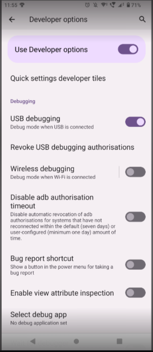
If wireless debugging is already enabled, you can skip to step 5.
-
Click Allow when you see the prompt to allow wireless debugging on the network.
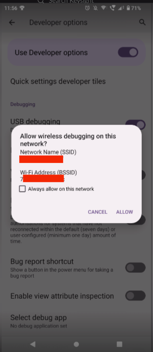
-
The Wireless debugging toggle will now be enabled, click the text Wireless debugging to the left of the toggle.
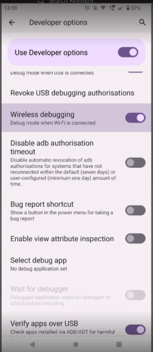
-
You will then see the following page which contains the IP address and part number the device is currently using.
-
Click Pair device with pairing code. You will then see the IP address and pairing code of the device.
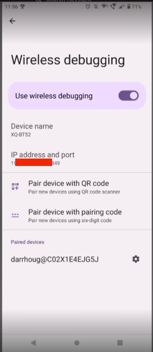
-
Open a terminal on macOS or CMD shell on Microsoft Windows and copy the following commands:
Mac
% cd ~% cd /Applications/Eggplant.app/Contents/Resources/epgwWindows
>cd C:\Program Files\Eggplant\Eggplant.app\Resources\epgw -
When you are in the
epgwdirectory enter the following command:Mac
% ./adb pair {ip address and port number of device}Windows
> adb pair {ip address and port number of device} -
When you see the prompt to enter the pairing code, enter the pair code on your device. You should see the message, "Successfully paired to 12.34.56:78910," where 12.34.56:7810 are the IP address and port.
infoIf you finish the steps above steps and see the “Unable to start pairing” error this is due to the timeout Android has on its pairing code. In this case you will need to toggle Wireless Debugging to Off then On again on the device. Note that the assigned port number can change when doing this. Then revisit step 5, step 7 and step 8. The device should then connect as expected.
-
Within the same Mac terminal or Windows CMD shell, enter the following command to return the list of attached devices:
Mac
%./adb devicesWindows
>adb devicesReturns:
List of devices attachedadb-HQ615I37B1-3tr4FR._adb-tls-connect._tcp deviceThe device returned by this command is the Device ID you want to specify in the Eggplant Functional when you select the Connection Type > Mobile Device connection type, and choose the Android tab in the Mobile Device Options part of the New Connection panel.
If this does not connect the first time, please wait 30 seconds then try again.
-
-
Save the connection in Eggplant Functional and then connect to the device.