Running Eggplant Functional Tests in Usability Mode
Usability Mode in Eggplant Functional (EPF) can help you find common problems in apps and websites—problems that might pass standard functional tests, but that can negatively affect the user experience. Usability Mode runs additional tests in parallel with your scripted tests, and checks for things like long image load times, moving images on a screen, and problematic text or images.
Note that Usability Mode affects script performance, so you shouldn't run tests this way all the time. Recommended times to run in Usability Mode are after large upgrades or changes, in scheduled regression testing, or if you're seeing inconsistencies in app performance.
Enabling Usability Mode
You can run a whole script or a selection from a script in Usability Mode. There are several ways to enable Usability Mode:
- From the Run menu: To run the entire script in Usability Mode, go to Run > Run in Usability Mode. To run a specific section of the script in Usability Mode, highlight that section, then go to Run > Run Selection in Usability Mode.
- From the Suite window UI: Click and hold either the Run or Run Selection button, then select Run in Usability Mode or Run Selection in Usability Mode from the pop-up menu.
- From the Run window UI: First, you need to customize the Run window toolbar. Right-click in the toolbar and select Customize Toolbar. Add the Run in Usability and Run Selection in Usability buttons to the toolbar. Use the buttons as is appropriate for your testing.
- From a Script: Set
the usabilityModeglobal preference totrue.
    set

    the usabilityMode

    to
    true
What Usability Mode Looks For
Usability Mode checks for behaviors that can create negative user experiences. You enable and disable individual usability tests and configure those tests in the Usability Preferences tab. Delay times occur between the scripted test and the usability test. The tests are:
Moving Targets
This test checks to see if an image moves on the screen after it's found for the first time. After the image is found, Eggplant Functional waits a short time, then searches for that image again to make sure it hasn't moved. If the image is found again in the expected location, the scripted command (i.e., click) completes.
The moving targets test runs after any of the following commands execute in a scripted test: click, doubleClick, rightClick, middleClick, moveTo, drag, drop, press, release, tap, doubleTap, swipeLeft, swipeRight, swipeUp, swipeDown, waitFor, imageFound, imageLocation, imageRectangle.
Low Contrast Text: Text Search
When you do a text (OCR) search, this test checks for low contrast between the found text and its background. This test can tell you if the text you have on screen might be difficult for end users to read.
When an OCR search for text is successful, Eggplant Functional compares the text color with its background color. If the contrast between the two is low, a usability warning is written to the log.
The OCR engine has to detect text in order to log a low contrast warning. If the contrast is so low that the text cannot be detected by the OCR engine, there won't be a low contrast warning.
Also, if the background color is very noisy (i.e., contains a large degree of variation in colors) or the text itself has a large degree of variation of colors, the contrast test might not function well because the OCR engine will have a hard time detecting text.
In addition, this test searches for certain known combinations of bad colors:
-
purple or yellow on a green background
papaya passionfruit -
red or blue on a dark background
Eggplant grape -
yellow or blue on a red background
apple orange -
red on a blue background mango
If it finds text that meets these criteria, a warning is logged to indicate that the found text has a bad color combination. Note that most bad color combinations also produce a low contrast warning.
Low Contrast Text: Image Search
When you do an image search where the image itself contains text, this test checks for low contrast between the text in the image and its background. This test can tell you if the text you have on screen might be difficult for end users to read.
When an image search is successful, the OCR engine scans the image to determine if it contains text. For text to be considered, it must be two or more characters. If the OCR engine finds meaningful text in the image, Eggplant Functional compares the text color with its background color. If the contrast between the two is low, a usability warning is written to the log.
This test is essentially the same as the low contrast check on text searches, but applied to text within images. You will also receive warnings for bad color combinations, as noted for the text search mode.
Visual Feedback
This test checks to see if the screen changes as expected after a user action. The visual feedback check runs after the tap, click, rightclick, middleclick, and doubleclick commands. Change the Feedback sensitivity setting to determine how much the screen needs to change for the test to pass. The higher the sensitivity, the less the screen needs to change.
Images and Text Loading Time
These tests check for slow-loading content. If the load time is above the designated threshold, a warning displays in the log. This test runs after any swipe, click, waitFor, or imageFound command that requires an image search, except for those that give a location or rectangle for an image.
Forbidden Images and Text
The forbidden images test runs periodically and searches the entire screen for images with the tags you define as forbidden in the Usability Preferences pane. The forbidden text test looks for words you define as forbidden. The Minimum time between checks preference controls the frequency at which this test runs.
Usability Results
View results of usability tests in the Results pane for the scripted test that you ran. Those results area also output to a .json file you can open from the Run Date list at the top of the Results pane. Click the arrow in the Usability column to open a test's usability results.
The results of usability tests display in real time in both the Run window and the Output tab, shown below.
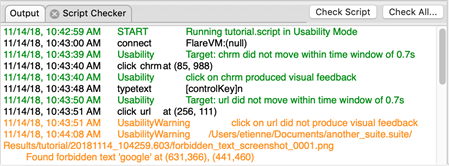
Successful usability test results display in green, while tests that fail display in yellow and produce warnings.