Using the SenseTalk Script Checker
The Eggplant Functional (EPF) Script Editor includes a SenseTalk Script Checker that lets you analyze scripts for mistakes or violations of coding best practices. The Script Checker performs static analysis of one or more scripts to gather information about things such as variable usage and calls to other scripts, then provides feedback in the form of warnings or errors about possible problems in the code.
You can find the Script Checker at the bottom of the Script Editor. Click the Script Checker tab to view information about the current script:
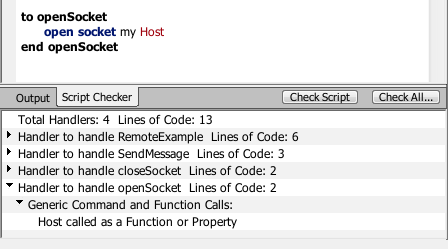
The SenseTalk Script Checker is found at the bottom of the Eggplant Functional Script Editor
Checking the Current Script
The Script Checker runs automatically whenever you open or save a script. Note, however, that you can turn off this behavior on the Checker tab of Eggplant Functional Preferences. You can also click the Check Script button on the Script Checker tab to perform a detailed analysis of the current script at any time.
The Script Checker tab first lists any errors or warnings in the code. Errors are typically syntax problems, while warnings cover a wide variety of possible problems and suggested best practices.
Following the listing of any errors and warnings, the tab shows in-depth analysis of each handler within the script. Click the arrow to the left of a line to drill down to the details.
The handler information lists any errors and warnings specific to that handler (duplicating those listed earlier, but grouped under each specific handler), plus detailed information about each use of a variable in the handler and each generic command or function call.
The term handler applies to any individual handlers within a script and also to the first part of a script before any explicit handlers, which is known as the initial handler and is named the same as the script. If a script doesn't contain any explicit handlers, the entire script is the initial handler. So the term handler applies to any script or handler.
For more information about handlers in SenseTalk, see Handlers.
Tech Talk
Generic calls are those that use a generic syntax that could invoke a custom script or handler in your code. The command
log foundImageInfo()
for example, is a generic command syntax (a command name optionally followed by one or more parameters) so it would be listed by the Script Checker as a generic call to the log command. This command also includes a generic function call to the foundImageInfo function, which would be listed as well.
The command
set total to 0
however, is not generic. It involves a special syntax that is part of the SenseTalk language. Such commands are not listed by the Script Checker.
If you select a line in the analysis by clicking it, the corresponding line or word in the script is highlighted and scrolled into view (as applicable). Some lines provide summary information and won't highlight anything when selected.
You can also use the arrow keys to navigate through lines of the analysis after you have selected an item. Use the up and down arrow keys to move the selection. Use the left and right arrow keys to expand and collapse portions of the hierarchy.
The Script Checker tab appears at the bottom of the Script Editor and displays information for the current script. If you switch between different script tabs in the Script Editor, the Script Checker changes to show information always for the current script in the editor.
Checking Scripts Suite-Wide and Across Suites
In addition to analyzing the current script, you can use the Script Checker to provide information about all the scripts in the suite as well as about scripts in other suites. These full-suite and multiple-suite checks provide these additional benefits:
- Provides information about many scripts at once, across several suites
- Performs additional checks that can only be done at the suite level
- Displays streamlined output showing only the errors and warnings
To perform suite-wide or multiple suite analysis, click the Check All button to open the Script Checker dialog box for the current suite.
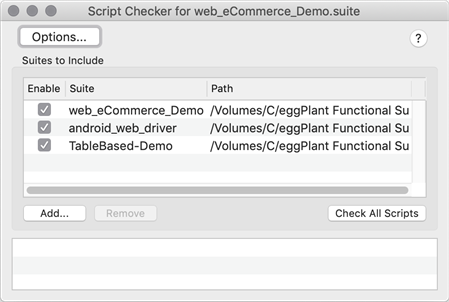
Using the Script Checker in Eggplant Functional for full-suite or multiple-suite analysis
The top half of this window includes the Suites to Include section, which shows the suites that can be analyzed. By default, the list includes the suite itself plus any connected helper suites as defined in the Helper Suites section of the Settings tab.
Use the Add button below the list to add suites that aren't linked as helpers. For example, if scripts in your suite dynamically access other suites by inserting them into the FinalSuites or the InitialSuites global properties, you should add those suites to the analysis list.
Your current list is saved within the suite, so the same suites can easily be used again when analyzing scripts in the future.
When you add a suite, its helper suites and their helper suites, and so forth, are also added to the list, if they are not already present.
Click Check All Scripts to perform the suite-wide script analysis for all suites in the analysis list. The results of the analysis appear in the bottom half of the window. Note that you can clear the checkbox for any suite in the list to disable analysis for that suite.
The output of the analysis includes top-level items for each suite, plus one more for Cross-Script analysis.
The individual suite analysis items contain only items for scripts within that suite that have one or more errors or warnings detected. Scripts in the suite with no errors or warnings are not included.
The Cross-Script analysis section includes the following types of warnings if they are detected:
- Script or handler not defined
- Handler defined but never used
- Duplicate script or handler defined (by name)
You can click an error or warning item to open the corresponding script and highlight the associated line or word. Note that if the suite itself for the selected item isn't open, this action opens the suite.
Script Checker Preferences
You can adjust what information the Script Checker returns by changing the settings on the Checker tab of Eggplant Preferences. Open the Preferences by going to Eggplant > Preferences or by clicking Options on the Script Checker dialog box.