Account Preferences
These settings control the default mail server for the SendMail command, source control management, and AI account configuration used with the Find by Description.
Starting with EPF 26.2.1, these settings are also for specifying the account information for the third-party large language model (LLM) required by the Find by Description feature, which enables you to use an AI model to assist with your testing. Please note that use of this feature may incur additional costs in the form of tokens through your AI provider. For more information on tokens, see AI Model (LLM) Token Usage.
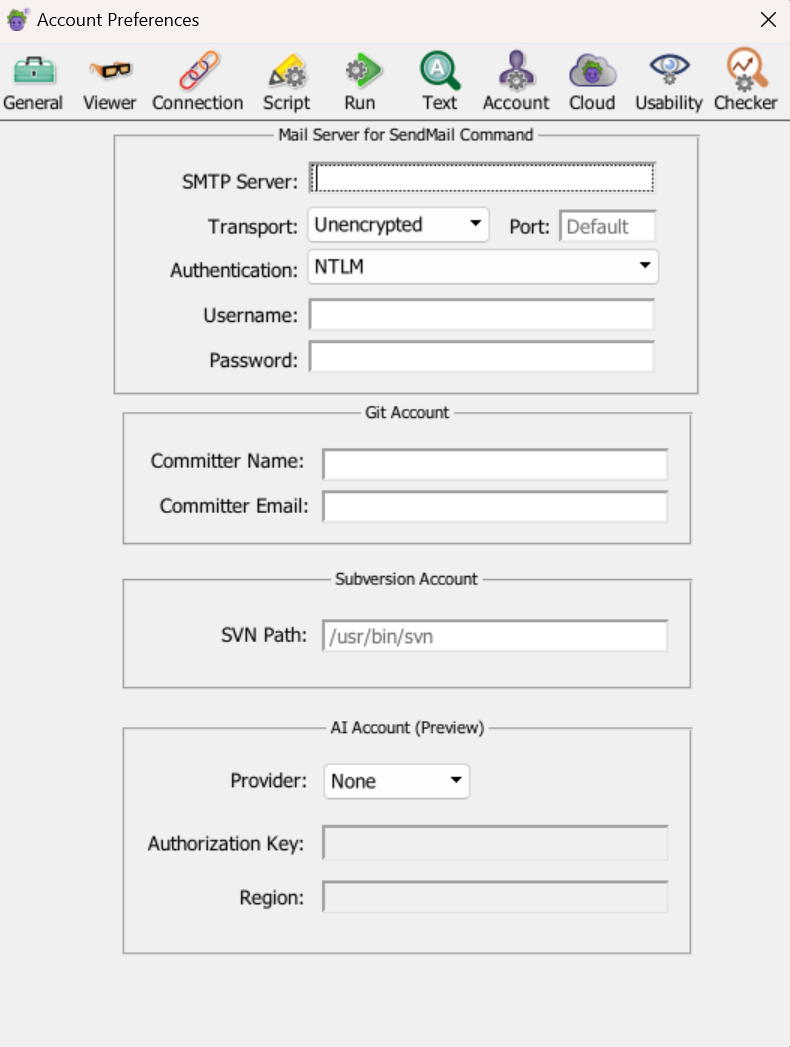
The Eggplant Functional Account Preferences panel
Mail Server for SendMail Command
SMTP Server: In the SMTP Server field, enter the hostname or IP address of the server you use for sending email.
Transport and Port: The Transport drop-down list lets you choose between Unencrypted, SSL, and TLS as the encryption method for transport. In the Port field, enter the port used to connect to the mail server, or leave the field blank to use the default value of 25, the standard mail port.
Authentication: From the Authentication drop-down list, choose None, Automatic, Plain, Login, CRAM-MD5, or NTLM as appropriate for your mail server.
Username and Password: In these fields, enter the username and password of the account you use for authentication. If None is chosen in the Authentication drop-down list, these fields are not available.
Git Account
Committer Name: Your name. This name is recorded in Git commit messages.
Committer Email: Your email address. This address is recorded in Git commit messages.
To specify the URL for a Git repository, go to File > Clone / Checkout Repository and enter the necessary information in the Clone / Checkout panel.
Subversion Account
SVN Path: Enter the file system path to the SVN executable on your computer.
Enter URL for a SVN repository from the Clone / Checkout panel. Go to File > Clone / Checkout Repository to open the panel and enter the relevant information.
AI Account

The Find by Description feature uses artificial intelligence (AI) to help you locate elements on your system under test (SUT) screen. Using Find by Description requires a third-party large language model (LLM). To configure EPF to use it, you need to provide the account information for your AI model in this section.
Provider: Select the provider from the drop-down list. For more information about supported providers, see the Find by Description Prerequisites.
Authorization Key: Enter your Authorization key here.
Region: If your AWS region is anything other than us-west-1, it needs to be defined. To do so, enter your AWS region here. If your AWS region is us-west-1, then you can leave this field blank.