Working with Android Mobile Devices
Overview
As discussed in Connecting to Mobile Devices, Eggplant Test has extensive support for testing Android mobile devices. Using Eggplant's Android Mobile Device connection option, you can test Android mobile devices that are directly connected to the machine running Eggplant Functional. The Android devices may be physical devices or emulators. Additionally, you can test cloud-hosted Android mobile devices that are hosted by Sauce Labs.
This page describes concepts related to testing mobile devices that are connected directly to the system running Eggplant Functional (EPF). Please refer to Connecting to Sauce Labs Real Devices and Virtual Browsers for details on working with cloud-hosted Android mobile devices.
Mobile Device connections only support connections to devices directly from the machine that is running Eggplant Functional. If you want to host your devices from a shared network address which is not co-hosted on the same machine as EPF, you must use Eggplant's Classic Android Gateway application. Please refer to the user guide for the Classic Android Gateway application for details on how to setup and use the application.
Getting Android Mobile Device IDs
In some cases, you will need the Android Device ID before you can create a Mobile Device connection for Android devices. This section describes how to get your Device ID for physical devices. If you are trying to connect to an emulated device, please see Connecting to Android Emulators for details on how to obtain device IDs for emulated devices.
If you have a single Android mobile device that you want to test, Eggplant Functional (EPF) is capable of auto-discovering the device when you connect it to Eggplant Functional and create a Mobile Device connection. If you have more than one Android mobile device that you want to test, however, you will need to use the Device ID in order to differentiate between the devices. This section describes how to obtain the Device ID for Android mobile devices.
There are multiple methods to locate the Device ID on your Android phone. One of the following methods should work for you:
- On your phone dial pad enter
*#*#8255#*#*. After you enter the last digit, the GTalk Service Monitor will open and the Device ID will be displayed in the resulting information. (Note that the displayed Device ID may have the stringandroid-prepended. Please ignore the prepended string. You will need only the hexadecimal digits that follow theandroid-string.) - If you have the Android Debug Bridge installed on your system, you can use the
adb devicescommand to get a list of the devices which are currently connected to your system (see Query for devices in theadbdocumentation). Just make sure the devices are connected to your system before you run the command. - If the above methods do not work, there are apps that let you read your Device ID. Just visit your Android App store and search for "Device ID".
Whichever method you use to obtain the Device ID, please copy the information. You can specify the Device ID when you create the connection in EPF.
- As a reminder, you only need the Device ID if you plan to connect multiple Android Devices simultaneously. If you only have one device connected at a time, Eggplant Functional can discover the device without needing the Device ID.
- Do not confuse the Device ID with the Serial Number. They are not the same. If you try to use a Serial Number in place of the Device ID, your connection will fail.
Connecting to Android Emulators
Eggplant Test's Mobile Device connections work seamlessly with Android devices which are emulated via Android Studio. To connect to an emulated device, you must be running Android Studio on the same system on which you are running Eggplant Functional. Before you attempt to connect, you need to launch the Android virtual device in Android Studio.
If you have only one Android virtual device running, you can proceed to connect using the Android option of Eggplant Functional's Mobile Device connection without having to know the Device ID. In cases where there is only one device attached to your computer, Eggplant Functional is able to discover the device and will connect to it without needing the Device ID.
If you have, or will have, multiple Android virtual devices running simultaneously, you will need to specify the Device ID when you connect. To get the Device ID from your emulator, open the Extended Controls for your device and click Help in the left-hand panel of the Extended Controls window. You should see the Emulator ADB Serial Number displayed. Use that value as the Device ID when you attempt to connect to your device. An example is shown below for Android Studio Electric Eel (2022.1.1).
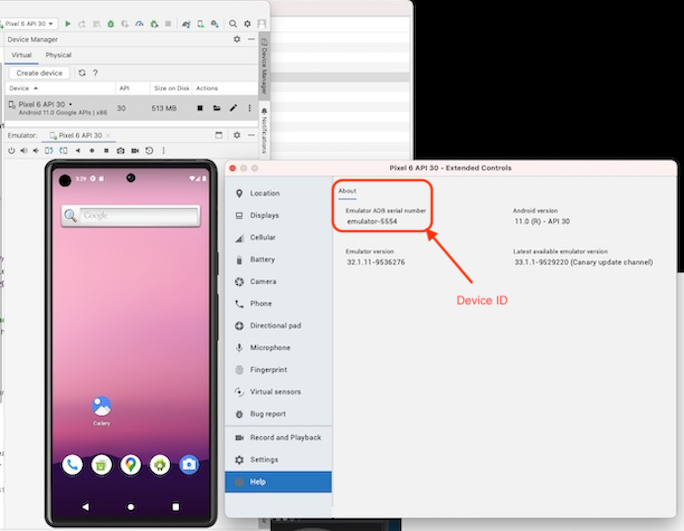
- The Android emulator shows the Device ID under the heading Emulator ADB serial number. Despite the heading, this is the correct Device ID.
- The Device ID for virtual devices is set by Android Studio and can change from session to session. Furthermore, if you have multiple emulators running, the ID assignment depends on the order in which you launch your devices. This behavior makes it problematic if you are explicitly specifying a Device ID in Eggplant. To avoid Device IDs changing unexpectedly, you should either only run one emulated device at a time, in which case, you do not need to specify a Device ID OR you must be sure to always launch your emulated devices in the same order. If it works for your use-case, we recommend only having one emulator running at a time so that you do not need to rely on Device IDs.
Configuring Your Android Mobile Device for Automation
In order to have the best test automation experience on your Android mobile device, you need to configure the device appropriately. This section describes the configuration activities that you need to perform on your Android mobile device before you try to run test automation against it for the first time.
Enable Developer Mode
Before connecting to your Android device with Eggplant Functional, you must enable developer mode on your device. The instructions to enable developer mode on your Android device may vary depending on your distribution. Please refer to Enable Developer options in the Android Studio User Guide for details on how to enable developer mode.
Configure USB Debugging
Before connecting to your Android device with Eggplant Functional, you must enable USB debugging on your device. Please refer to Enable USB debugging on your device in the Android Studio User Guide for details on how to enable USB debugging.
Enable Mock Location
The Eggplant scripting language, Sensetalk, provides a SetDeviceLocation command for mobile devices. In order for it to work when necessary, you will need to enable Mock Location on your Android device. Please refer to Debugging in the Android Studio User Guide for details on how to enable mock locations.
Manipulating Your Android Mobile Device
Once you connect to an Android mobile device via Eggplant's Android Mobile Device connection option, you can manipulate your device using Eggplant's image-based commands and Eggplant's mobile WebDriver commands. Both of these capabilities are automatically available in a single Mobile Device connection.
To use mobile WebDriver functionality on your Mobile Device connection, simply create (or activate) a new Mobile Device connection. Then, you can send any mobile WebDriver-based SenseTalk command to your device. You can also use several of Eggplant's mobile control and touch event commands to manipulate your mobile device. Please refer to SenseTalk Mobile Control and Touch Events for more details.
To learn how to automate your mobile device from Eggplant Functional scripts, see the following resources: