The SenseTalk Browser
The SenseTalk Browser is a quick-reference tool for the SenseTalk programming language. It is built into the Eggplant Functional (EPF) Script Editor, where you can easily use it while you are working on your scripts. The SenseTalk Browser not only provides information about the language, but also sample code syntax and templates you can insert directly into your script and use. You can also add your own topics with SenseTalk code that you write, and then use them in the SenseTalk Browser the same way you use the provided topics.
The SenseTalk Browser is not a comprehensive language reference. If you search for a topic in the browser and it is not found, please refer to the SenseTalk Reference manual.
The SenseTalk Browser Panes
The SenseTalk Browser, when it is enabled, consists of the panes on the right side of the Script Editor window. The screen below shows the SenseTalk interface. The numbers on the screen correspond to the descriptions below it. For more information about the Script Editor, see The Script Editor.
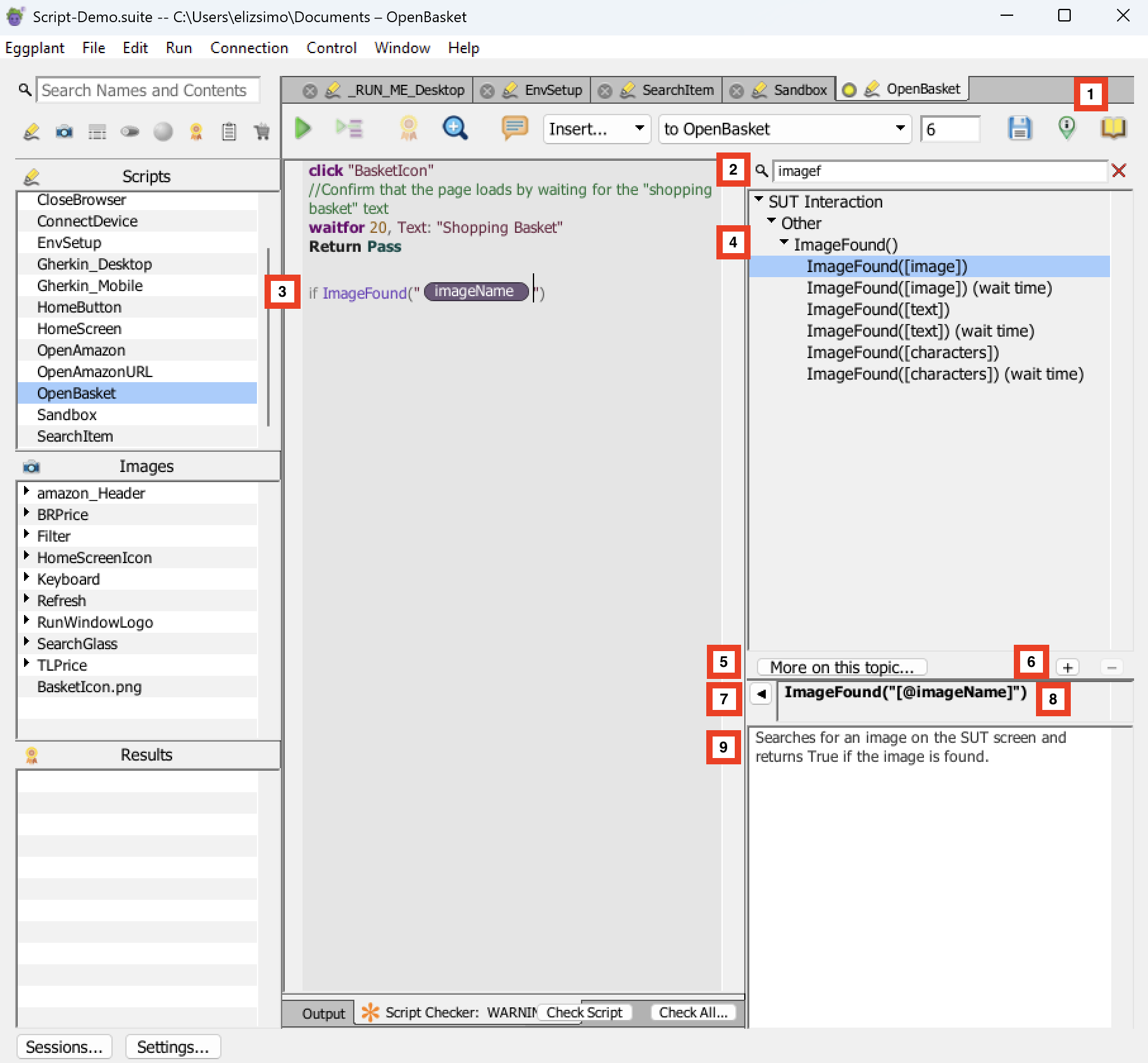
The SenseTalk Browser with the ImageFound topic selected
1. The SenseTalk Browser button
This button, which is on the Script Editor toolbar, is a toggle that shows or hides the SenseTalk Browser.
2. Search bar
This bar at the top of the SenseTalk Browser enables you to search for topics.
3. SenseTalk sample code
This piece of code shows how sample code you insert from the SenseTalk Browser looks in a script.
4. Topic pane
5. More on this topic
This button opens a web browser and displays the page for the selected topic in the Eggplant Functional product documentation.
6. Plus (+)/Minus (-)
These buttons add or remove a custom topic in the SenseTalk Browser.
7. Insert template/snippet into script
This left-facing arrow button inserts the sample code for the selected topic into your open script.
8. Syntax bar
This bar shows the sample SenseTalk code syntax or template for the selected topic.
9. Description pane
This bottom pane of the SenseTalk Browser shows a description of the selected topic.
Using the SenseTalk Browser
You can use the SenseTalk Browser to search for or display topics related to the SenseTalk programming language, including commands, control structures and more. Information about how to use the SenseTalk Browser and its features follows.
Opening the SenseTalk Browser
The SenseTalk Browser displays by default when you open the Script Editor. You can hide the SenseTalk Browser by clicking the SenseTalk Browser button in the Script Editor toolbar. This button is a toggle that shows or hides the SenseTalk Browser.
Finding Information
The top pane you see in the SenseTalk Browser is called the Topic pane. The top-level list you see in the Topic pane consists of the topic categories: SUT interaction, value assignment, control structures, connections, reporting and so on. To find the information you want, you can browse the provided topics or use the search feature. When you select a category or topic, a description of it opens in the Description pane. If the topic includes sample SenseTalk code syntax or a template that sample displays in the Syntax bar.
Browsing Topics
Use the Topic pane to see the provided topics.
- Scroll through list of categories in the Topic pane.
- Expand a category to see the related topics below.
- To display a topic, simply select it in the Topic pane.
Using Search
The SenseTalk Browser also provides a Search bar above the Topic pane that you can use to search for information in the SenseTalk Browser. Any topics that match your search criteria display in the Topic pane. You can filter your search by topic title or content. You can also limit the search to include the start of words only. The search works as you type, so you might find your results before you finish entering your search term.
Inserting sample code and templates
For some topics, the SenseTalk Browser provides sample SenseTalk code syntax or templates that you can insert directly into your script and modify for use there.
To insert sample code or a template, follow these steps:
- Place your cursor at the point in your script where you want the sample code inserted.
- Insert sample using one of the following methods:
- Double-click the topic that discusses the sample code or template you want, or
- Select the topic that provides the sample you want and click the Insert template/snippet into script button.
Editing Sample Code
After you insert the sample SenseTalk code or a template into your script, you need to edit it as appropriate for your script. Some of the SenseTalk Browser samples include placeholders, enclosed in square brackets. When you insert these placeholders into your script, they are inserted as tokens as shown below.
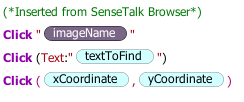
Sample Click commands with tokens inserted into a script from the SenseTalk Browser
Tokens
Descriptions of the different types of tokens and how to use them follows:
Text tokens: Text tokens are enclosed in square brackets. For example, the sample code for the Mouse Event Click [text] command is as follows: Click (Text:"[textToFind]"). After you insert a text token in your script, simply replace the token [textToFind] with the text you want your script to find. Some of the code samples contain coordinates in a similar format. For example, Click ([xCoordinate],[yCoordinate]). These coordinates are also text tokens. You replace them with x and y coordinates to specify a location.
Image tokens: Image tokens are enclosed in square brackets and preceded with an @ sign. For example, the sample code for the Mouse Event Click [image] command is as follows: Click "[@imageName]" . After you insert an image token into your script, move your cursor over it to display a list of all the images in your current suite. Then select the one you want. The name of the image you select appears in the token.
Statement tokens: Statement tokens are enclosed in square brackets and preceded with a dollar ($) sign. For example, the sample code for Reporting Test Case is shown below. After you insert a statement token, replace the [$statementsToTest] with the statements you want your script to test. You can also select existing statements in your script and then insert a sample with a statement token. In this case, the selected text is automatically inserted instead of the token.
BeginTestCase [testCaseName]

[$statementsToTest]

EndTestCase [testCaseName]
Paired tokens: If a snippet contains more than one occurrence of a token, Eggplant Functional populates all occurrences of that token at the same time when you provide the value for one occurrence. For example, the previous example contains two occurrences of the text token [testCaseName]. When you replace one occurrence with text, Eggplant Functional automatically replaces the second occurrence with the same text.
Working with User or Suite Snippets
The SenseTalk Browser enables you to add your own topics and sample SenseTalk code, which are called snippets. Once you add them, you can use them like any of the provided topics. User Snippets are specific to your user account, or the user account you used to log into the machine and run Eggplant Functional. Suite Snippets store in the same folder as the suite in which they are created, and are accessible by anyone working in the suite.
Note: User Snippets were formerly called Custom Snippets.
Snippets you add display under either User Snippets or Suite Snippets in the Topic pane.
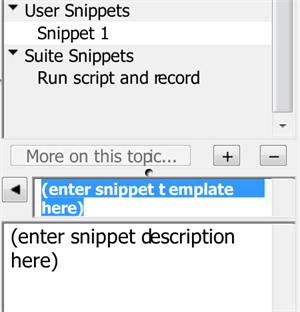
The SenseTalk Browser with a new User Snippet
To add a custom snippet to the SenseTalk Browser, follow these steps:
- Click the + button below the Topic pane. This inserts a topic, shown as Snippet 1 in the screen above, under either User Snippets or Suite Snippets in the Topic pane. It also enables the Syntax bar and Description pane for editing. If you have existing custom snippets and you want to create sub-topics underneath them, select the custom snippet under which you want to create the sub-topic and then click +.
- In the Topic pane, rename the inserted snippet with the topic name you want.
- In the Syntax bar, if you want to provide sample code, replace the text
(enter snippet template here)with the syntax for your SenseTalk code or template. You can also use tokens in your code using the syntax described above. If your topic does not have sample code, leave it as is. - In the Description pane, replace the text
(enter snippet description here)with the description you want for your snippet. - Save your new custom snippet by simply navigating away from its input fields. The SenseTalk Browser saves the snippet automatically. Once you save it, you can use your custom snippet and reuse its sample code like the other provided topics in the SenseTalk Browser.
The CustomSnippets.rtf and SuiteSnippets.rtf Files
The SenseTalk Browser saves the User Snippets you create in a file named CustomSnippets.rtf and the Suite Snippets you create in a file named SuiteSnippets.rtf. Information about the location of the snippets files follows.
File Locations
The CustomSnippets.rtf file is specific to your user account, or the user account you used to log into the machine and run Eggplant Functional. The file location varies with different operating systems:
- Mac and Linux: ~/Library/Eggplant/
- Windows: C:\Users\
user_name\AppData\Roaming\EggPlant\
The SuiteSnippets.rtf file is specific to your suite and is saved in the same folder as the suite in which it was created.