Text-Reading Functions
The following information describes the SenseTalk commands and functions you can use in Eggplant Functional that work with text recognition through optical character recognition (OCR) searches or by using the ReadCharacters() Function for character searches.
ReadText Function
Behavior: Returns the text in a given screen rectangle or near a designated point.
Parameters: A required pair of images, single image, rectangle (coordinate pair), or point indicating the region of the screen to read. (Using a pair of images usually produces the best results.)
The ReadText function also takes an optional text property list, which can improve text search results. SenseTalk includes many OCR properties that you can use with the ReadText function and other OCR searches. For a full list of OCR properties, see Text Properties. The following properties are typically the most useful in helping the OCR engine recognize text:
- Contrast: Whether or not the SUT display is converted to a high contrast two-color image before it is sent to OCR for analysis. If
contrastis on, a color referred to as the "contrast color" (which can be set using theContrastColorproperty) is considered the primary color of the SUT display, and all other colors are treated as the secondary color. Text can be found in either color. TheContrastproperty is available for use with both searching for (finding) text and reading text.- ContrastColor: If
Contrastis on, the contrast color is considered the primary color of the SUT display, and all other colors are treated as the secondary color. For instructions on finding the background color, see Determining the Background Color. - ContrastTolerance: When
Contrastis on,contrastTolerancesets the maximum per-channel color difference that is allowed for a pixel to be seen as the contrast color.
- ContrastColor: If
- ValidCharacters: The
ValidCharactersproperty limits the characters that may be found by the OCR text engine.ValidCharacterscan be limited to the characters in the string you are searching for by setting the string to "*". This can be useful if you are trying to "force" a text match from characters that are not being recognized. If OCR determines that characters are present in the defined area but they do not match characters provided in theValidCharactersstring, it will return "^". TheValidCharactersproperty is overridden by anyValidWordsproperty that is set. - ValidWords: Limiting the words that OCR can consider a match allows you to steer the OCR engine toward a successful match, or force the engine to recognize your text string correctly. You can use the asterisk (*) as a wildcard so that the OCR engine looks only for the words included in your original text string. This property determines the words provided to OCR as a language dictionary that may be found by the OCR text engine. This means that it overrides the
Languageproperty; for more information, see Customize the OCR Engine Dictionary. TheValidWordsproperty also overrides anyValidCharacterssetting, so alternate orderings of letters in words provided will also be matched. For example, ifValidWordsis set to "top", "pot" will also be found. - IgnoreSpaces: The
ignoreSpacesproperty causes OCR text searches to disregard spaces in your text string. For example, the string "My Computer" would match "MyComputer" or "M y C o m p u t e r". TheignoreSpacesproperty is on by default. This is because the OCR sometimes reads spaces that are not intended, especially in strings that are not discrete words, and in text with unusual letter-spacing. - IgnoreUnderscores: The
ignoreUnderscoresproperty causes OCR text searches to treat underscores as spaces during searches. For example, the string "My_Computer" would match "My_Computer" or "My Computer". TheignoreUnderscoresproperty is on by default, because the OCR sometimes fails to recognize underscores. - EnhanceLocalContrast: Enable this property if you want OCR to automatically increase the local contrast of the text image being sent to the OCR engine. This property may aid recognition when some or all of the text being read has relatively low contrast, such as blue text on a dark background. When contrast is turned on, this property has no effect, so it is only useful when
Contrastis turned off. - Language: The natural language of the text you are searching for. (For a list of supported languages, see OCR Language Support.) OCR uses this as a guide, giving preference to words specified in the dictionary it is using. More than one language can be specified. Eggplant Functional comes with numerous languages by default, and additional languages are available for purchase. If no language is specified OCR will still read text; it just won't have a dictionary to compare its findings to. You can also create a Custom OCR Dictionary.
- ValidPattern: This property takes a regular expression value and returns only characters or words that match the pattern specified. For information on regular expression characters that can be used with SenseTalk, see Using Patterns in SenseTalk. If you want OCR to prefer a pattern but not require it, see PreferredPattern.
See Using OCR Properties in Searches for more information about using these common text properties.
For a full list of all properties available for use with ReadText() see Text Properties. You might need to experiment with these properties in your specific environment to see which ones provide the best results for your text searches.
Example:
put the last character of readtext("UpperLeft","LowerRight",contrast:on, contrastColor:[0,0,128],contrastTolerance:25) // Prints only the last character returned by the readText function
Example:
Log trimAll(ReadText(["UpperLeft","LowerRight"], ValidPattern: "[A-Za-z]+\.py")) // Enforces that readText use a regular expression to read from the screen, and trims all white space, such as tabs and carriage returns, from the output.
Example:
Use code similar to this to read to the left of a label:
put ImageLocation("ClassSchedule") into ILC // Stores the location of the hot spot of "ClassSchedule" in a variable. The hot spot is located at the center of the image.

put [(ILC+[20,60]), (imageRectangle("ReadingAssignmentHeader").BottomLeft + [-10,34])] into TableRectangle // Use the locations of ClassSchedule and ReadingAssignmentHead to set establish the location of the first table cell you want to read

repeat 7 times // Indicates how many rows will be read

  log ReadText(TableRectangle) // Logs the content of the cell

  add [[0,30],[0,30]] to TableRectangle // Shifts the read area 30 pixels down to cover the next cell

end repeat
Practice:
Use the class schedule under the readTable() Function to practice the next three examples.
Example:
log readText(imagelocation("ReadingAssignmentHeader").x, imagelocation (text:"Introduction").y,singlecolumnmode:true) // Reads around a single point based on the x coordinate of the column and y coordinate of the row
Example:
// Use code similar to this to read every row in a particular table column
put ImageLocation("ClassSchedule") into ILC // Stores the location of the hot spot of "ClassSchedule" in a variable. The hot spot is located at the center of the image.
put ((ILC+(20,60)), (imageRectangle("ReadingAssignmentHeader").BottomLeft+(-10,34))) into TableRectangle // Use the locations of ClassSchedule and ReadingAssignmentHead to set establish the location of the first table cell you want to read
repeat 7 times // Indicates how many rows will be read
  log ReadText(TableRectangle) // Logs the content of the cell
  add ((0,30),(0,30)) to TableRectangle // Shifts the read area 30 pixels down to cover the next cell
end repeat
Example:
Use code similar to this to read columns for specific rows:
set Characters to 0..9 &&& dash &&& "Chapters" // Puts all numbers, -, and the letters in "Chapters" into a variable as a list
put the readTextSettings into RTS // Stores the current readTextSettings in a variable
set the readTextSettings to {validCharacters:Characters} // Sets the readTextSettings based on the list of validCharacters stored in Characters. Using the readTextSettings is appropriate when executing multiple readText or readTable functions that require the same set of readTextSettings
put [2,4,7] into Weeks // Stores a list of the row identifiers of interest into a variable
put imageRectangle("WeekHeader") into WeekHeader // Stores the rectangle for the found image "WeekHeader"
put imageRectangle("ReadingAssignmentHeader") into ReadingHeader // Stores the rectangle for the found image "ReadingAssignmentHeader"
repeat with each Week of Weeks // Repeats once for each row identifier in Weeks
  put [WeekHeader.BottomLeft, [WeekHeader.Right, remoteScreenSize().y]] into WeekColumn // Creates a rectangle based on location of the Weeks column in the table
  put imageRectangle(text:Week, searchRectangle:WeekColumn) into RowNum // Stores the rectangle for the row identifer into a variable
  put readText(ReadingHeader.Left, RowNum.Top-4, ReadingHeader.Right, RowNum.Bottom+4) into Reading // Reads a rectangle based on the row position and the column position
  If Reading is not empty then // Checks whether the return of the readText function is empty
    Log Reading
else
    Log "No chapter."
  end if
end repeat
set the ReadTextSettings to RTS // Sets the ReadTextSettings back to the original property list
ReadTable Function
Behavior: Returns the text of a table as a list. The returned list contains one sublist per row of values, with each sublist containing one value per cell detected within that row. The sublists for the rows might or might not contain the same number of values.
Parameters: One rectangle in which you want to read text. An optional property list that includes any number of the OCR properties available for use when reading text with OCR. For a full list of these properties, see Text Properties.
Example:
Log ReadTable("TableUpperLeft","TableLowerRight")
Practice:
Use the class schedule under the readTable() Function to practice the following examples.
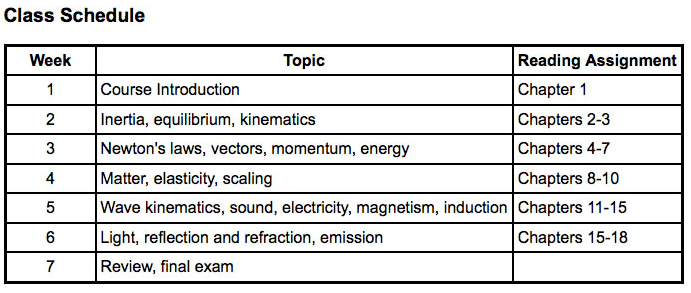
Example:
put [["Week", "Topic", "Reading Assignment"], [1, "Course Introduction", "Chapter 1"]] into ClassAssignments // Creates a list of lists of the expected table contents
put readtable("TableUpperLeft", "TableLowerRight") into ClassAssignmentsTable // Stores the output of readtable into a variable
put the first item of ClassAssignments into AssignmentsHeader // Stores the content in a variable
put the first item of ClassAssignmentsTable into TableHeader // Stores the content in a variable
Assert that AssignmentsHeader=TableHeader // Asserts whether the expected header and the actual table header are the same
repeat for each item 2 to -1 of ClassAssignmentsTable // Iterates from the second to last item. Each item represents a row in the table
  if the second item of it is not "Review, final exam" then // Checks the value of the second column of the table row
    Log "Assignment" && the repeatIndex && "is" && the third item of it && colon && the second item of it & period // Concatenates strings, the repeatIndex, and values from different row columns, and logs the message
end if
end repeat
Generally, the ReadTable function performs best when the bounds of the table are included in the rectangle. If no table is found within the given rectangle, an error is thrown.
If the ReadTable function doesn't provide the desired results or doesn't detect the table, experiment with different boundaries for the given rectangle around the table.
The ReadTable() function works best with very regular, clearly defined tables. If the ReadTable() function struggles to read your table as desired, use the ReadText() function to read each row or cell individually.
ReadCharacters Function
Behavior: Use the ReadCharacters() function with character collections that you capture. Use this function in your scripting to return a character from a character collection (in a given screen rectangle) as a string or multiline string.
Parameters: A required pair of images, single image, rectangle, or point indicating the region of the screen to read. Using a pair of images usually produces the best results. The region parameter is followed by an extra parameter, which is the name of the character collection to use for reading the text on the screen. You can omit the name of the character collection if you set the CurrentCharacterCollection global property.
- asList: When
asListis on (asList:Yes), theReadCharacters()function returns a list of strings, one for each group of recognized characters. - characterPriority: This string contains priority characters, in high-to-low order. The default setting is
";:.". This setting controls which character is recognized if two character images are found in the same location. For example, usingcharacterPriority:"OC"gives the "O" character image a higher priority than the "C"character image. The result is that theReadCharactersfunction uses the letter "O" rather than the letter "C" if both the O and C images are found at the same location on the screen. - minimumVerticalOverlap: This value sets the minimum overlap, in pixels, allowed for two characters to be considered to be on the same line. If the two characters overlap more than the
minimumVerticalOverlapvalue, the function considers these characters to reside on the same line. - maximumHorizontalOverlap: This value sets the maximum overlap, in pixels, allowed for adjacent characters to be considered as occupying the same space. If two adjacent characters overlap more than this setting, the
ReadCharactersfunction considers these characters to be occupying the same space. - maximumAdjacentGap: This value sets the maximum gap, in pixels, allowed between two adjacent characters. This setting assumes no space between characters. If two adjacent characters reside further apart than this setting, the
ReadCharactersfunction considers these characters to be non-adjacent characters. - maximumSpaceGap: This value sets the maximum gap, in pixels, for an implied space to exist between two characters. If two characters reside closer together than this setting, the
ReadCharactersfunction does not consider these characters to be separated by a space. - spaceWidth: This value sets the nominal width, in pixels, of a space character. The
ReadCharactersfunction uses this setting to determine the number of spaces returned for wide space gaps.
In addition to the properties listed here, you can specify any of the image search properties. These special properties override the corresponding search property for every character image in the collection. For example, specifying tolerance:60 causes the ReadCharacters function to use a tolerance value of 60 when searching for every character image rather than the individual tolerances that are set for each image. See Image Property List for more information.
Syntax:
ReadCharacters( rectangle {, options} )
Example:
put ReadCharacters(the RemoteScreenRectangle, CharacterCollection:"Receipt") into myString // Puts the returned value into a string
Example:
set the currentCharacterCollection to "Receipt" // Sets the currentCharacterCollection global property.
put ReadCharacters(the RemoteScreenRectangle) into myString // There is no need to use the characterCollection property as the property is set using the currentCharacterCollection global property in the previous line
Example:
put ReadCharacters(the RemoteScreenRectangle, "Receipt", asList:true) into stringList // Specifies asList:true to have the ReadCharacters() function return a list of strings
Example:
ReadCharacters(the RemoteScreenRectangle , characterPriority:"OC") // Sets the characterPriority property so that if two character images, O and C, are found in the same location the ReadCharacters() function uses the O character
Example:
put ReadCharacters(the RemoteScreenRectangle, minimumVerticalOverlap:6) // Sets the minimumVerticalOverlap property to 6 pixels. If two characters overlap (vertically) by more than 6 pixels, the ReadCharacters() function considers them to reside on the same line.
Example:
ReadCharacters(the RemoteScreenRectangle , maximumHorizontalOverlap:2) // Sets the maximumHorizontalOverlap property to 2 pixels, so that if the horizontal locations of two adjacent characters overlap by more than 2 pixels, the ReadCharacters() function considers these characters to be occupying the same space
Example:
ReadCharacters(the RemoteScreenRectangle , maximumAdjacentGap: 3) // Sets the maximumAdjacentGap property so that if two adjacent characters reside further apart than 3 pixels, the ReadCharacters() function considers them to be non-adjacent characters
Example:
ReadCharacters(the RemoteScreenRectangle , maximumSpaceGap:2) // Sets the maximumSpaceGap property to 2 pixels so that if two characters reside closer together than 2 pixels, the ReadCharacters() function does not consider these characters to be separated by a space
Example:
ReadCharacters(the RemoteScreenRectangle , spaceWidth:2) // Sets the spaceWidth property to 2 pixels. The ReadCharacters function uses this value to determine the number of spaces occupying wide space gaps
Related:
See Working with Character Collections for more information.