Adding Connections in Eggplant Applications
You can create, edit, and delete system under test (SUT) connections within the Eggplant Test applications' graphical user interfaces (GUIs). The named connection definitions you create within the applications are typically permanent, meaning they will persist until you explicitly delete them.
All the Eggplant Test applications (Eggplant DAI, Eggplant Functional (EPF), Eggplant Studio, and Eggplant Gateway) provide panels or pages for mananging connections. This page describes how to manage SUT connections in the Eggplant Test applications.
Eggplant Gateway allows you to manage connections through its Persistent Connection Service (PCS) web app after you create them. You can only create a connection definition in Eggplant Gateway using its command-line interface.
For information about connecting to SUTs when running tests from a command-line interface (CLI), see Creating Connections through the Command-Line Interface (CLI). For information about connecting from within a SenseTalk script, see Creating Connections from within a SenseTalk Script.
Where to Add SUT Connections in Each Eggplant Test Application
The Following table summarizes where you add SUT connections in the different Eggplant Test applications.
| Eggplant Test Product | Connection Specification Interface | Reference |
|---|---|---|
| EPF | The Connection List, and Add/Edit Connection panels | Using the Eggplant Functional Connection List |
| DAI | SUTs page in the Controller | Managing SUTs in Eggplant DAI |
| Eggplant Studio | Eggplant Studio VS Code extension | See Connect to a System Under Test (SUT), or the VS Code Command Palette to see the connection information available within the Eggplant Studio extension, such as Eggplant Studio: Focus on Connections Window, or Add RDP Connection. |
Managing SUT Connections
Click the appropriate tab below to see how to manage SUT connections in each application:
- Manage Connections in Eggplant Studio
- in Eggplant Functional
- in DAI
The Eggplant Studio Add Connection Pane
You can manage connections within Eggplant Studio in the CONNECTIONS view.
Display the CONNECTIONS view by clicking the Eggplant Studio button in the Activity Bar (the menu on the left-hand side) in VS Code. The CONNECTIONS view opens to the right of the Activity Bar, in the Primary Sidebar view. (See User interface in the VS Code documentation if you are unfamiliar with VS Code.)
Create a connection in Eggplant Studio by clicking + (the Add Connection button) in the CONNECTIONS view. Clicking + displays a pop-up menu listing the supported connection types.
Select the type of connection you want to create from the list.
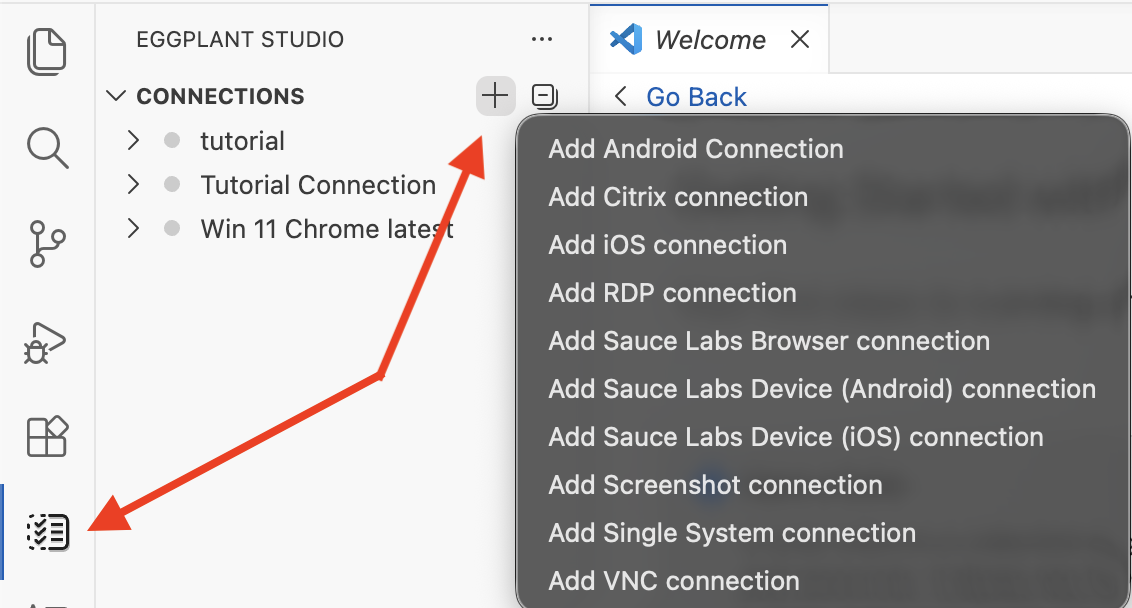
The Eggplant Studio CONNECTIONS view pointing out the Eggplant Studio and + (Add Connection) buttons
The example below shows both the CONNECTIONS view and the Add Connection panel for a VNC connection:
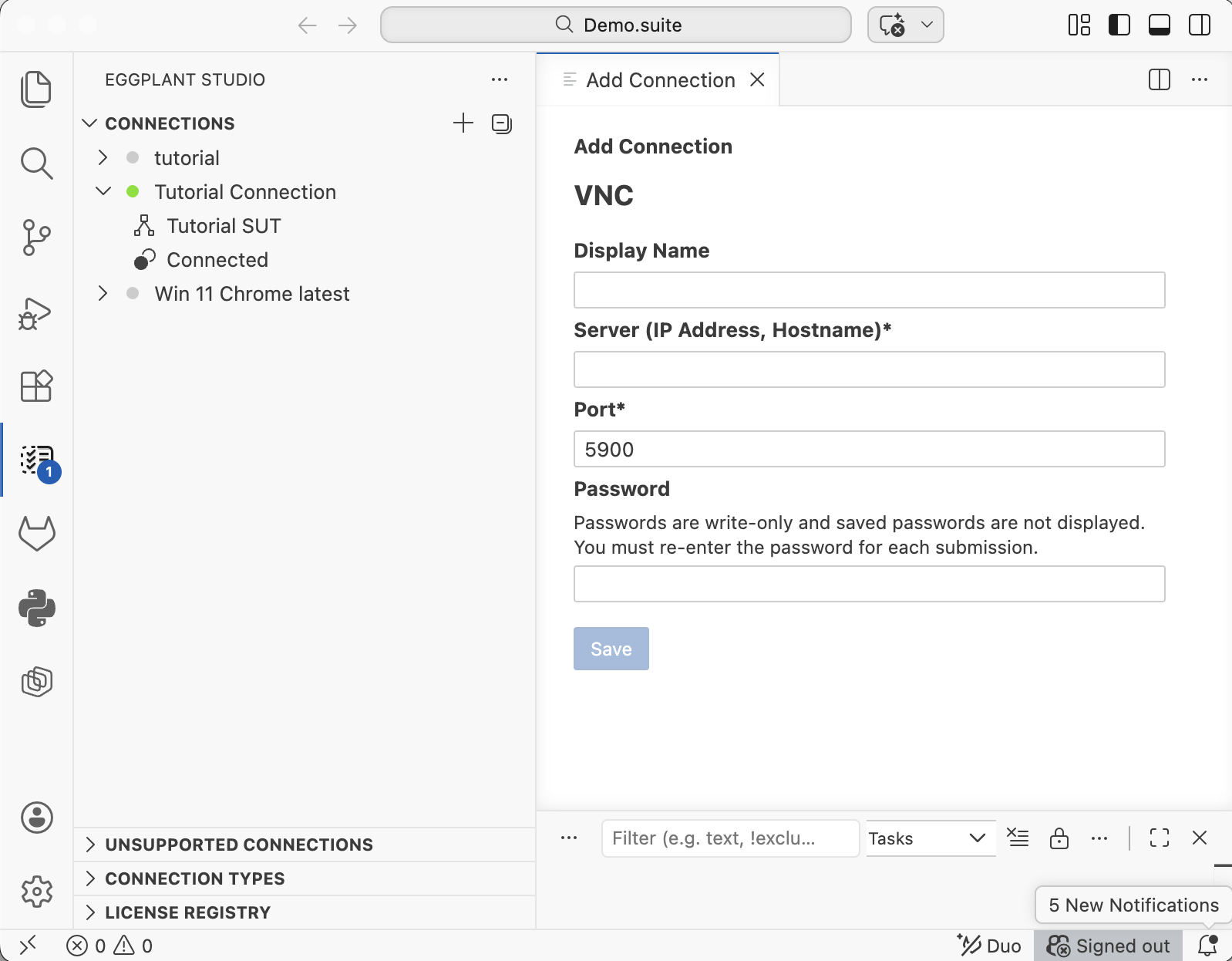
The Eggplant Studio Add Connection panel for a VNC connection
The Eggplant Functional Connection List
You can manage connections within EPF using the Connection List.
Display the Connection List by typing Ctrl+K (Cmd+K on Mac). For more information about the Connection List, see Using the Eggplant Functional Connection List.
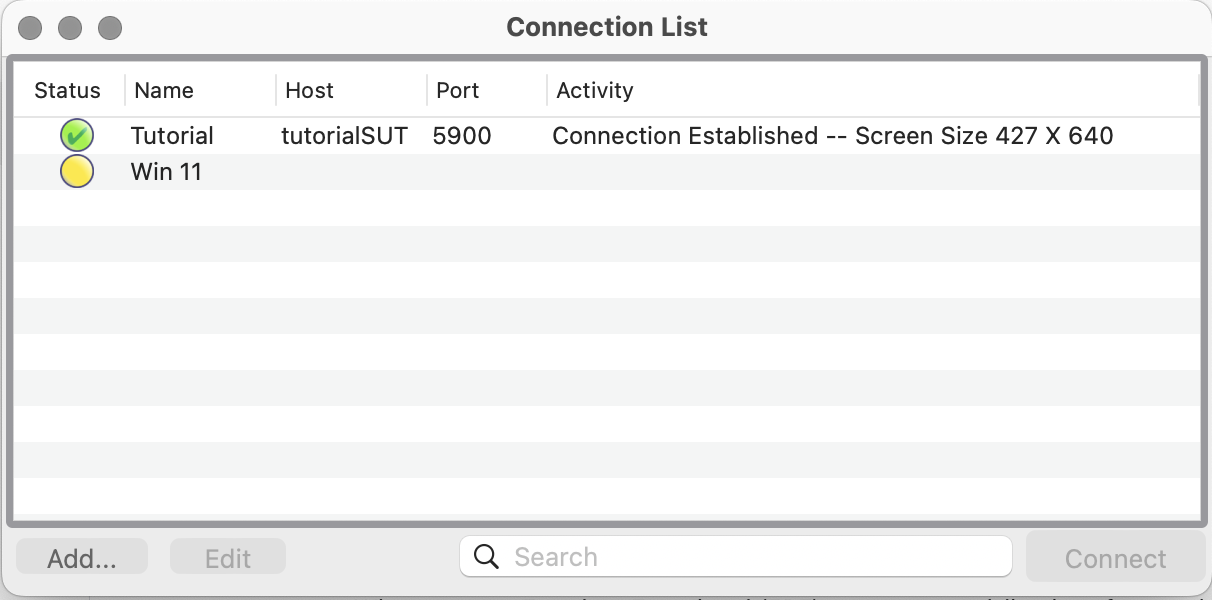
The Connection List panel, where you can add, edit, or delete permanent SUT connections in EPF.
Create or edit connections by clicking the Add... or Edit buttons on the Connection List panel (shown above) or using the Connection menu and choosing either the Add Connection... or Edit Connection... option. To delete or remove a connection you first have to select it in the Connection List. For information about the supported connection types, see the Table of Eggplant Test Supported SUT Connection Types.
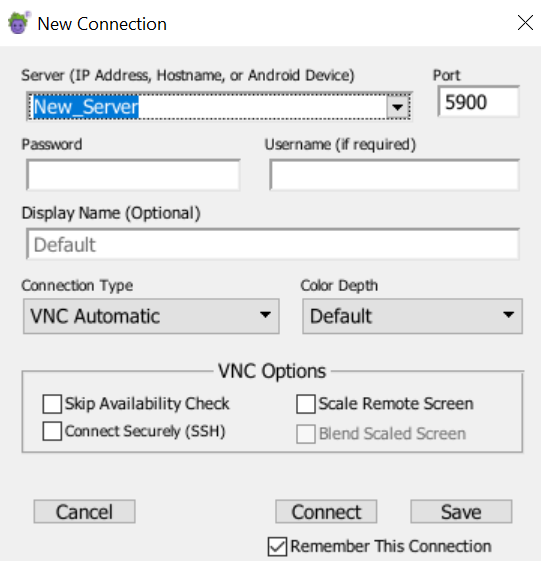
The EPF New Connection panel with the default VNC Automatic connection type selected
The DAI SUTs Page
You can manage SUTs and connections within DAI using its SUTs page.
DAI defines SUT connections differently than Eggplant Functional and Eggplant Studio. In DAI, first you define a SUT, and then within the SUT you create a connection definition.
Display the SUTs page by navigating to Controller > SUTS. For more information about the SUTs page, see Managing SUTs in Eggplant DAI.
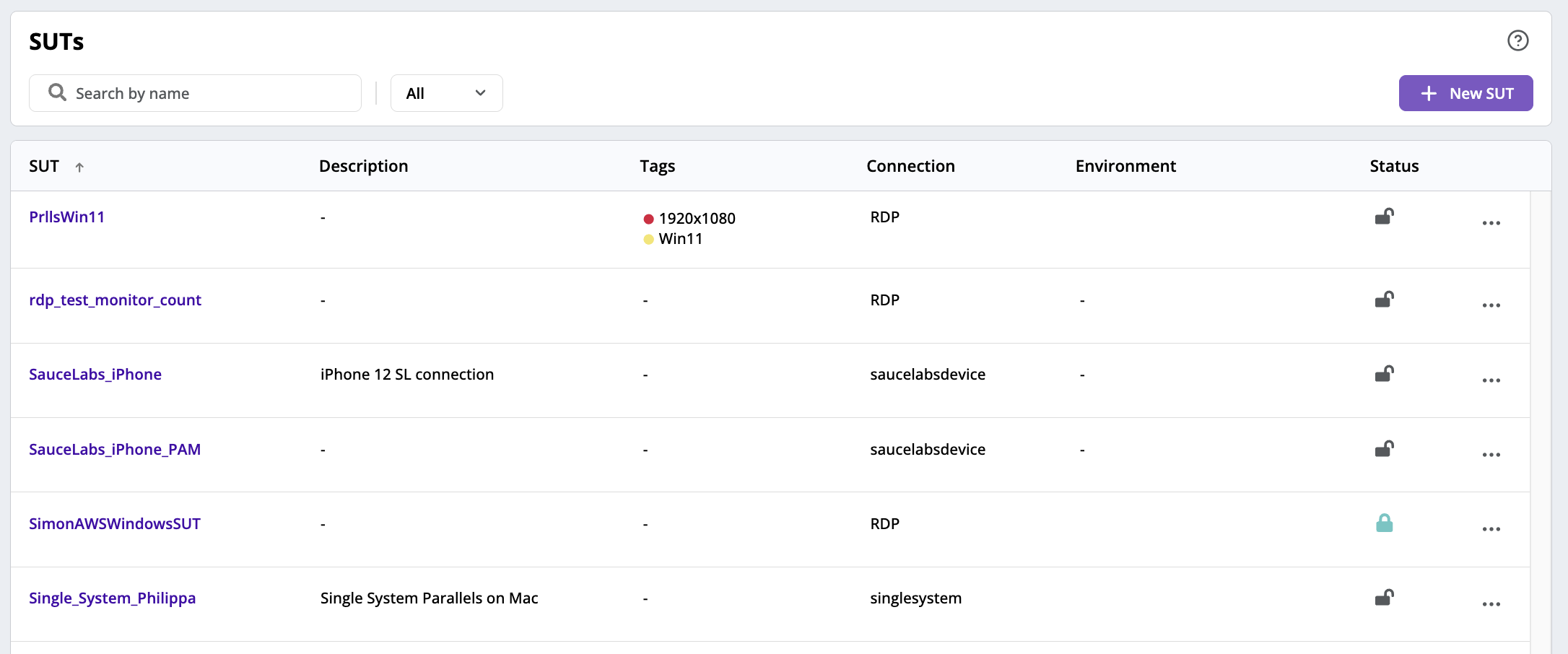
The DAI SUTs page where you first define your SUT, and then create a connection within the SUT
Creating a New Connection in DAI
Then on the New SUT page, create a connection:
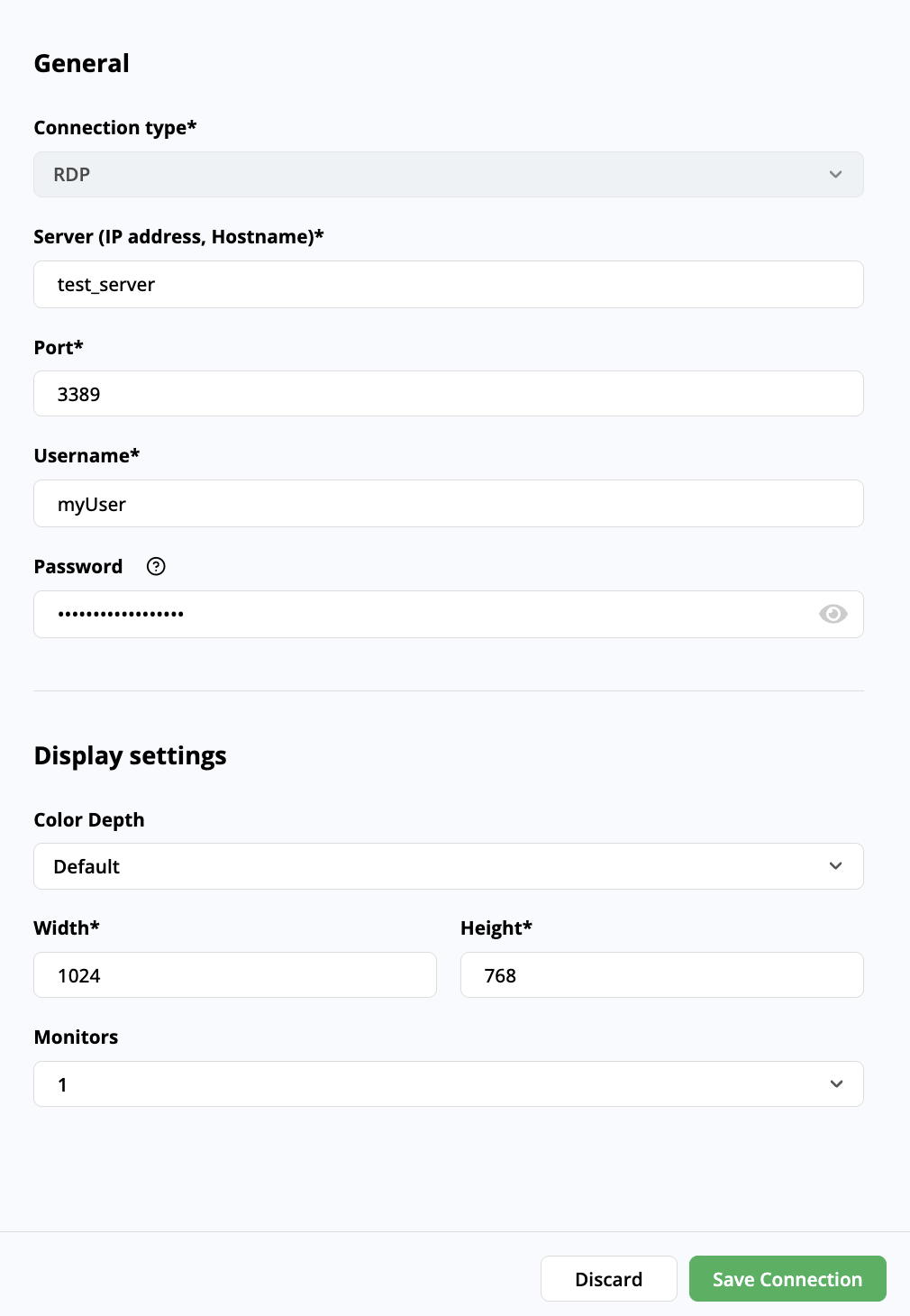
The DAI Add new connection panel with the RDP Connection type selected