Using the Edit Script Code Editor
You access the script editing functions through Eggplant Monitor's Administration Portal.
Accessing the Script Editor
-
Display the Monitoring Administration Portal (where you see the list of all your monitors).
-
Click the monitor you want to open its menu, then choose Monitor Configuration as shown below.
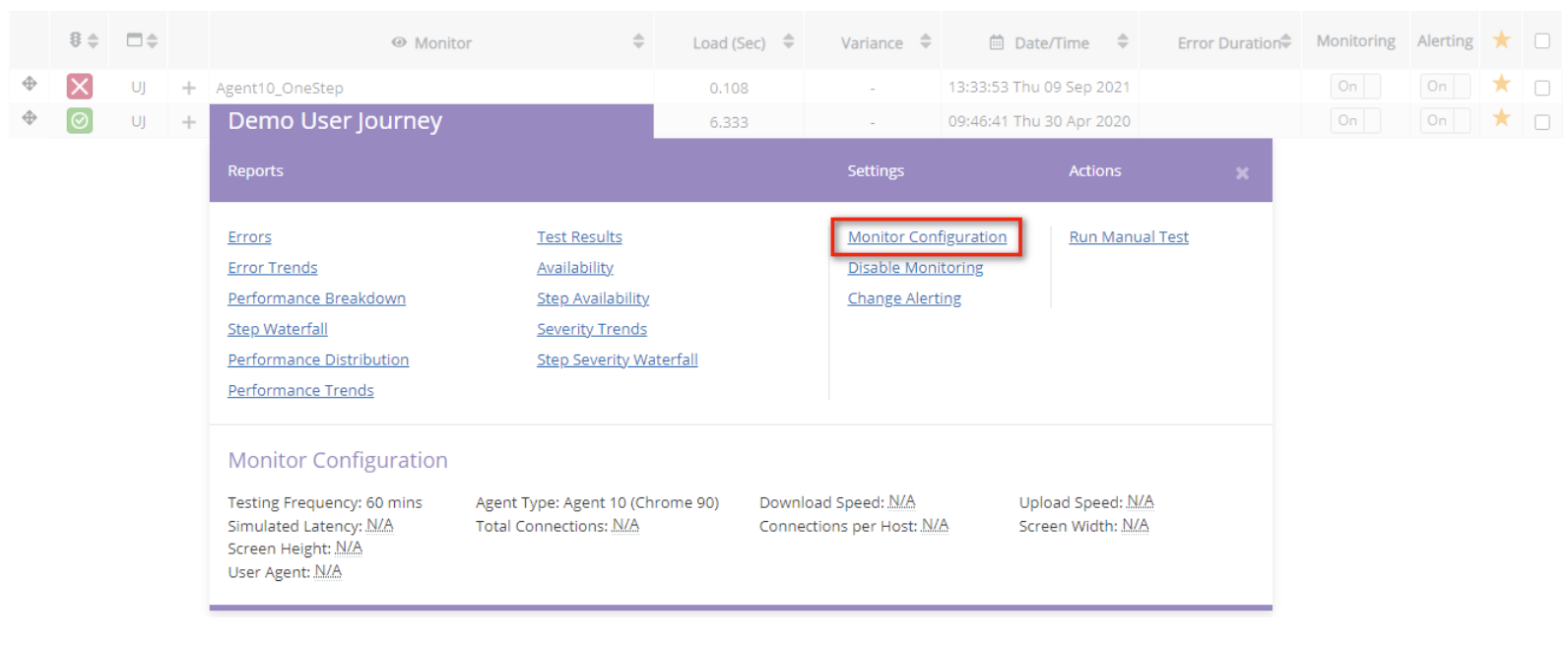 Accessing the Monitoring Administration Portal
User Journey Settings
Choosing Monitor Configuration as described above opens the View/Edit User Journey Settings. Here you can configure how a monitor works and the tests it performs. Each step of the monitor's user journey is listed; the view or edit permissions available depend on your role. If you are authorized, an Edit Script Code button appears above the user journey steps as shown below.
To open the Script Editor, click Edit Script Code as shown below.
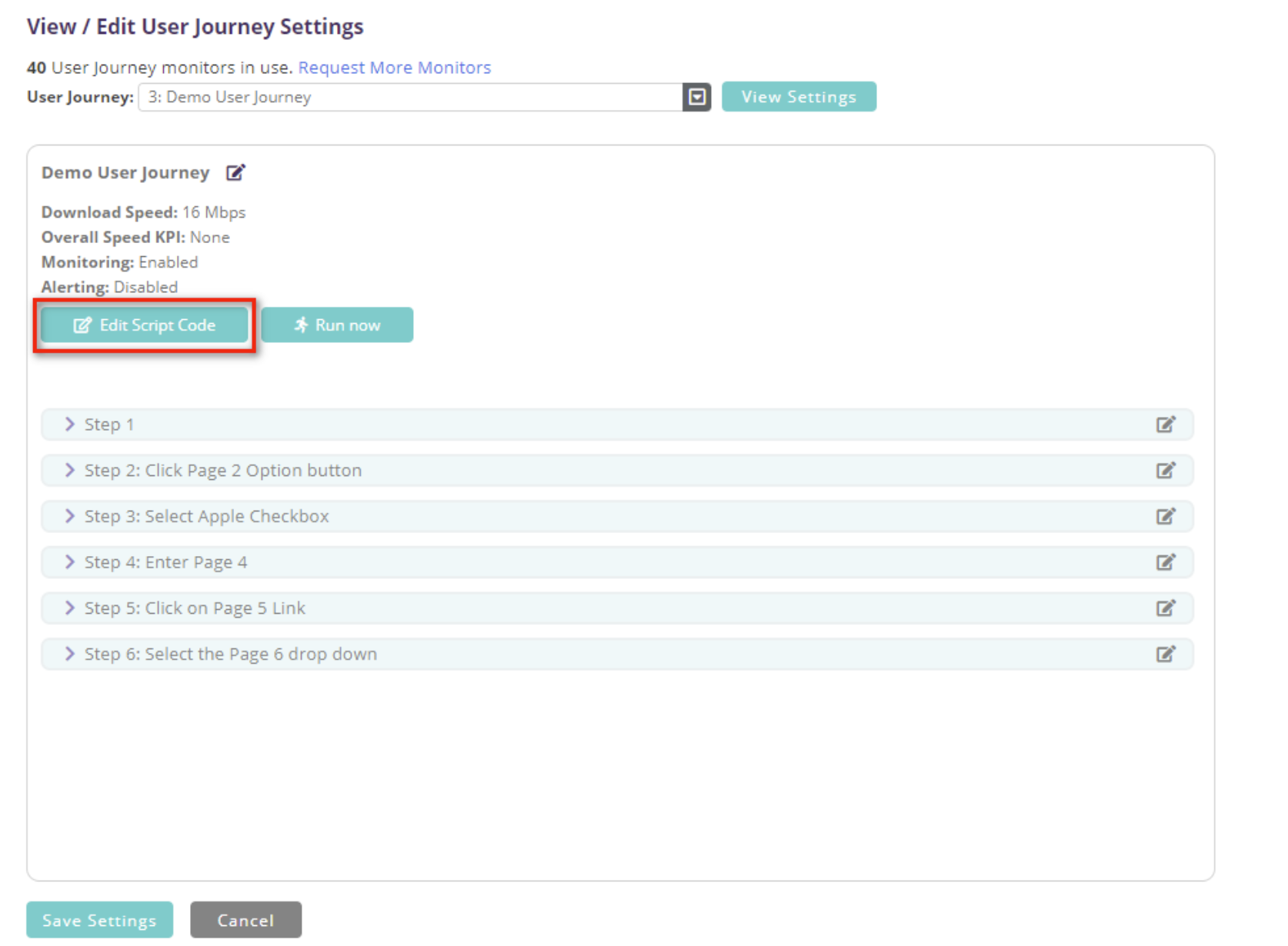 The User Journey Settings in the Monitoring Administration Portal
Accessing the Edit Script Code Editor
The Edit Script Code Editor presents code in blocks for each step of the journey, plus optional initialise and finalise blocks. You edit blocks individually but save the script as a whole using the Save button below the blocks.
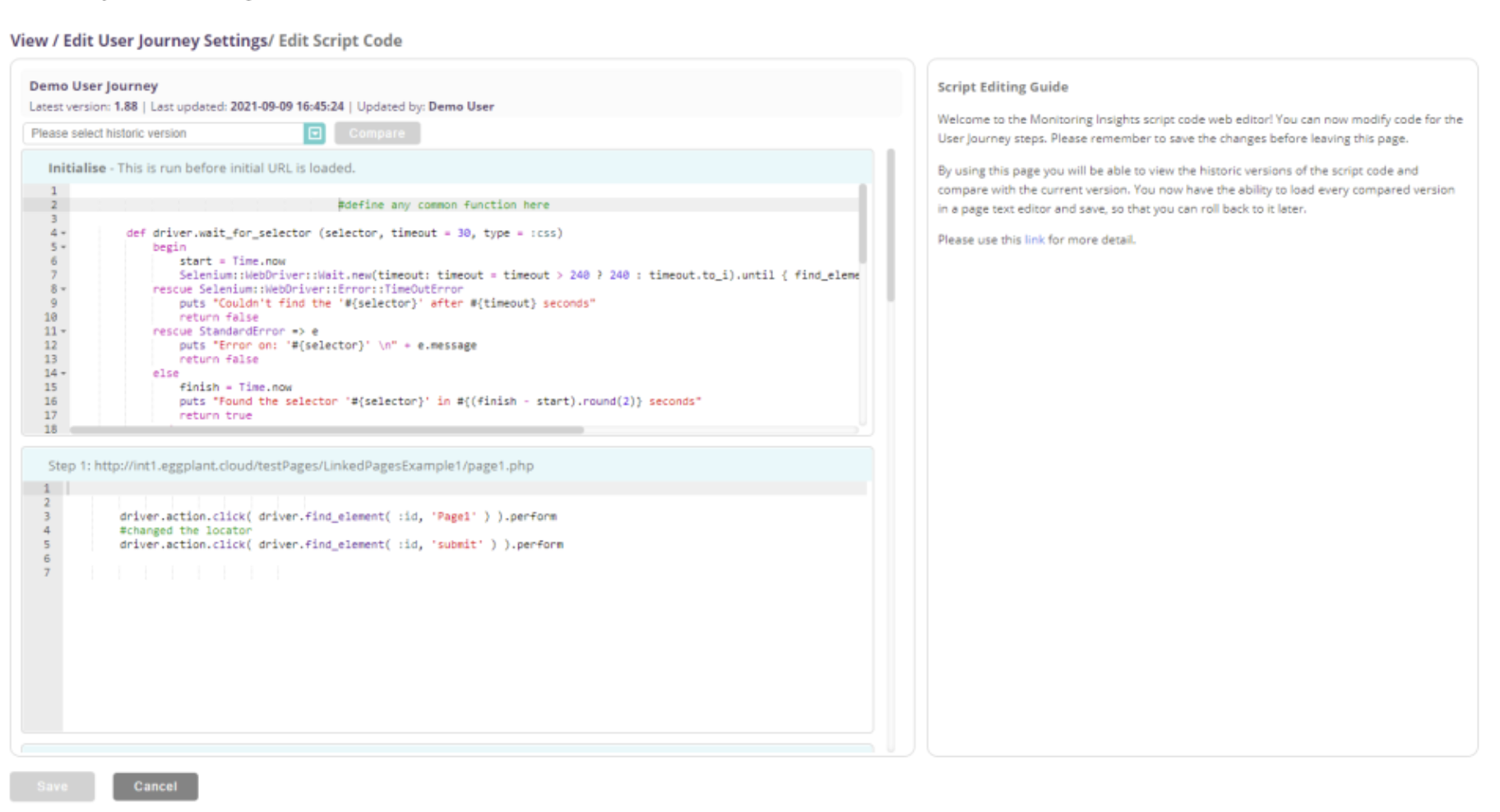 The Edit Script Code editor for editing the scripts for user journey steps in a monitor
Viewing the Script Version history
You can view the version history of a script from within the Edit Script Code editor by displaying the Please select historic version drop-down list.
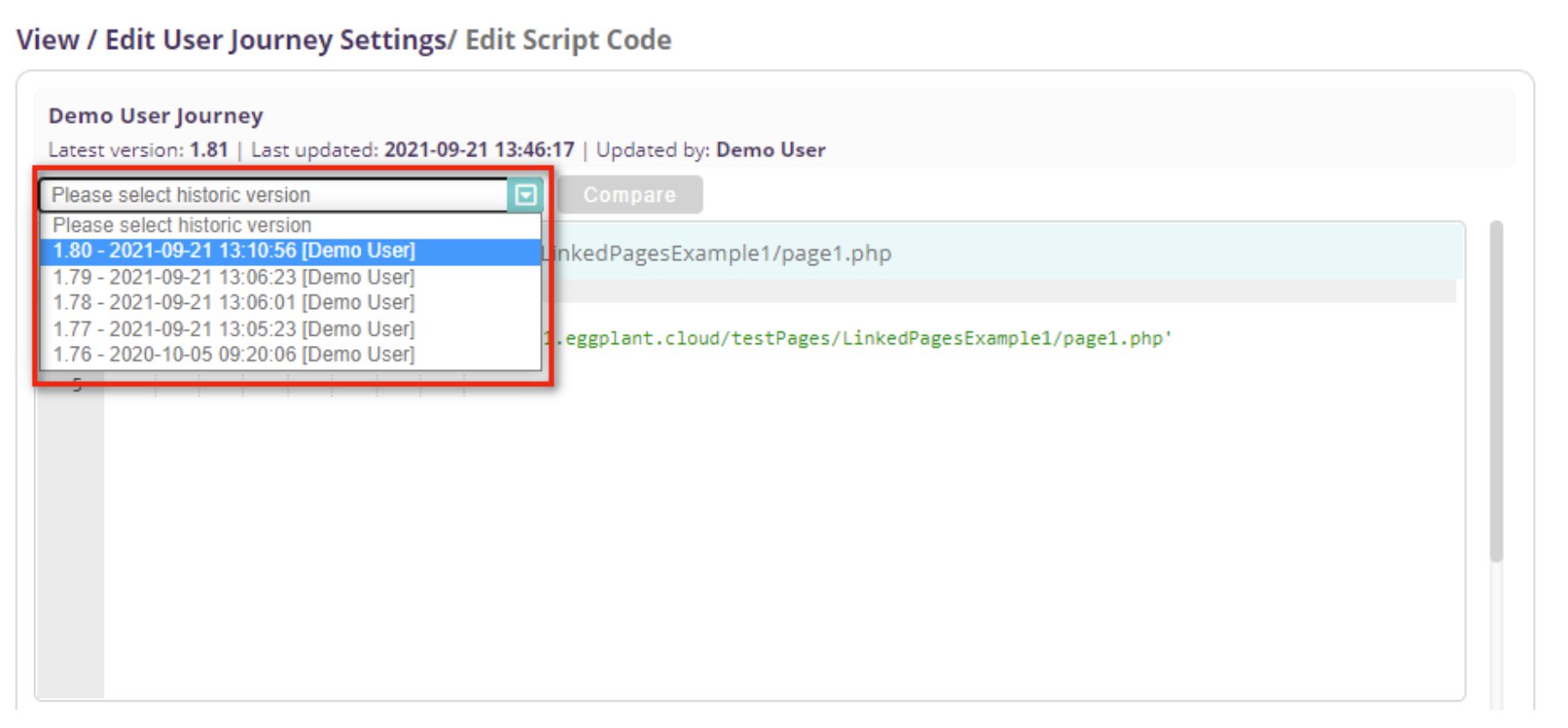 The Please select historic version drop-down list for selecting version history of the script
Comparing the Script Versions
-
Select a prior version from the Please select historic version drop-down to compare script versions.
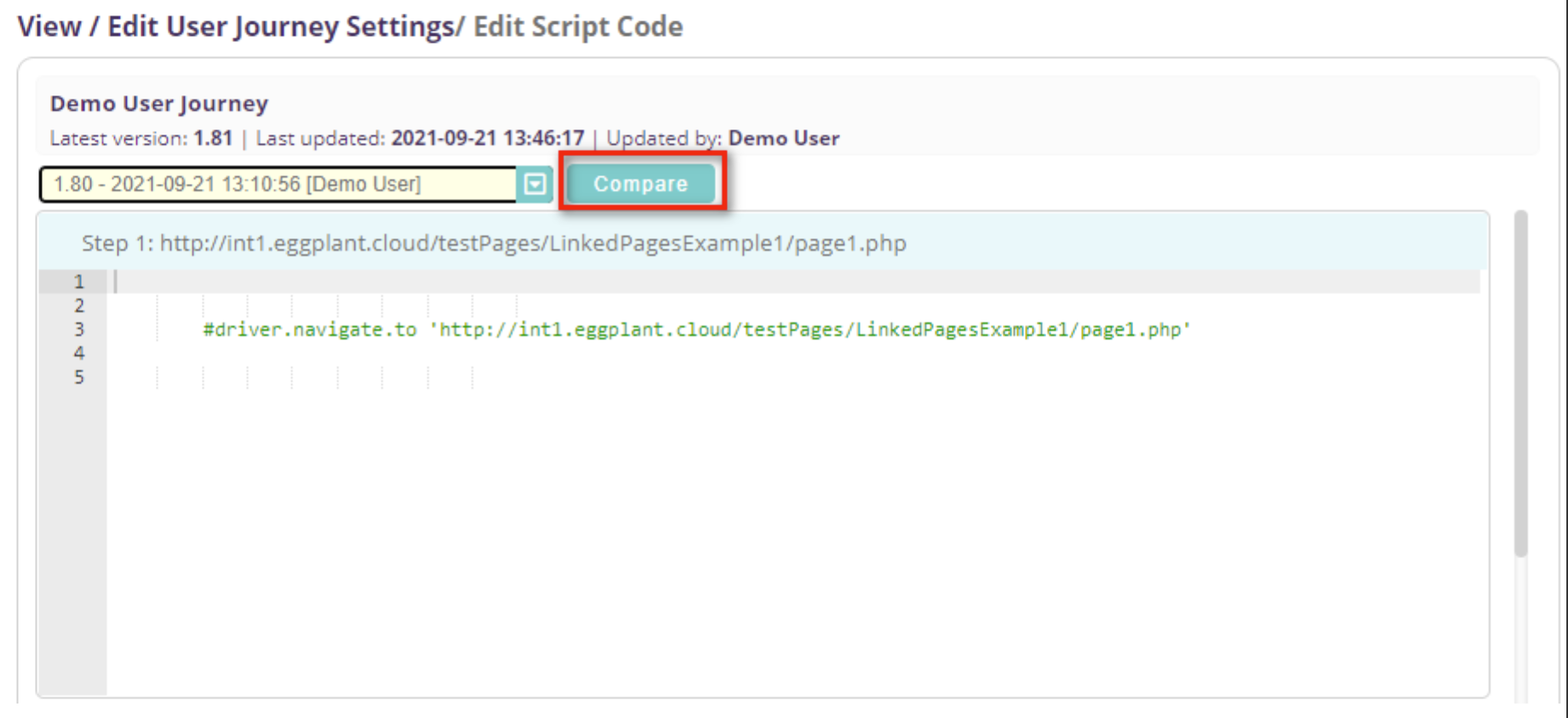 Select a prior version of the script from the Please select historic version list
 -
Click Compare to view differences side-by-side. The code differences between the two versions will then be displayed side-by-side as shown below.
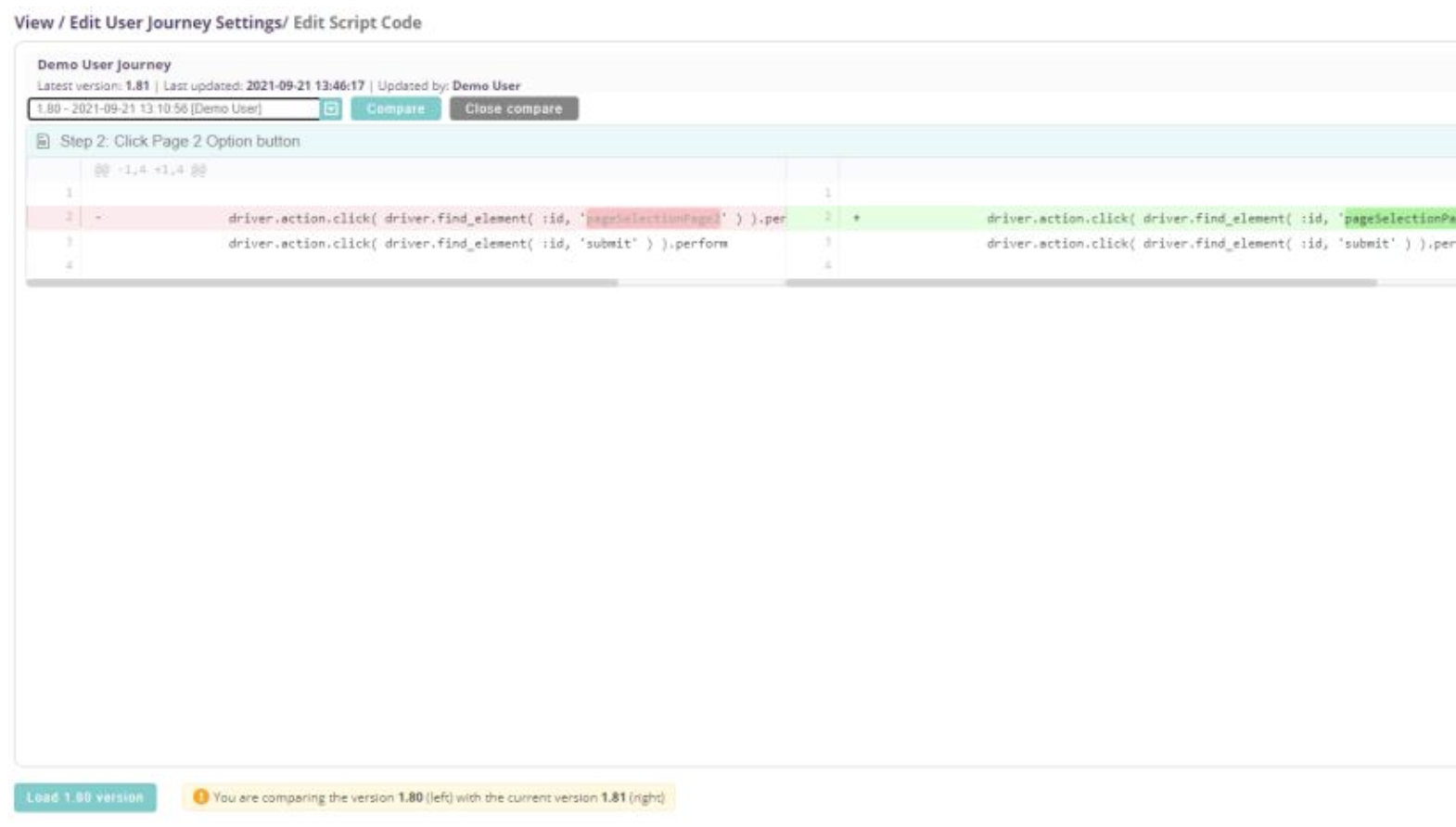 The current script and a previous version that was selected for a side-by-side comparison
 -
You can load an historic version by clicking Load version. The historic version will be display in the Edit Script Code editor.
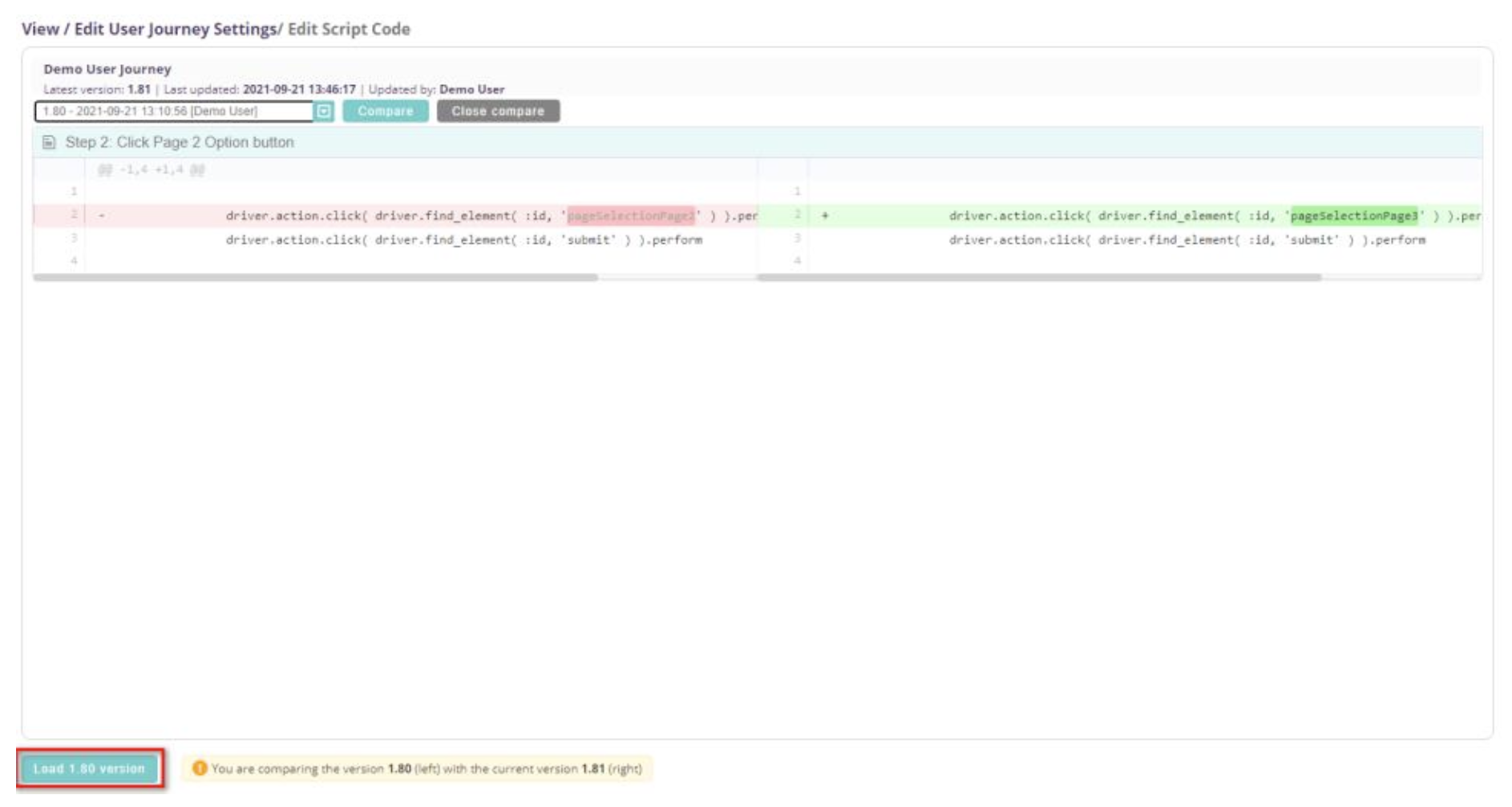 Click Load version number version to display historic version the selected for comparison in the editor
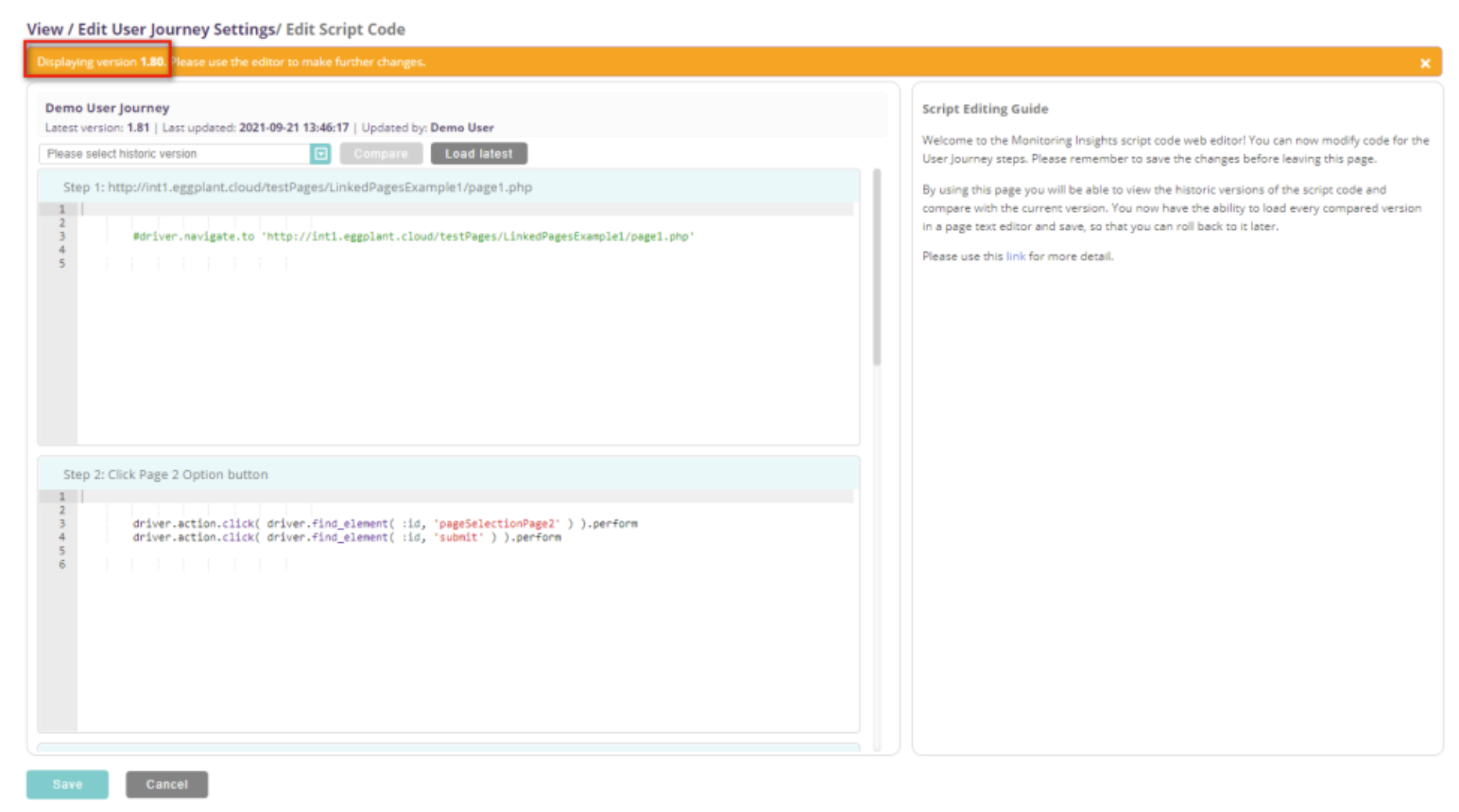 View historic version
Rollback of Code
To revert to an historic version, click Save while that version is loaded. You can also edit the historic version before saving. After saving, a confirmation message displays, showing the new latest version, updated date/time, and the user who performed the update.
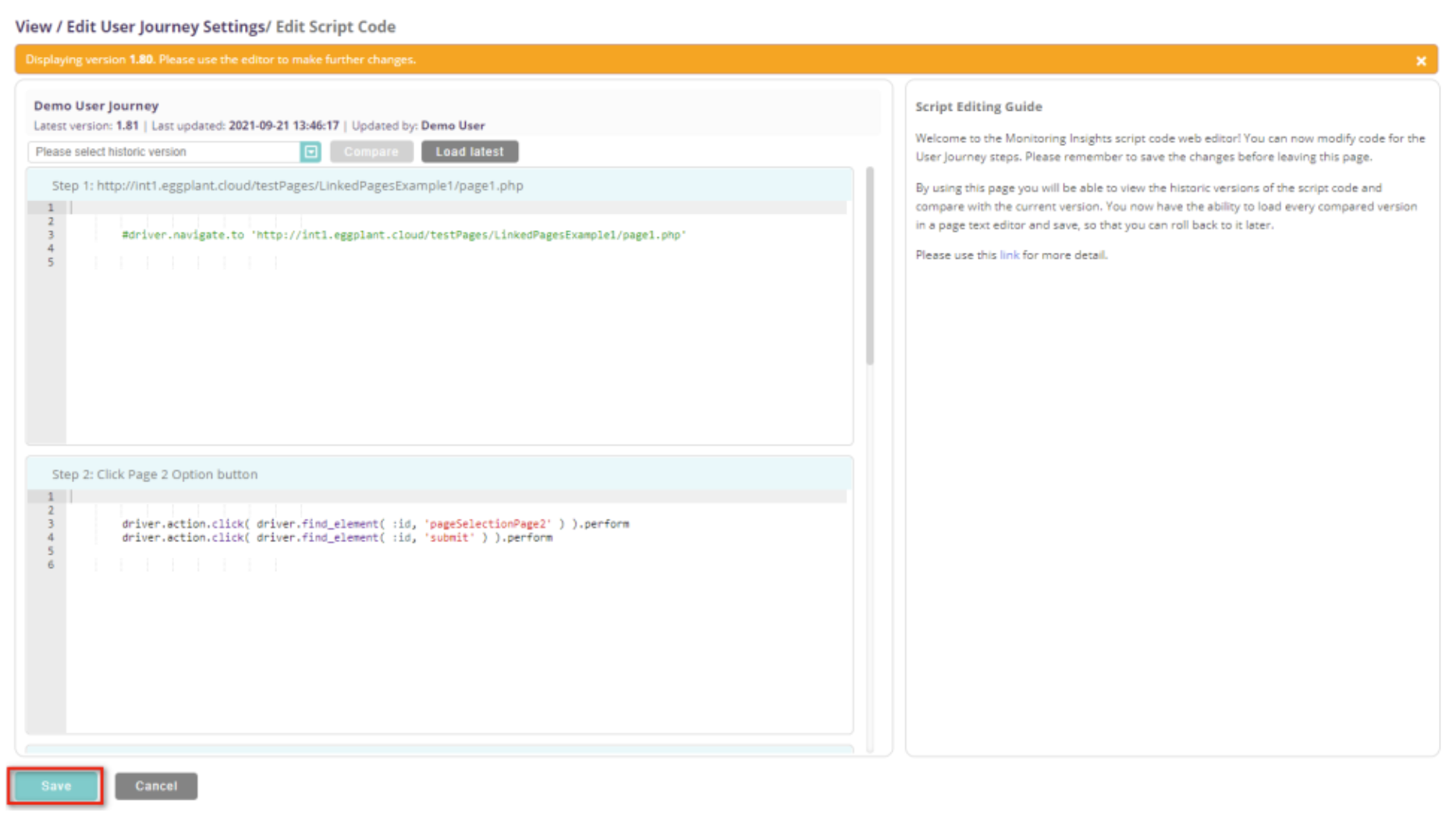 You can revert to an historic version by clicking Save while the historic versin is open
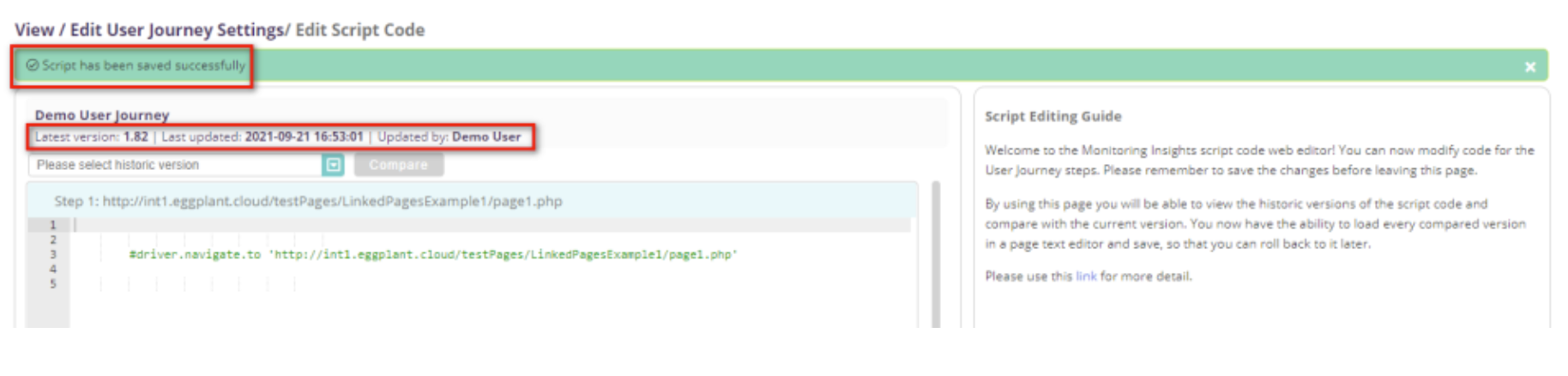 The confirmation message displays highlighted in green to confirm the changes were saved