RDP with Smart Card Authentication (Windows Only)
Some Eggplant Test applications support the use of smart card authentication with RDP connections to Windows systems under test (SUTs).
Enabling Smart Card authentication is only available for RDP connections on the Add/Edit Connection panels in the Windows versions of Eggplant Studio and Eggplant Functional (EPF) applications; it is not available in DAI.
However, you can use the name of a saved RDP connection configured for smart card authentication that you created using the panels in a script using a connect command. See Specifying the Smart Card Authentication Option in a SenseTalk Script for more information.
The table provided shows the smart card authentication option names. You must specify these options in addition to the basic and required RDP connection specifications listed in Basic RDP Connections.
For an overview to using RDP connections, please read RDP Connections Overview, RDP Connection Prerequisites, and Create an RDP Connection first. Basic RDP Connections provides an explanation of all the basic connection properties, and examples of how to create them in Eggplant Test applications, in a SenseTalk script, and with tests run at a command-line interface (CLI).
The Smart Card Option Names
| Smart Card options | Where to specify | Description |
|---|---|---|
| username | Eggplant Test application GUIs, SenseTalk script connect commands, and tests run at command-line interfaces (CLIs) | A username associated (enrolled) with the Smart Card. |
| PIN or Pin | Eggplant Test application GUIs, SenseTalk script connect commands, and tests run at command-line interfaces (CLIs) | The PIN number for the Smart Card. |
| domain | Eggplant Gateway CLI only | The domain for the username specified with smart card enrollment. |
Enabling Smart Card Authentication in an Eggplant Test Application
You can enable the smart card authentication option in Eggplant Studio and Eggplant Functional (EPF) applications.
The smart card option is not available on the DAI Add new connection panel for RDP connections in DAI.
Examples: Click the tab for the appropriate Eggplant Test application below to see a sample RDP connection panel in that application, and then look for the Enable Smart Card option:
- Enable Smart Card in Eggplant Studio
- in Eggplant Functional
- in DAI
Below is an example Add Connection panel for the RDP connection type in Eggplant Studio. To configure an RDP connection to use smart card authentication, select the Enable Smart Card checkbox, which changes the panel to display the PIN field instead of a Password field.
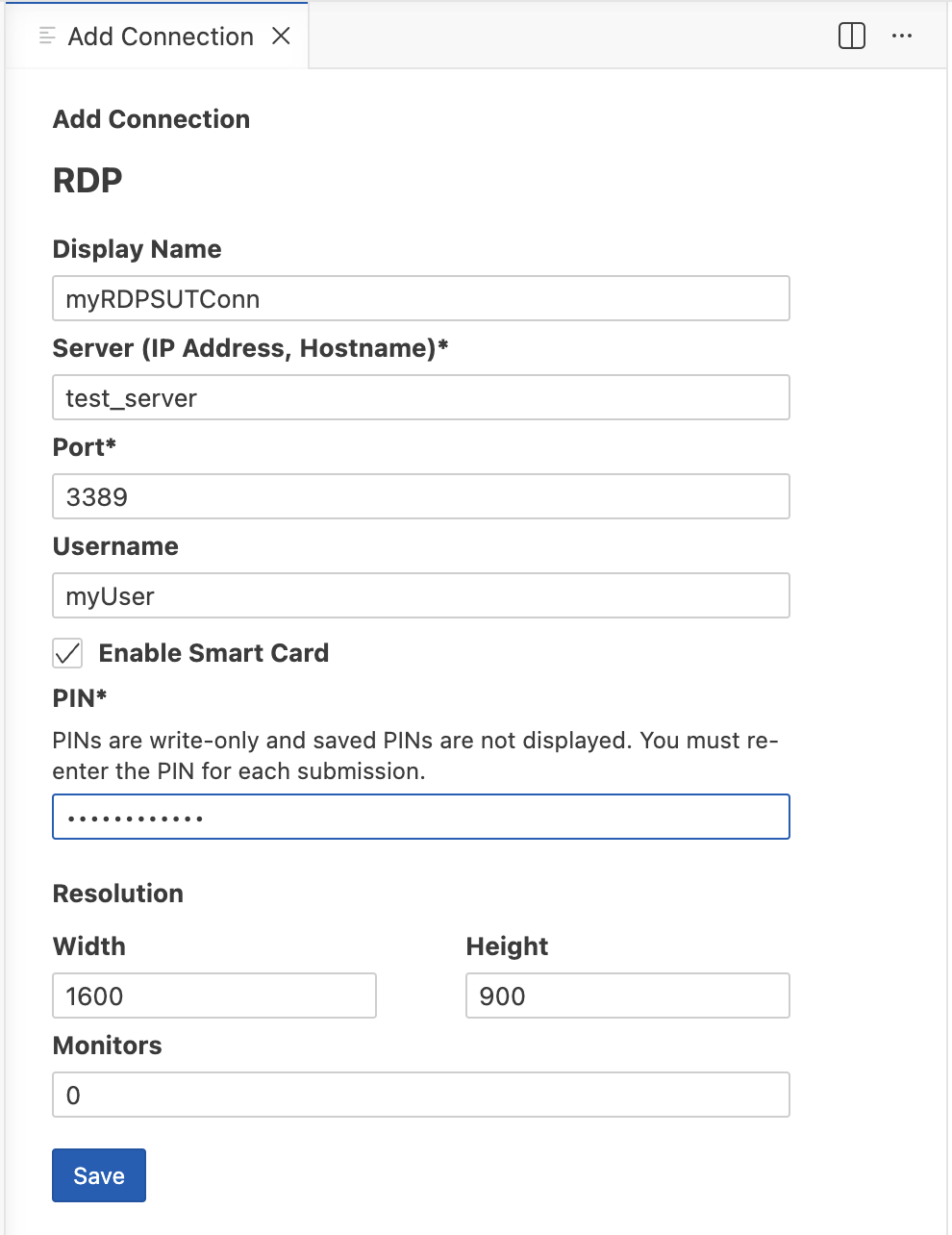
The Add Connection panel for RDP in Eggplant Studio has an Enable Smart Card checkbox
Below is an example New Connection panel for a Connection Type > RDP in Eggplant Functional (EPF). To configure an RDP connection to use smart card authentication, select the Enable Smart Card checkbox, which changes the panel to show the Pin field instead of the Password field.
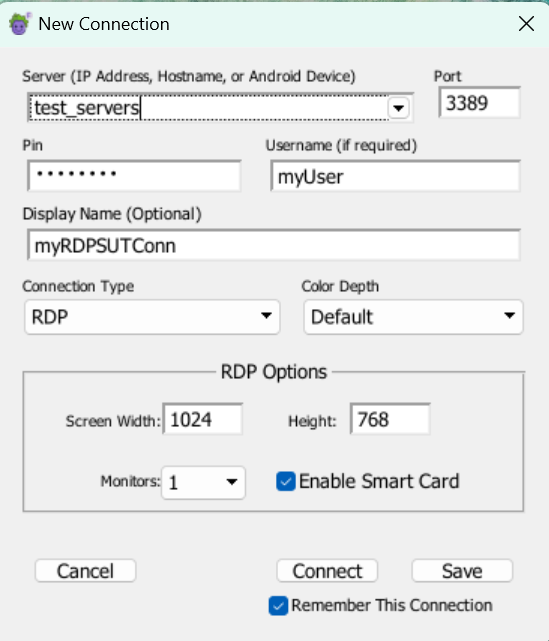
The New Connection panel for RDP in EPF has an Enable Smart Card checkbox and Pin field
The smart card authentication option is not available for RDP connections in DAI.
Specifying the Smart Card Authentication Option in a SenseTalk Script
The SenseTalk connect command does not provide options to support smart card authentication for RDP connections.
However, you can still use RDP connections with smart card authentication within your script by specifying the name of a saved RDP connection that uses smart card authentication in a connect command. See Enabling Smart Card Authentication in an Eggplant Test Application above for information about how to create and save a named connection within one of these apps.
Example:
connect "Windows-Test-RDP"
// where "Windows-Test-RDP" is a saved connection created in Eggplant Functional or Eggplant Studio
// that has the **Enable Smart Card** option enabled
Specifying the Smart Card Authentication Option at the Command Line
The runscript command, which is the command used to run SenseTalk scripts through a command-line interface (CLI), does not support smart card authentication for RDP connections.
RDP connections that use smart card authentication are typically created through the Eggplant Studio or Eggplant Functional (EPF) applications as saved connections, and then either also established through the apps' connection lists, or specified with the saved name in a connect command within a SenseTalk script as described in Specifying the Smart Card Authentication Option in a SenseTalk Script above.
Supported Smart Card Test Configurations
See the diagrams below showing the test configurations that are supported for testing using systems that include Smart Card readers.
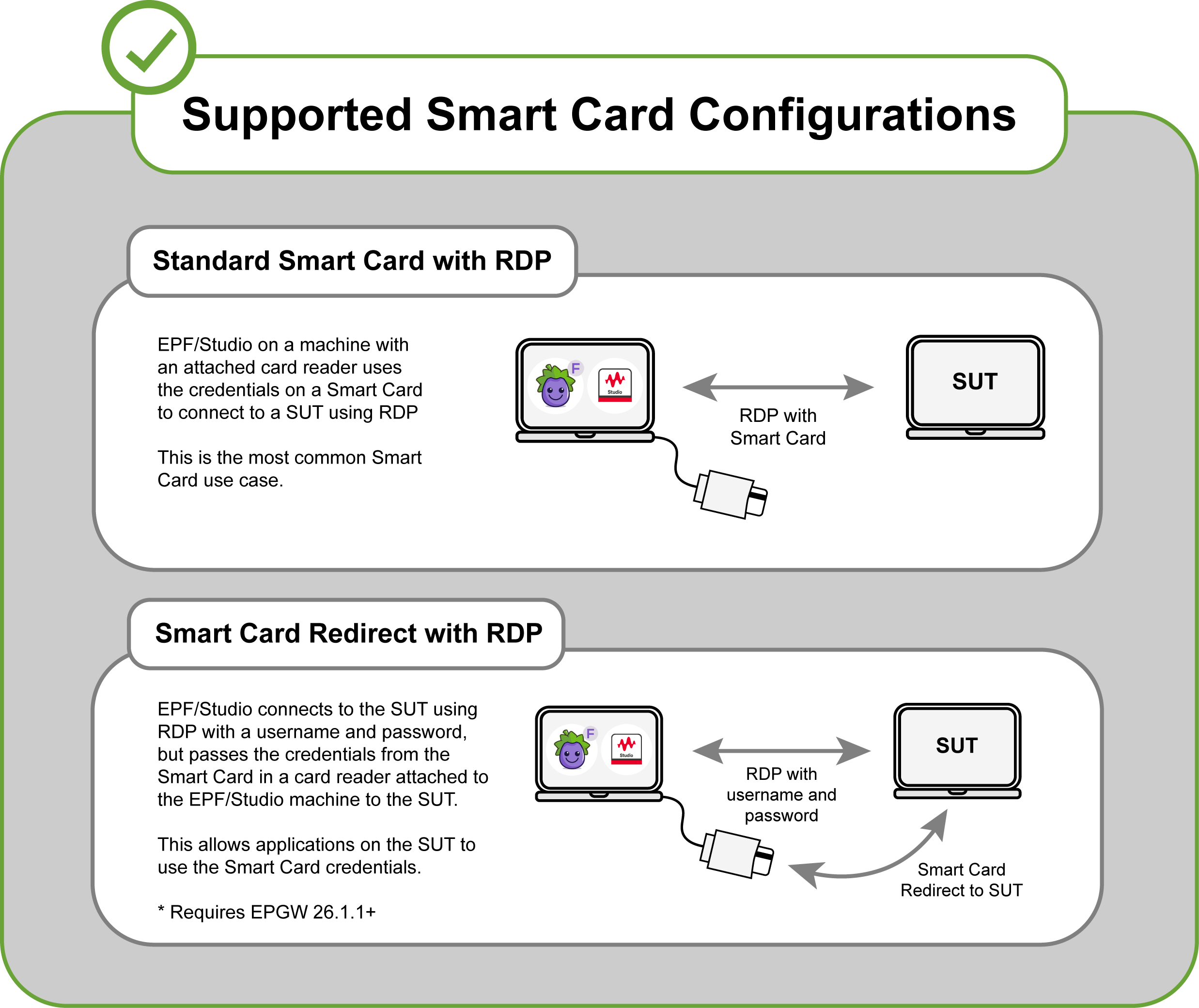
Supported configurations for testing with systems that include Smart Card readers
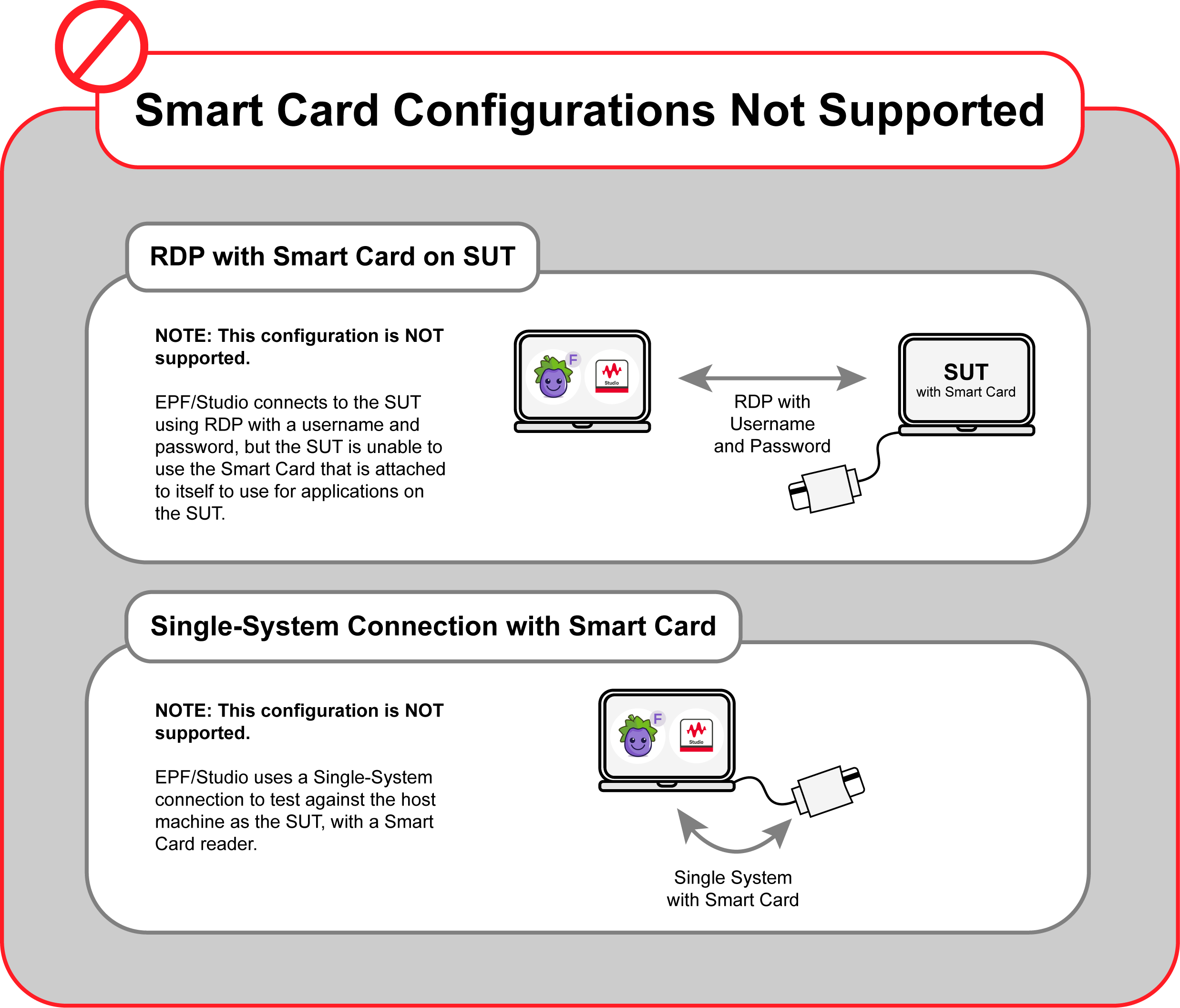
Configurations that are not currently supported for testing with systems that include Smart Card readers
If you want to use a Smart Card in a different configuration than any of those shown above, please reach out to Eggplant Support for assistance.