Create a Basic RDP Connection
This page provides instructions for creating RDP connections in Eggplant Test applications. For an overview and prerequisites for using RDP connections, please read RDP Connections Overview and RDP Connection Prerequisites first.
When you create an RDP connection, you need to supply the connection information for the Windows system you want to use as a SUT, along with any information required for the connection options you want to use. The following tables provide details about the information you need to supply to establish an RDP-type connection to a SUT:
- Basic RDP connections
- RDP connections with the Multiple Monitors option
- RDP connections with the Smart Card authentication option
- RDP connections that uses RDP protocol security options
For general information about the different ways you can create connections (within the app, in a script, or at the command-line when you run a script that way), or to see examples of the various connection panels, see Adding Connections in Eggplant Applications.
Basic RDP Connections
This section provides a table listing the information you need to make a basic RDP connection, followed by information on where to create RDP connections in the Eggplant Test applications, and how to establish RDP connections in SenseTalk scripts or through a command-line interface.
While you can only connect to Windows and Linux systems as SUTs using RDP, you can use the RDP connection type from Eggplant applications running on any supported platform (Windows, Mac, or Linux).
To create a basic RDP connection, provide the following information about the Windows system you want to connect to as a SUT:
| Basic Connection Information | Description |
|---|---|
| name | The name you want to give your connection. This can be any name you choose. |
| serverHostname | The hostname or IP address of the Windows system you want to use for a SUT. |
| username | A username with permission to log into the Windows SUT. For connections defined in EPF, you can qualify the username with the domain. |
| password | The password for the username specified. If your Eggplant Test product is running on Mac or Windows, you can avoid specifying a password here by storing your credentials in your operating system's credential manager. See Securing SUT Connection Credentials for more information. |
| serverPort | The port number to use for the connection on the Windows system. Default: 3389 (Integer) |
| domain (EPGW only) | The domain to which the Windows SUT and username specified belong. This is a separate field. |
| resolution (EPGW only) | The screen resolution in pixels you want for your SUT viewer window display. |
| Screen Width (in the Eggplant Studio, EPF, and DAI apps) -DefaultWidth (runscript command option) | The width in pixels you want for your SUT viewer window display. Default: 1024 |
| Screen Height (Eggplant Studio, EPF, and DAI apps) -DefaultHeight (runscript command option) | The height in pixels you want for your SUT viewer window display. Default: 768 |
Where to Create Basic RDP Connections in Eggplant Test Applications
Eggplant Studio, Eggplant Functional (EPF), and DAI all provide graphical user interfaces (GUIs) that you can use to create an RDP connection.
Examples: Click the appropriate tab below to see an example RDP connection in each Eggplant Test application:
- Creating an RDP Connection in Eggplant Studio
- in Eggplant Functional
- in DAI
An example Add Connection panel for creating an RDP connection in Eggplant Studio:
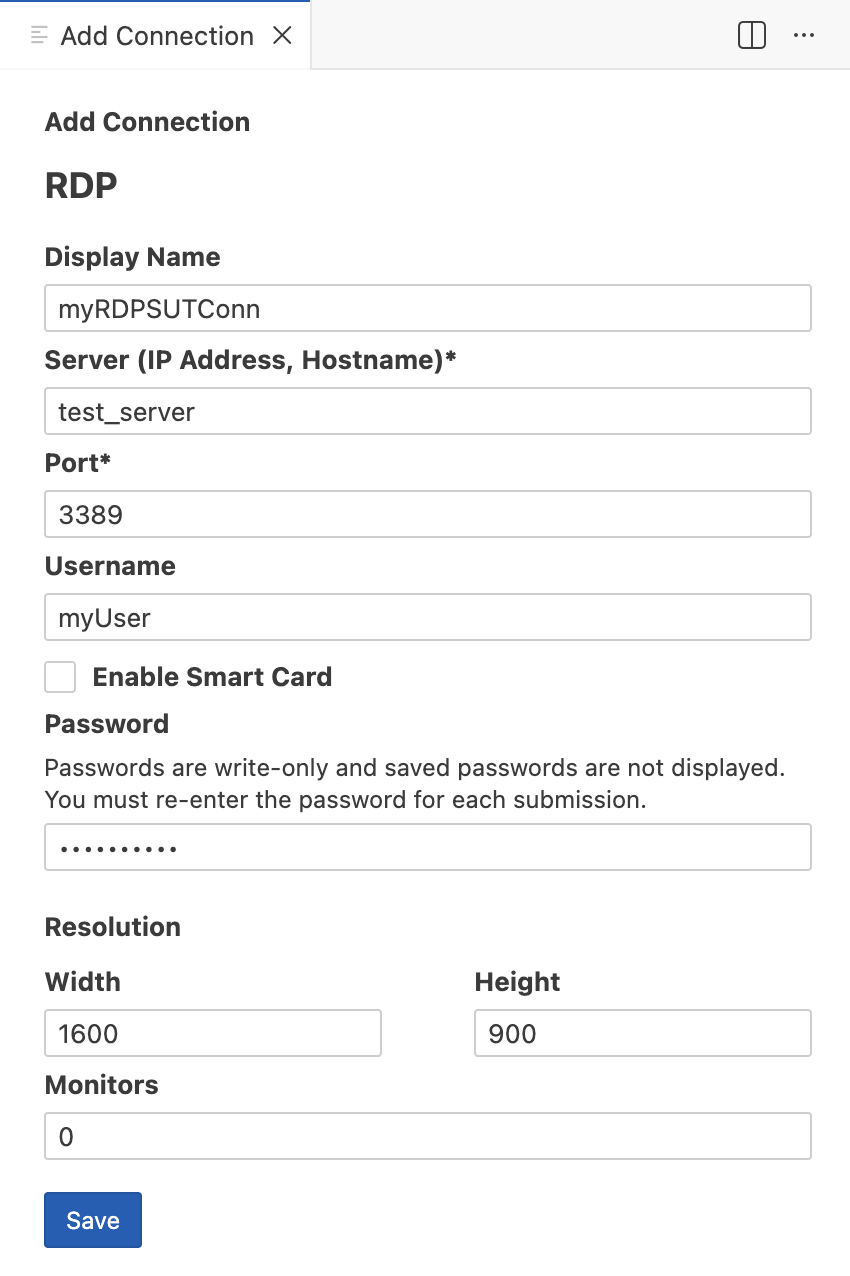
The Add Connection panel for an RDP Connection in Eggplant Studio
An example New Connection panel for creating an RDP connection in EPF:
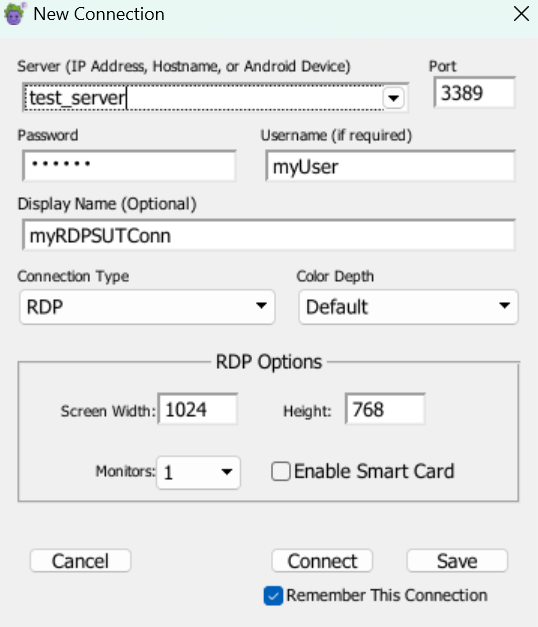
The New Connection panel for creating an RDP Connection in EPF
An example General panel for an RDP connection in DAI. Note that to access this panel, you must first display the New SUT panel, or edit an existing SUT and add or edit a new connection.
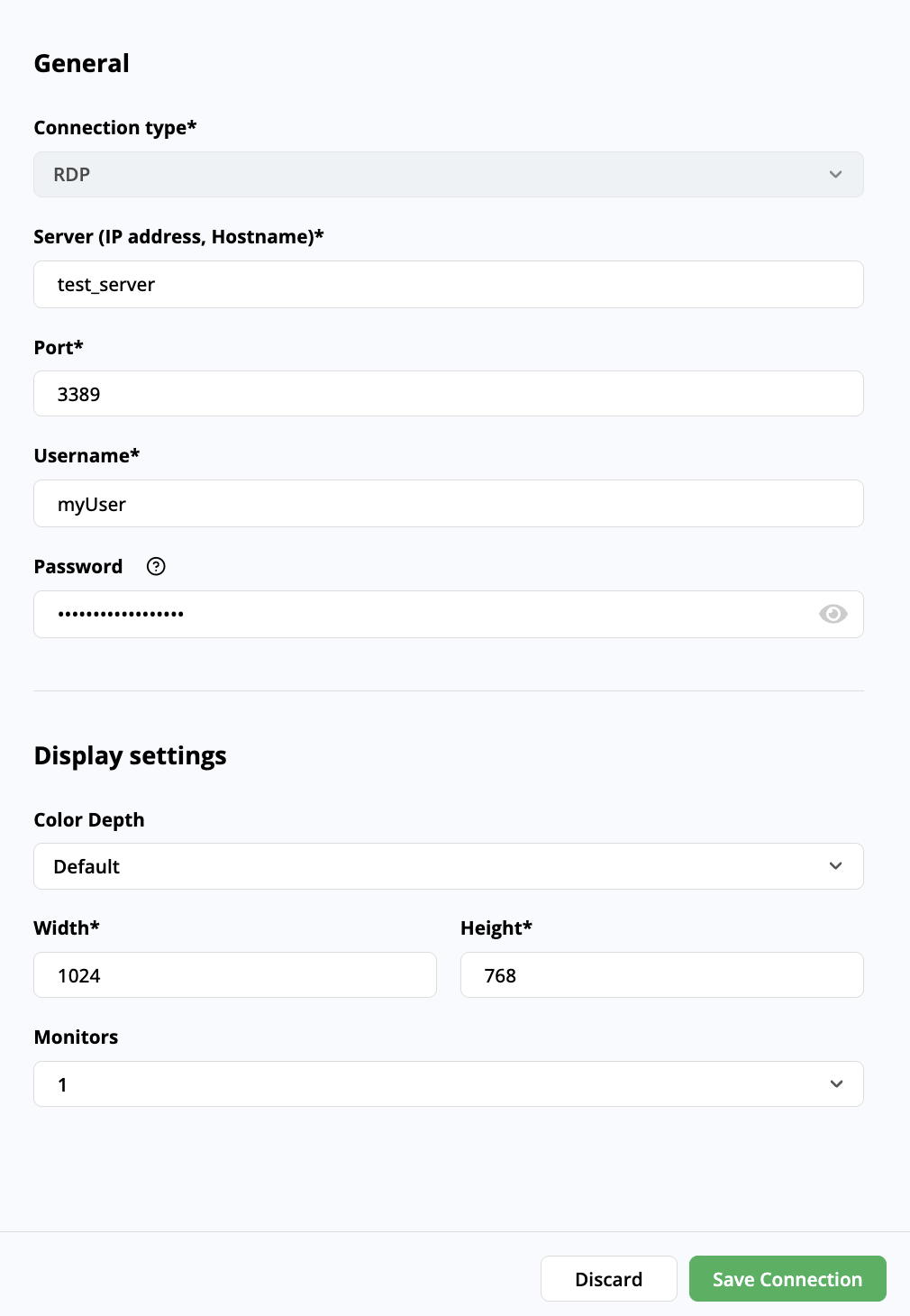
The New Connection panel for an RDP Connection in DAI
Creating a Basic RDP Connection in SenseTalk Using the connect Command
SenseTalk is the Eggplant Test scripting language. The following example shows how you can use the SenseTalk connect command to establish a connection within a script. For more information about creating connections within a script, see the connect Command in the SenseTalk Reference manual.
Example:
Connect {serverID: SUTID, portNum: 3389, password: SUTPassword, username: SUTUsername, Type:"RDP", Width: 1920, Height: 1080}
Creating a Basic RDP Connection at the Command Line Using runscript
The runscript command is the command that you use to run SenseTalk scripts from a command line, using Eggplant Fusion Engine (which is what Eggplant Functional is called when it is run without its GUI). You can pass SUT connection information with the runscript command when you run a script at the command line. For more information about running scripts from a command line, see Running from the Command Line in the Eggplant Functional documentation.
Examples: Click the operating system tab below to see an example of how to pass connection information for a basic RDP connection (using -type rdp) as parameters to the runscript command on that platform.
- Creating a Connection at the CLI on Windows
- on Linux
- on macOS
This example runscript command on Windows passes the SUT connection information using the -host, password, and -type rdp parameters at the command-line interface (CLI) along with the test script:
"C:\Program Files\Eggplant\runscript.bat" "C:\Users\Alex\Documents\MySuite.suite\Scripts\test2.script" -host <ip address> -password "<password>" -type rdp -DefaultWidth 1920 -DefaultHeight 1080
This example runscript command on Linux passes the SUT connection information using the -host, password, and -type rdp parameters at the command-line interface (CLI) along with the test script:
runscript ~/Documents/appTests.suite/Scripts/test1.script -host <ip address> -type rdp -port 5901 -username "<username>" -password <password>
This example runscript command on macOS passes the SUT connection information using the -host, password, and -type rdp parameters at the command-line interface (CLI) along with the test script:
/Applications/Eggplant.app/Contents/MacOS/runscript /Users/Alex/Docs.suite/Scripts/myTests/test2.script -host <ip address> -type rdp -port 3389 -username <username> -password <password>