Securing Connection Credentials
Eggplant Test can use your computer's OS-specific credential management tool, such as Microsoft Windows Credential Manager or macOS Login Keychain, to store credentials used for connecting to systems under test (SUTs). Storing this information in a secure location means you can prevent password details or Sauce Labs API keys, for example, from appearing in your Eggplant Test script editors, output panes, and log files, among other security benefits.
You can also store secret information in your credential management tool during a script run using the VaultValues and TypeHiddenText commands in Eggplant Test's scripting language, SenseTalk. In this case, the "vault" in the VaultValues commands is your credential management tool. For more information, see Commands for Secure Values in the SenseTalk Reference.
Secure credentials are not supported on Linux.
Migrating SUT Connection Passwords from Eggplant Functional/Fusion Engine
To save your passwords in Eggplant Functional (EPF)/Fusion Engine to your system:
-
Launch EPF.
-
Choose Eggplant > Preferences (Settings on Mac) and display the Connections tab.
-
At the bottom of the tab, under Security, select the Store connection passwords checkbox. Note that the label for this checkbox will specify the appropriate credential management tool for your computer's OS.
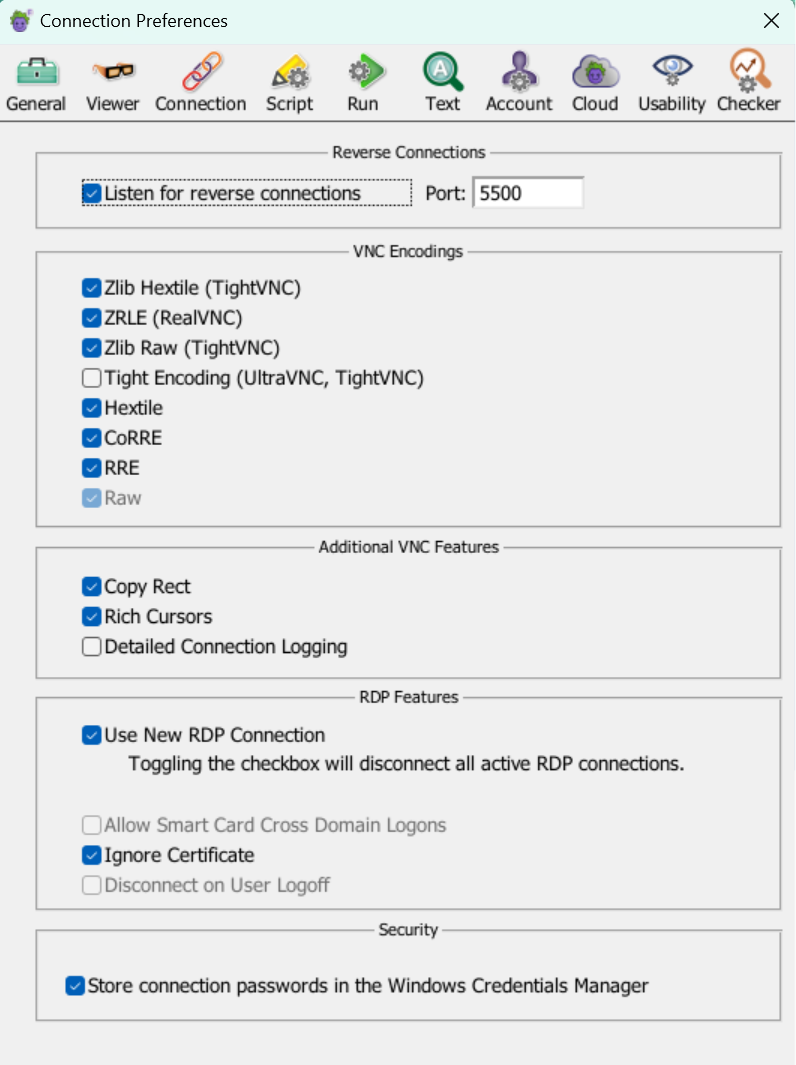
EPF Preferences Connections tab with the Store connection passwords option enabled on a Windows system
Confirm that Passwords are Secured
When passwords are not stored in the credential management tool, they appear in an encrypted form in the Pass_code property from the SenseTalk ConnectionInfo functions.
For Example:
{Availability:"Unknown", Bonjour:"False", ColorDepth:0, Connected:"False",
Name:"MY-RDP-SUT", Pass_code:"U1S.@Y;>Z%$", PortNum:3389,
Reverse:"False", ServerID:"12.34.56.78", Status:"Not Connected",
Type:"RDP", username:"MyUser", Visible:"False"}
When passwords are stored securely in the credential management tool, the Pass_code property should be absent from the results of ConnectionInfo functions. Instead, you'll see a connectionID property.
For Example:
{Availability:"Unknown", Bonjour:"False", ColorDepth:0, Connected:"False",
Name:"MY-RDP-SUT", PortNum:3389,
Reverse:"False", ServerID:"12.34.56.78", Status:"Not Connected",
Type:"RDP", username:"MyUser", Visible:"False",
connectionID:"18724D60-3ED0-480C-96A5-BADEF15F267A"}
Although it is uncommon, Eggplant Gateway is embedded in EPF, but can also be used to create a connection. However, it stores information using a different method. If you have connections that were created using Eggplant Gateway, see Storing Connection Data in the Eggplant Gateway documentation for more information.
Removing Passwords from the Credential Management Tool
In some cases, you might need to remove your passwords from the credential management tool. Also, you might need to disable this option if you have a script that depends on the pass_code from ConnectionInfo() and migrated your passwords without understanding the impact.
To remove your passwords from the credential management tool:
-
Open the Eggplant Functional Connection Preferences.
-
Under Security, clear the Store connection passwords checkbox. Note that the label for this checkbox will specify the appropriate credential management tool for your computer's OS.
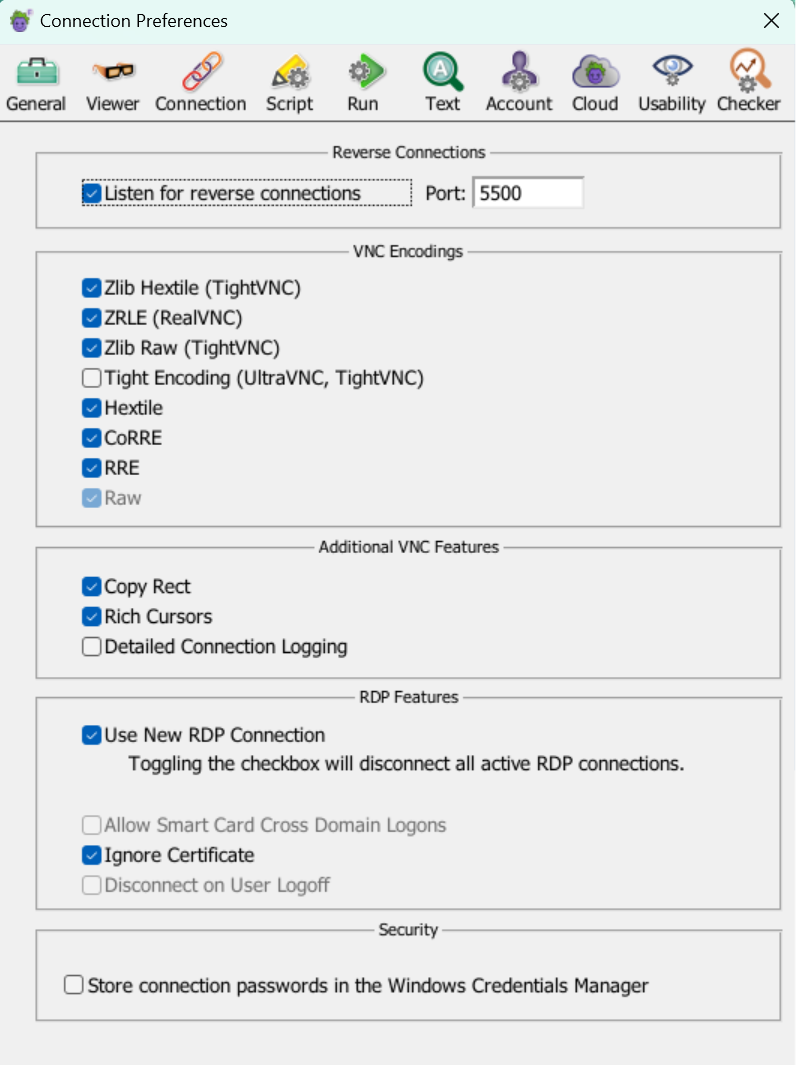
EPF Preferences Connections tab with the Store connection passwords option disabled on a Windows system
Viewing Connection Information in the Credential Management Tool
On Windows and macOS, the connection entry in Eggplant Functional can be correlated with an entry in the credential management tool using the connectionID connection property.
Windows
- From the Start menu, click the search icon.
- Type "Credential Manager" and launch the application.
- Select Windows Credentials.
- All Eggplant Functional connection passwords are prefixed with
"com.eggplantsoftware.epf-"and followed by the connectionID. - Expand entries to confirm that the User name also contains the connectionID.
macOS
- Open the Keychain Access application.
- Select the login keychain.
- Select the Passwords category.
- Type "EPF" in the filter text box at the top right to show only Eggplant Functional connection password entries.
- Select an entry to see the connectionID listed under the Account. Double-click the entry for more details.
Linux
Secure credentials are not supported on Linux.