General Preferences
You access Eggplant Functional (EPF) General Preferences by going to Eggplant > Preferences. The General tab of Preferences controls several basic housekeeping behaviors, as described below.
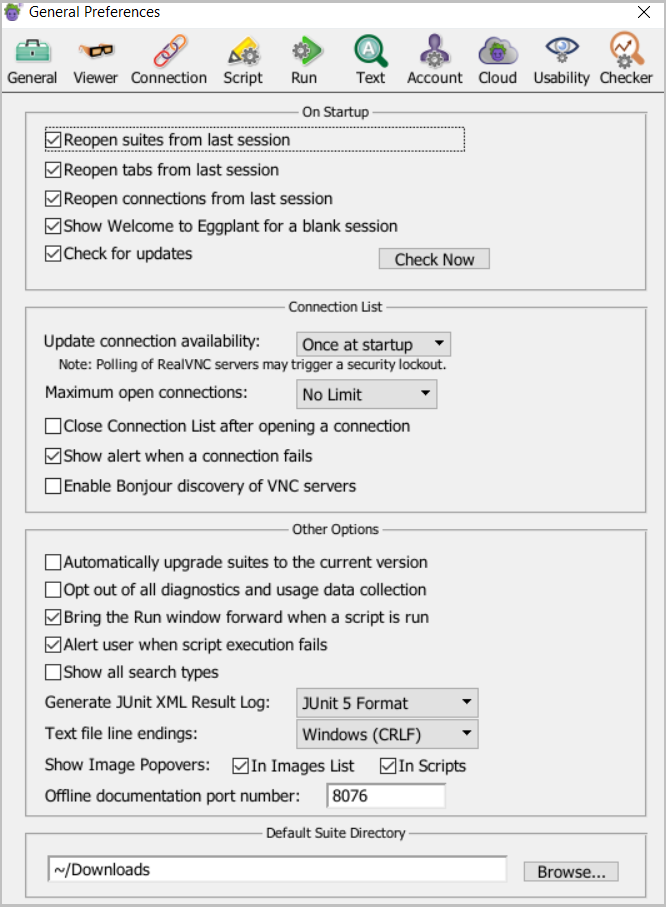
The General Preferences tab
On Startup
Reopen suites from last session: Selected by default. Select this checkbox to automatically reopen your last open suites when you launch Eggplant Functional.
Reopen tabs from last session: Selected by default. Select this checkbox to automatically reopen your last open tabs when you open Eggplant Functional.
Reopen connections from last session: Selected by default. Select this checkbox to automatically reopen your last open connections when you launch Eggplant Functional.
If Eggplant Functional cannot connect to a previously open system under test (SUT), no alert or error message displays.
Show Welcome to Eggplant for a blank session: Selected by default. When selected, the Welcome to Eggplant screen displays when Eggplant Functional opens with no connection to a SUT.
Check for updates: Selected by default. Select this checkbox to automatically check for Eggplant Functional software updates when you launch Eggplant Functional.
Connection List
Update connection availability: This drop-down list contains choices for how often SUT status in the Connection List is updated. The default is Once at startup. Regardless of your choice, SUT status is always updated when you first open or close a connection.
Maximum open connections: This drop-down list allows you to limit concurrent SUT connections to the chosen number. The default is No Limit.
Close Connection List after opening a connection: When this checkbox is selected, Eggplant Functional closes the Connection List window when you open a connection.
Show alert when a connection fails: Selected by default. When this checkbox is selected, Eggplant Functional prompts you to retry or cancel when a connection fails.
Show table headers in the connection list: Selected by default. When this checkbox is selected, Eggplant Functional displays table headers in the Connection List. For more information on table headings in this window, see The Connection List.
Enable Bonjour discovery of VNC servers: Disabled by default. When this checkbox is selected, local computers that have Bonjour networking technology enabled automatically appear in your Connection List.
SUTs that are detected through Bonjour are not automatically saved to the Connection List. To save a Bonjour-detected SUT, open the add/edit screen for the connection, select Remember This Connection, then click Save. If you do not save the connection, the SUT is removed from the Connection List when it is no longer detected on the network.
On Windows operating systems, you must install Bonjour to enable this feature. Bonjour is included with Eggplant Functional 15.1 and later for Windows.
Other Options
Automatically upgrade suites to the current version: When this checkbox is selected, Eggplant Functional automatically changes any of your scripts that are effected by changes in SenseTalk commands and functions.
Opt out of all diagnostics and usage data collection: By default this checkbox is not selected, so diagnostics and usage data, specifically the version number of Eggplant Functional and the operating system on which it is running, is sent to Keysight. When this checkbox is selected, you opt out of all diagnostics and usage data collection. Keysight may continue to collect anonymous information or license information. You might need to enable this option to avoid firewall problems or other security issues.
Bring the Run window forward when a script is run: Selected by default. Select this checkbox to automatically open the Run window (or bring it to the front) whenever a script is run.
Alert user when script execution fails: Selected by default. Select this checkbox to see an alert dialog box when a script fails. (This option does not apply to scripts that are run as part of a schedule.)
Show all search types: By default this checkbox is not selected, so only the most common search types will be displayed in Eggplant Functional. When this checkbox is selected, Eggplant Functional will display all search types wherever search types can be set.
Generate result log in JUnit-compatible XML format: Choose whether to generate script results in JUnit-compatible XML format. These files are saved alongside the standard text log files generated by Eggplant Functional. Format options are JUnit 5, Legacy, or None. JUnit 5 is the default.
Text file line endings: This drop-down list allows you to set the type of line ending Eggplant Functional should expect on the host machine. Options are Mac / Linux (LF) or Windows (CRLF).
Show Image Popovers: These checkboxes, In Images List and In Scripts, allow you to choose whether you want to see image pop-overs appear in the Images list and in the Script Editor of the Suite window, respectively. Both options are selected by default.
Offline documentation port number: When Use Online Documentation is unchecked from the Help menu, documentation will be served on the localhost. This field specifies the port to be used. 8076 is the default.
Default Suite Directory
Default Suite Directory: This field contains the default location Eggplant Functional presents when you open a New Suite, Save As, or Open dialog. Type a file path in the text field, or click the Browse button and navigate to the directory. This location is also used as the initial setting of the Folder global property at the beginning of each script run.