Settings Tab
The Suite window's Settings tab contains general information about the current Eggplant Functional (EPF) suite. You can access the Settings tab by clicking the Settings button at the bottom left of the Suite window.
The Settings tab consists of sections that provide information and let you set defaults for your suite. These sections are described below.
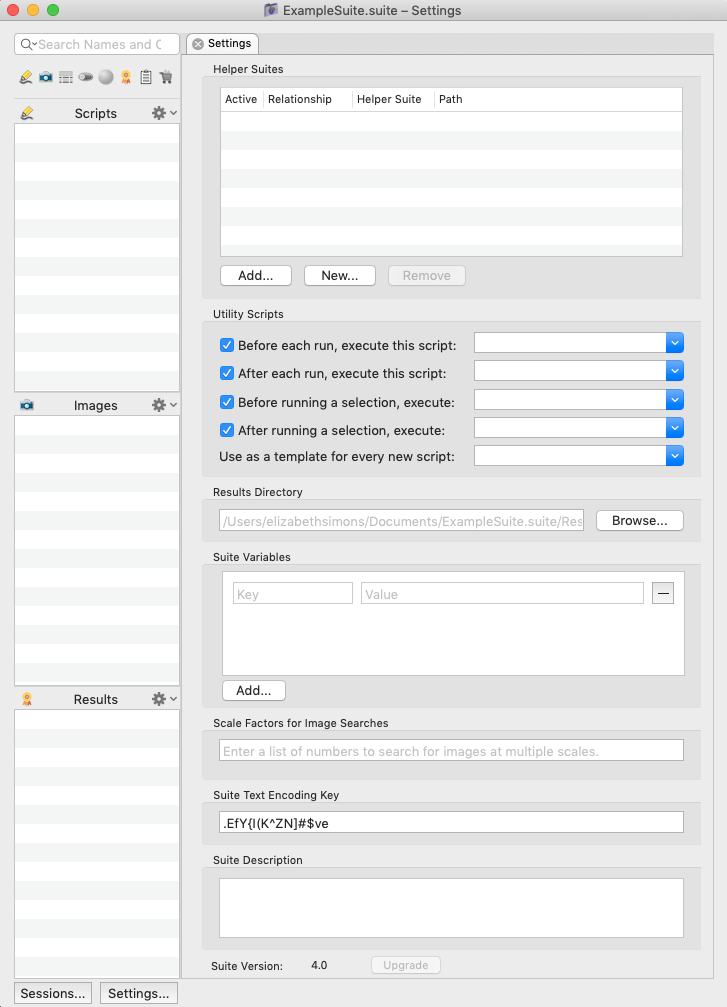
The Suite window showing the open Settings tab
The Helper Suites Pane
The Helper Suites section on the Setting tab contains a list of the suites whose scripts, images, and helpers are available to the current suite; such attached suites are known as helper suites. Helper suites are useful as core suites, with scripts and images that you use across several other suites.
The table shows the following information about each helper suite:
- Relationship: Shows how the helper suite is related to the current suite. This column displays either Includes if the current suite can access resources from the helper suite, or Included by if another suite accesses the current suite as a helper suite.
- Helper Suite: Displays the name of the attached helper suite.
- Path: Shows the file path of the helper suite; red text indicates a file path that is no longer valid.
Double-clicking a helper suite in the list opens that suite (or brings it to the front).
Adding, Creating, or Removing a Helper Suite
To add a helper to your suite, click the Add button and browse to select the suite you want to add.
To create a new helper suite, click the New button. In the New Test Suite window that open, name your new suite and decide where to save it.
To remove a helper suite, select it and click the Remove button. When you remove a helper suite, scripts in the current suite can no longer access that helper suite’s scripts, images, and other helper suites.
Using a Relative Path for a Helper Suite
You can change the path of a helper suite to make it relative to your Home directory or your Default Suite Directory. To edit the path of the helper suite, select the helper suite in your Helper Suites pane and click in the path.
Paths that start with a tilde (~/) are relative to your Home directory. Paths that start with a dot (./) are relative to your Default Suite Directory.
Relative Paths with the <Suite_Root> Token
Beginning in 23.1.0, Eggplant provided an alternative way to specify relative paths in helper suites: the <Suite_Root> token. The <Suite_Root> token indicates the folder where the main suite resides. For example, if you enter the path for a helper suite as <Suite_Root>/a_helper_suite.suite, it will look for the suite at the same level as the main suite. You can also enter paths like so: <Suite_Root>/../../folder1/folder2/other_suite.suite, which will find the helper suite two levels up and then down through subdirectories “folder1” and “folder2.”
Note that the functionality of relative paths that are relative to the Default Suite Directory described above still works. If you just enter a path like this_suite.suite, Eggplant Functional will look for that suite at the first level under the Default Suite Directory.
When you add a new helper suite using the file navigator (either from the Add... helper button on the Settings tab or using the Eggplant Functional File > New Helper Suite... menu), Eggplant Functional will, by default, try to use a relative path. In summary, beginning in release 23.1.0, Eggplant Functional specifies helper suite paths as follows:
- If the helper suite is at the same level or lower than the main suite, Eggplant Functional will use a path relative to the main suite.
- If it is in the Default Suite Directory, Eggplant Functional will use the simple relative path.
- If neither of these is true, Eggplant Functional will use an absolute path.
For more information about using helpers, see Helpers.
Utility Scripts
The Utility Scripts section lets you declare pre-run and post-run scripts. You can also choose a script from the current suite to act as a template for all new scripts.
Setting Pre-Run and Post-Run Scripts
If you set a pre-run script, this script executes before every script run in the current suite. A post-run script executes at the conclusion of every script run.
You select pre-run and post-run scripts in the Utility Scripts section of the Settings tab. All the scripts in the suite are available to select from the drop-down list for both pre-run and post-run. Note that only scripts from the current suite are able to serve these functions.
The pre-run and post-run scripts have check boxes next to them. If you've defined these scripts for your suite but want to run a script without the pre-run or post-run script, you can clear the check box for that run.
Utility Scripts for Selections
You have separate options to apply pre-run and post-run scripts when you run only a selection of a script, rather than the entire script. Your choice or choices for selections will be run when you select a portion of your script code and use the Run Selection option.
Note that when you run a selection, only utility scripts for selections are used. Utility scripts set for whole script runs don't apply when you run selections of your code.
Using Pre-Run and Post-Run Scripts
A pre-run script is called with three parameters:
- The full path of the script that is about to be run.
- A list of all of the parameters (if any) that will be passed to the script about to be run.
- The full path to the log file that will be created during the script run.
You can use the pre-run script to change the parameters that are passed to the script. To do this, the pre-run script should return a property list with a "parameters" property whose value is a list of the parameters.
A post-run script is called with two parameters:
- The full path of the script that was run.
- The scriptResult property list for the run, which is similar to the result returned by the RunWithNewResults command.
In addition to the parameters and return values described above, pre-run and post-run scripts can interact with the script being run through a shared environment. For instance:
- Connections: If you open a connection in the pre-script, it will be the active connection when the script being run starts.
- Global and Universal Variables: These types of variables are common across all three scripts.
- Global Properties: These properties are common across all three scripts, including the InitialSuites and the FinalSuites properties.
Use as a Template for Every New Script
You can also specify a template script for new scripts in the Utility Scripts section of the Settings tab. If a template script is chosen, each new script that is created in that suite begins as a copy of that script.
All the scripts in the suite are available to select from the drop-down list as the template script for the suite. Note that only scripts from the current suite are able to serve as a template.
Results Directory
This Results Directory area shows the file path of the current suite's results. You can click the Browse button if you want to select a new directory in the file browser.
Suite Variables
The Suite Variables section lets you define variables and set their values. These suite variables are available suite-wide to any script as well as to functions such as API testing. When used as SenseTalk variables, they can be considered a special, user-defined type of predefined variable. These variables are local in scope, but their values persist in the suite so that they are available across sessions.
For complete information about suite variables, see Creating and Using Suite Variables.
Scale Factors for Image Searches
When a script is run, the initial value of the scaleFactors global property is set to the value provided in the Scale Factors for Image Searches field on the suite's settings, which can be accessed by clicking Settings in the bottom left corner of the suite window. This field is given precedence over the scale of an image set in the Image Viewer but is overridden by the ScaleFactors global property and any Scale properties defined with images in-line in your script.
If the Scale Factors for Image Searches field is left blank, the scaleFactors global property will initially be empty, and the scale of the search will default to the scale set at the image level (typically 1). The scaleFactors property may be changed at any point during a script run, setting it to empty, a positive number, a list of positive numbers, a range of numbers, or a combination.
Any change to the scaleFactors global property by the script will override the value from the Scale Factors for Image Searches field in the suite settings, which only provides the initial value at the start of the run.
**Examples:**All of the below are valid entries in the Scale Factors for Image Searches field.
2.1
0.5, 0.8, 1.0, 1.2, 1.5, 1.8, 2.0
0.8 to 2.2 by 0.1
0.5 .. 1.5 by 0.05 &&& 1.5 .. 3.0 by 0.1
Suite Text Encoding Key
This key is used to encode text, such as passwords, that you use with the suite. The key is randomly generated by Eggplant Functional. If you want multiple suites to use the same key, you can copy the key to those suites.
Suite Description
This text field is a place for you to record your own notes about the current suite.