RDP with the Multiple Monitor Option
The RDP connection type provided in Eggplant Test gives you the option to specify how many monitors you want to see within a single SUT viewer window.
To create an RDP connection that displays multiple monitors, you need to specify the number of monitors you want to work with to the monitors option for your test type. The table provided shows the different monitor option names. This is in addition to the basic and required RDP connection specifications listed in Basic RDP Connections. Below that you will find information about how to specify the multiple monitors option in Eggplant Test applications, when using a Sensetalk connect command, and when you run a script from the command line.
If you need an overview of using RDP connections, please read RDP Connections Overview, RDP Connection Prerequisites, and Create an RDP Connection first. Basic RDP Connections provides an explanation of all the basic connection properties, and examples of how to create them in Eggplant Test applications, in a SenseTalk script, and with tests run through a command-line interface (CLI).
The Multiple Monitors Option Names for Different Test Types
| Multiple Monitor Option | Where to Specify | Description |
|---|---|---|
| Monitors | Connection or SUT panels in Eggplant Test application GUIs | The number of monitors to display. Default: 1 |
monitorCount | SenseTalk script connect commands | same as above |
numOfMonitors | Command-line interfaces | same as above |
It can take a moment for the multiple monitors to display, and before that happens, you might see a very wide single monitor. You can handle this within a test script by adding a hard wait command time after the connection is established or adding an image search that will only match for multiple monitors (for example, have your script wait for an image of the start menu that reaches left of the monitor) to adjust the timing of your scripts to work with this feature. You can also use the SenseTalk RemoteMonitor functions (RemoteMonitorCount, RemoteMonitorRectangle, and RemoteMonitorSize) to learn how to use this feature in a script.
Enabling the Multiple Monitor Option in an Eggplant Test Application
When you make an RDP connection to a SUT, you can enable the Monitors option on the appropriate panel within your Eggplant Test application to display multiple monitors in the SUT Viewer window:
Examples: Click the tab of the Eggplant Test application below to see a sample RDP connection panel in that app, and where to look for the Monitors option:
- The Monitors Option in Eggplant Studio
- in Eggplant Functional
- in DAI
Below is an example Add Connection panel for the RDP connection type in Eggplant Studio. To configure an RDP connection to display multiple monitors in a single SUT viewer window, type the number of monitors you want in the Monitors field.
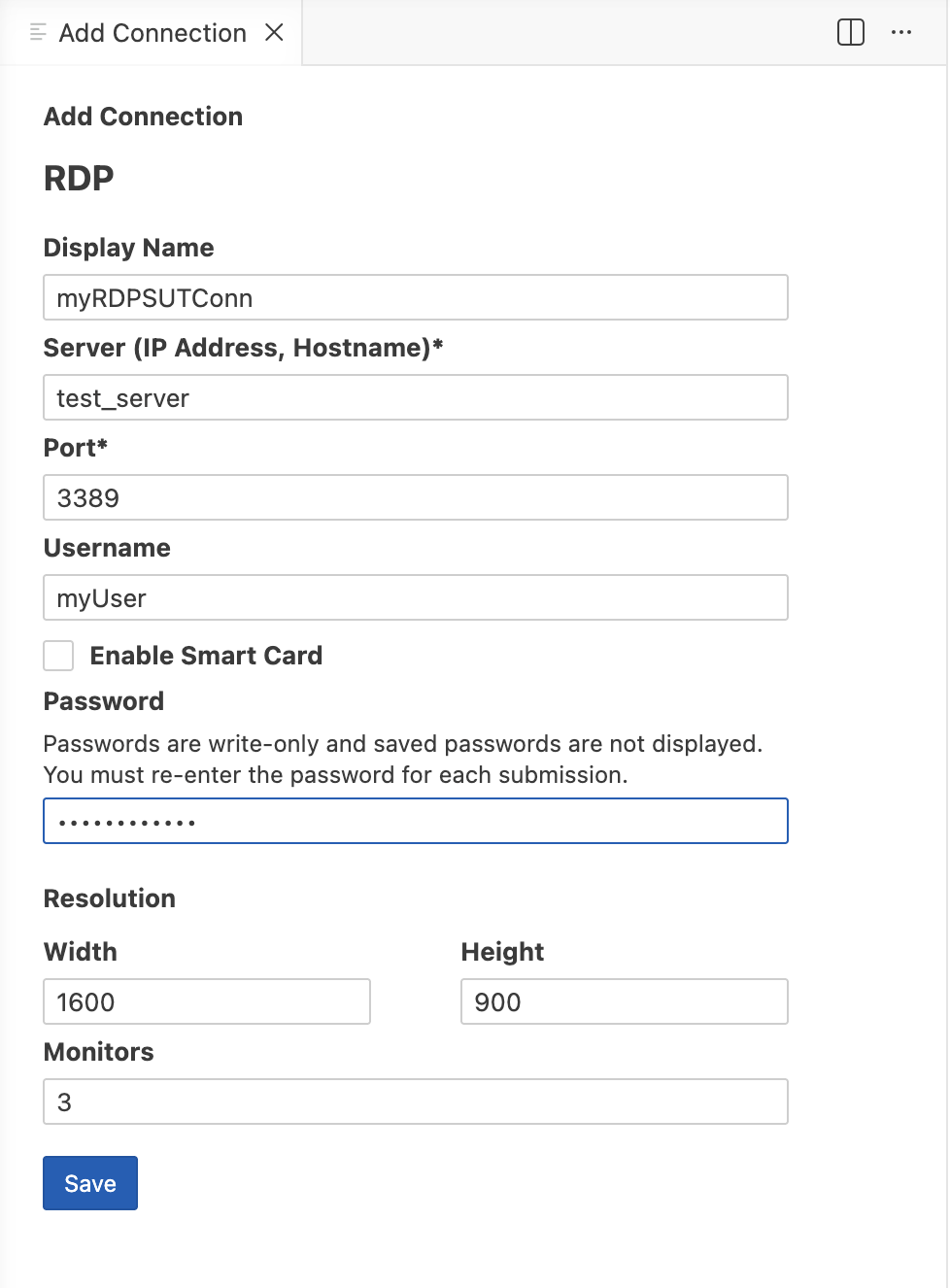
The Add Connection panel for RDP in Eggplant Studio has a Monitors field
Below is an example New Connection panel for an RDP connection in Eggplant Functional (EPF). To configure an RDP connection to display multiple monitors in a single SUT viewer window, select the number of monitors you want from the Monitors drop-down menu.
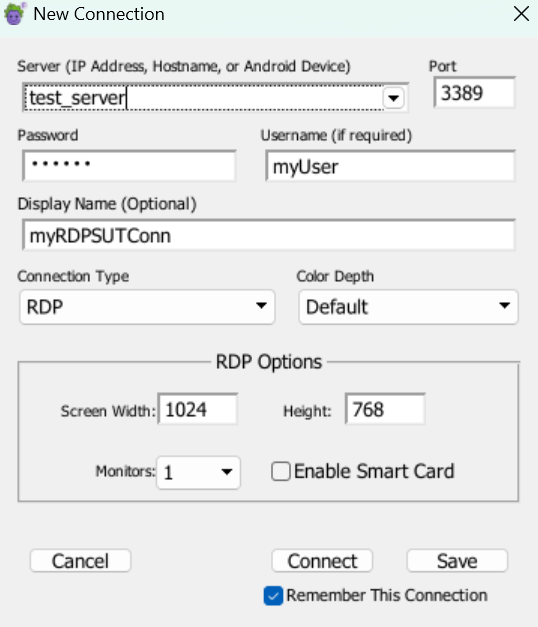
The New Connection panel for RDP in EPF has a Monitors drop-down menu
Below is an example General panel for an RDP connection in DAI. Note that to access this panel, you must first display the New SUT panel, or edit an existing SUT and add or edit a new connection. To configure an RDP connection to display multiple monitors in a single SUT viewer window, select the number of monitors you want from the Monitors drop-down menu.
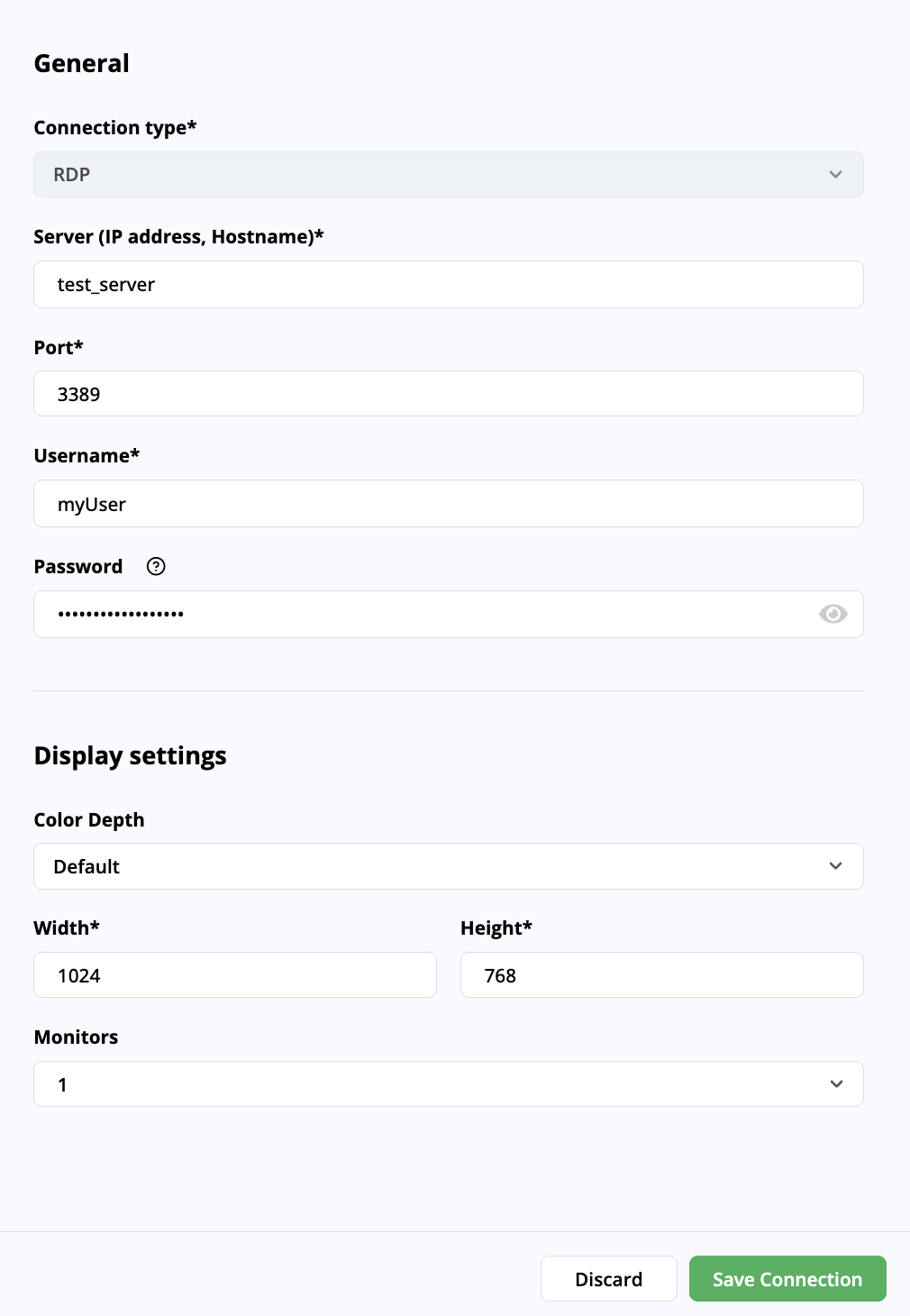
The New Connection panel for RDP in DAI has a Monitors drop-down menu
Specifying the Multiple Monitors Option in a SenseTalk Script
The following example shows how to specify the number of monitors ("3", in this case) that you want your SUT viewer window to display for an RDP connection in a SenseTalk script connect command, using the monitorCount parameter:
Connect {serverID: SUTID, portNum: 3389, password: SUTPassword, username: SUTUsername, Type:"RDP", Width: 1920, Height: 1080, monitorCount: 3}
Specifying the Multiple Monitor Option at the Command Line
The following examples show how to specify the number of monitors ("3", in this case) that you want your SUT viewer window to display for an RDP connection that you make when you run a test at the command line. You can pass SUT connection information with the runscript command when you run a script at the command line. For more information about running scripts from a command line, see Running from the Command Line in the Eggplant Functional documentation.
Examples: Click the operating system below to see an example of how to pass RDP connection information with the multiple monitors option (-numOfMonitors) as parameters to the runscript command.
- Specifying Multiple Monitors at the CLI on Windows
- on Linux
- on macOS
An example runscript command on Windows that shows how to specify the multiple monitor option (-numOfMonitors) for an RDP SUT connection with the test script at a command-line interface (CLI):
"C:\Program Files\Eggplant\runscript.bat" "C:\Users\Alex\Documents\MySuite.suite\Scripts\test2.script" -host <ip address> -password "<password>" -type rdp port 3389 -DefaultWidth 1920 -DefaultHeight 1080 -numOfMonitors 3
An example runscript command on Linux that shows how to specify the multiple monitor option (-numOfMonitors) for an RDP SUT connection with the test script at a command-line interface (CLI):
runscript ~/Documents/appTests.suite/Scripts/test1.script -host <ip address> -type rdp -port 3389 -username "<username>" -password <password> -numOfMonitors 3
An example runscript command on Mac that shows how to specify the multiple monitor option (-numOfMonitors) for an RDP SUT connection with the test script at a command-line interface (CLI):
/Applications/Eggplant.app/Contents/MacOS/runscript /Users/Alex/Docs.suite/Scripts/myTests/test2.script -host <ip address> -type rdp -port 3389 -username <username> -password <password> -numOfMonitors 3