Importing Postman Collections
The Import Postman Collection feature allows you to submit a Postman collection file, so that the Customer Support team can set up the required API monitor.
There are 3 steps in this process:
1. Accessing the Request API Monitor Page
You can initiate an API monitor request from either the Monitor settings or the Support section each of which is described below.
Initiating an API Monitor request through the Monitor Settings
Navigate to:
Monitor Settings > User Journey / Web Service > Request API Monitors
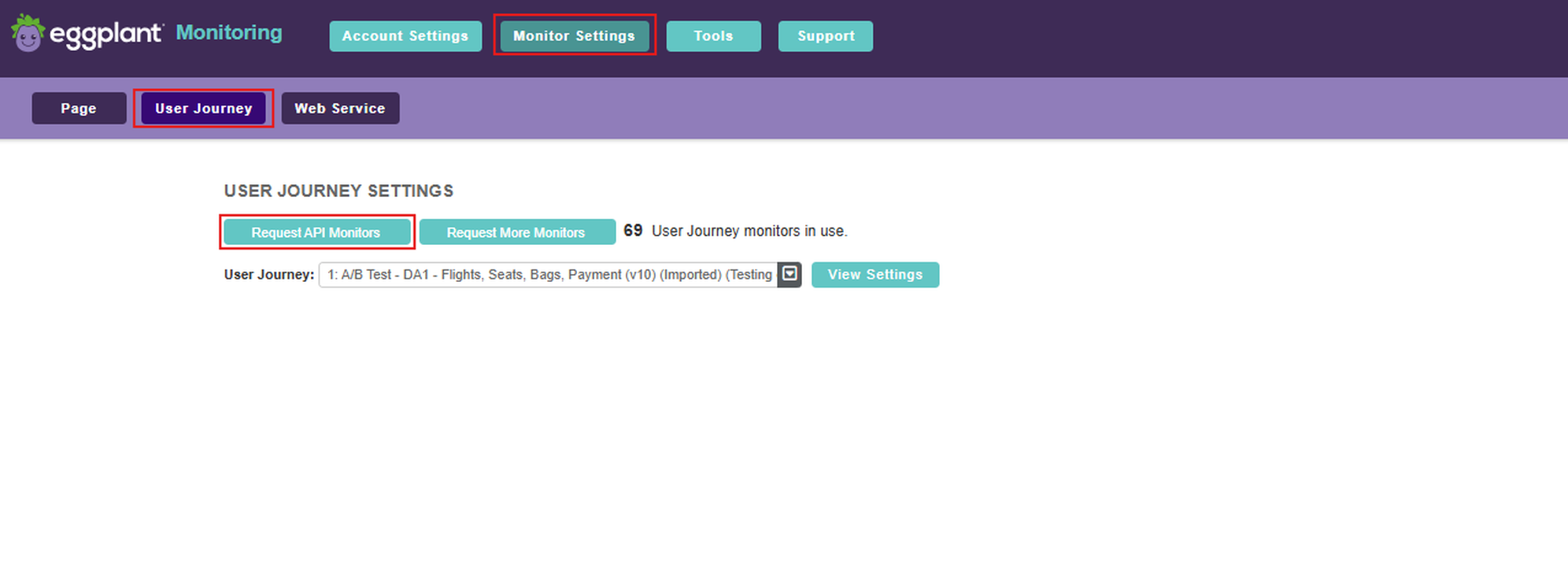
Initiating an API monitor request through the Monitor settings
Initiating an API Monitor Request through the Support Section
Alternatively, navigate to:
Support > Help > Request More Monitors
This opens the Request API Monitor form.
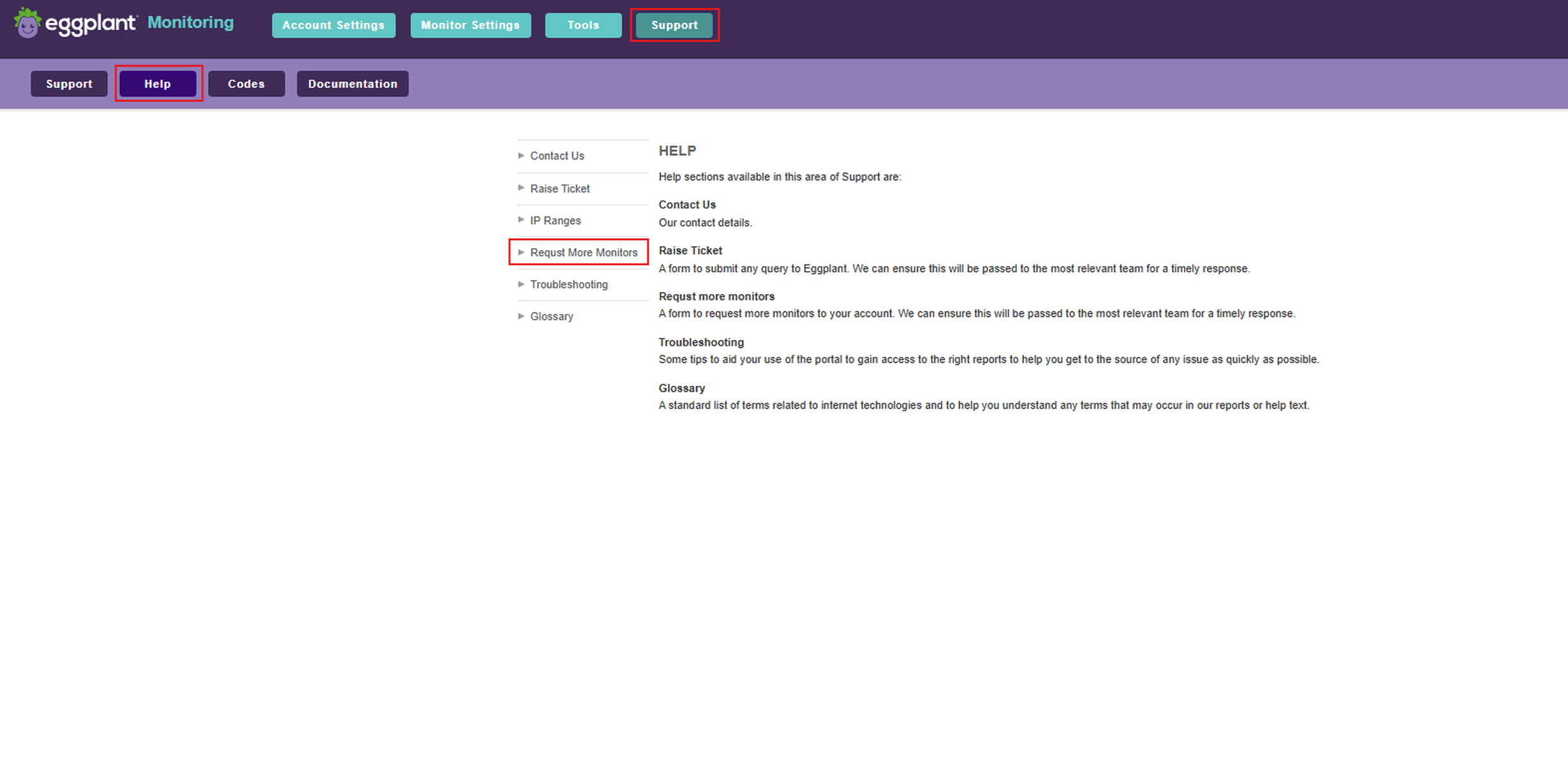
Initiating an API monitor request through the Support section
2. Filling Out the Request Form
After opening the Request API Monitor form on the Support page, provide the information required for the Support team to process your request.
Required Steps
-
Enter Query Details
Provide information about your environment, API behavior, and any additional notes to help the Support team understand your request. -
Upload Your Postman Collection File
Click Upload Postman Script and attach your Postman collection file.
File Requirements
- Format:
.json - Maximum size: 1 MB
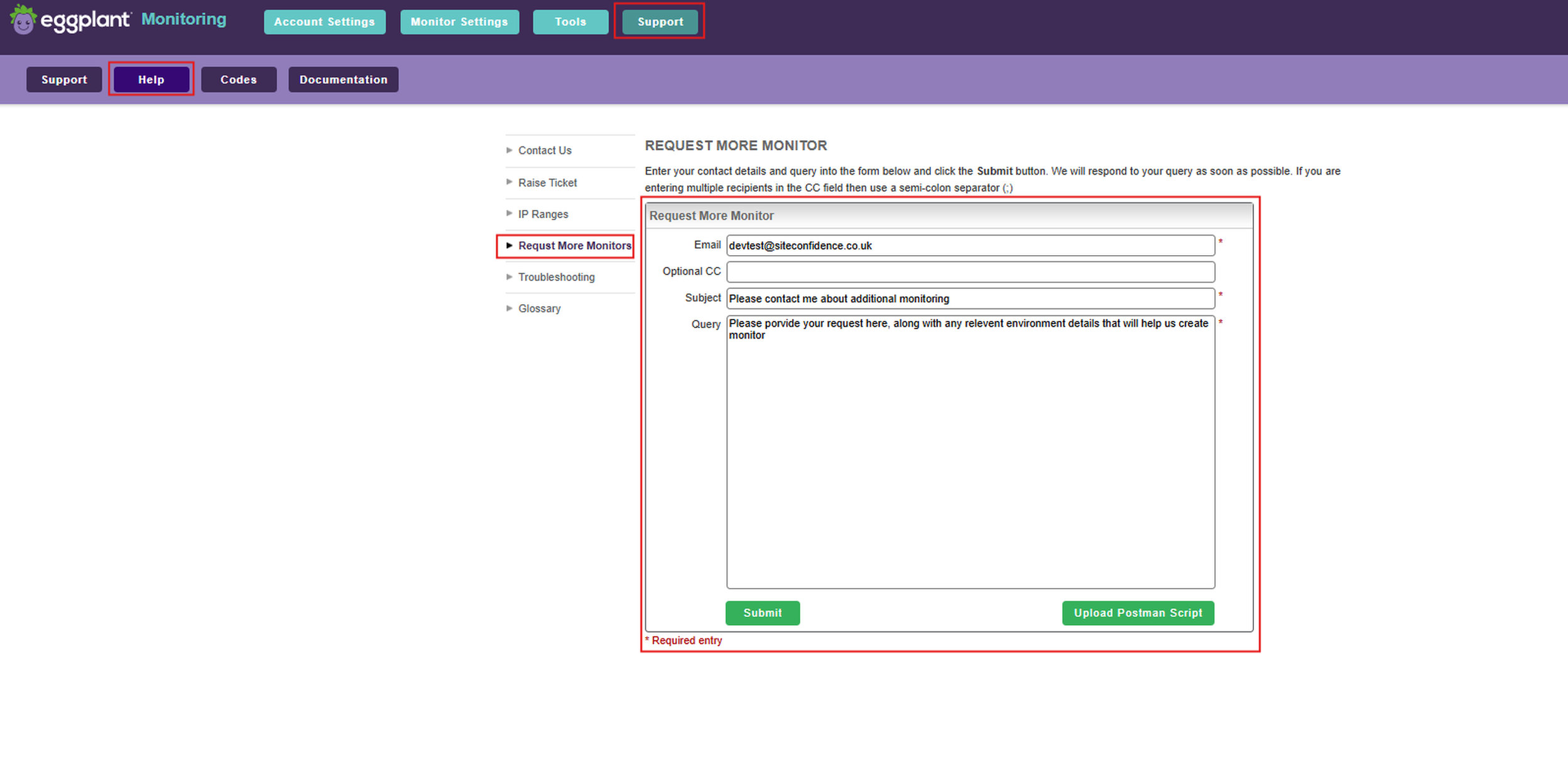
Fill out an API Monitor request form
3. Submitting the Request
Once all required fields are completed and the Postman file is uploaded:
- Click Submit to send your request.
- An on‑screen confirmation message appears.
- If you entered an email address in the CC field, you will also receive a copy of the request by email.
Next Steps
After receiving your collection, the Customer Support team will:
- Perform a quick sanity check.
- Add the new API monitor to your account.
By default:
- The new monitor is enabled
- Alerting is disabled
You can configure alerting yourself through the portal or contact Customer Support for assistance:
https://docs.eggplantsoftware.com/emi/emi-settings/
Once completed, the new content appears under:
Documentation Home > Eggplant Monitoring > Using the API > Postman Collection Import