Using Parameters in Model Based Test Configs
The test cases/steps in a model-based test configuration (test config) inherit the parameters and values from their model, snippets linked to their model, or test cases based on their model. You can override the parameters available in a test config with custom values giving you greater flexibility in your tests. For information about defining parameters in a model, including their scope and choosing options that will allow you to override their values, see Overview of Using Parameters in DAI Models.
Support for parameters in model-based test configs became available in DAI 25.3.
Set Parameters for a Test Case in a Test Config
In a model-based test config you can see a test step's (test case's) parameters on the Set parameters for test case panel. You can also override a parameter's value with a custom value on this panel.
Display the Set parameters for test case panel
To display the Set parameters for test case panel:
-
Go to Controller >Test Config and then select and double-click the test config you want. The test config opens with the General tab opens in focus.
-
Click Steps /actions to display that tab. Note the sample test config below only has one test step, but a test config can include many steps.

The Steps/actions tab of a test config highlighting the Edit parameter(s) button you use to display the Set parameters for test case panel
-
Locate the test step (test case) you want under Steps added and click
 (the Edit parameter(s) button) at the end of a test step row. The Set parameters for test case panel slides out from the right showing parameters inherited from your model as shown in the example under The Set parameters for test case panel below.
Global parameters are only listed in the first step of test cases that have multiple steps by default. Please contact our Customer Support for more information.
The Set parameters for test case Panel
The Set parameters for test case panel is where you manage test case parameters.

The Set parameters for test case slider panel for a test step in a model-based test config, showing the parameters inherited from its model, and highlighting the parameter scope icons
The Set parameters for test case panel provides the following for information for the parameters listed:
-
Parameter name: The name of the parameter and its scope: a globe for global parameters; a square for state parameters, and a lightning bolt for action parameters. The sample test case panel above has all three types of model parameters highlighted in red.
tipYou can hover over the icon next to a parameter to see its scope and the object within the model that defines that parameter.
-
Default value: The default value for a parameter. If you see a value here, it was taken from the test case. If you see "DAI generated", it is using the value from the model, which means the value is generated by DAI during a test run. For information about configuring model parameters to have DAI-generated values, see Generation Parameter Settings.
-
Custom value: A field or selector where you can specify to override the existing parameter value. See Override Parameters with Custom Values in a Model Based Test Config below for information about overriding a parameter value with a custom value.
At the bottom of the Set parameters for test case panel is a note about "non-generated" parameters in the model. This means the model contains parameters with fixed values that can only be changed in the Model Editor (or a snippet). Non-generated parameters are not listed on the Set parameters or test case panel because you cannot change them here. Only the parameters with values you can change, which are created with one of the "generated" parameter options, are listed. For more information about generated parameters settings, see Generation Parameter Settings.
Override Parameter Values with Custom Values in a Model Based Test Config
You can override the parameter values with a custom value in each test step/case in a model-based test config. The Set parameters for test case panel provides the Custom value field for you to enter your overriding value. This panel also shows the any Default values set for a parameter. The default values can be set in the Model Editor, a snippet, or more typically in a test case. If you see "DAI generated", it means a default value is not set and DAI generates the value for the parameter during a DAI test run. Regardless of whether there is a default set, you can specify a Custom Value to use in the test step instead.
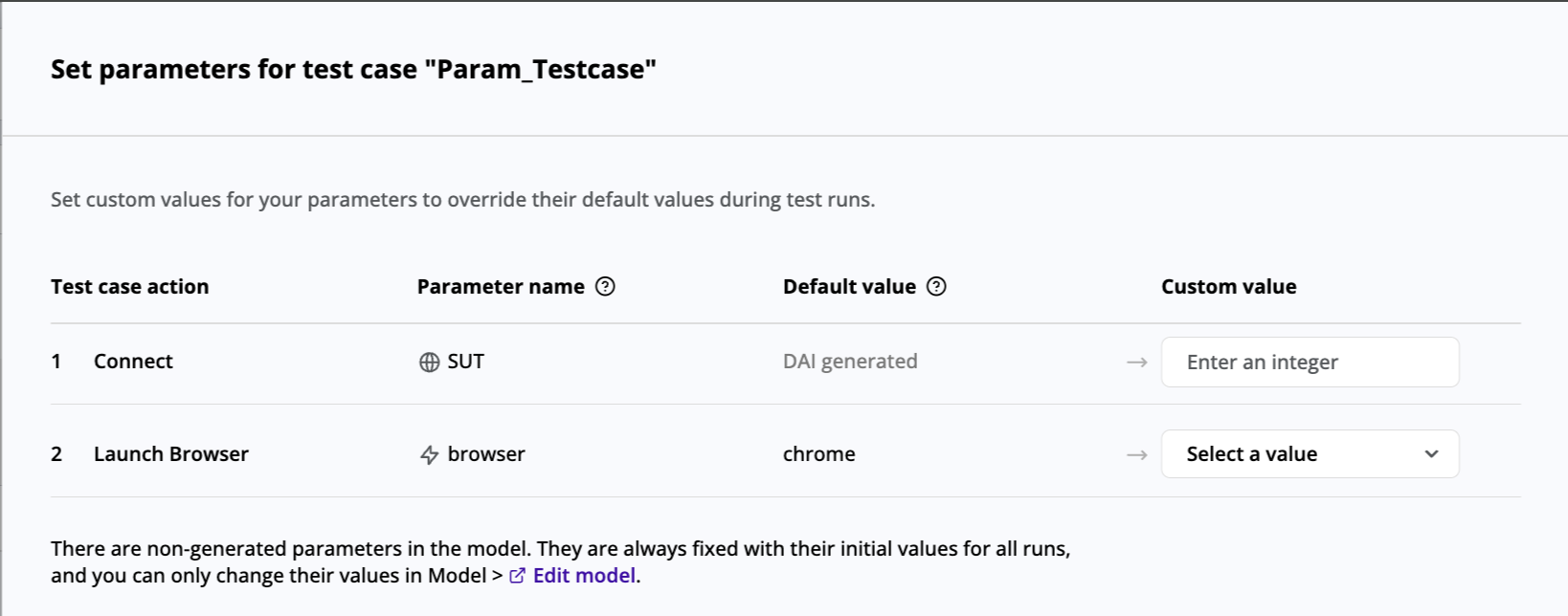
The Set parameters for test case slider panel, showing two parameters that can be overridden with custom values
Follow the steps below to specify a custom value in the test steps/cases of a test config:
-
Display the Set parameters for test case panel as described in Display the Set parameters for test case Panel above. You can see a sample of the panel above in The Set parameters for test case Panel.
-
Assign a different parameter value by entering a value in the Custom value field or choosing one from its selector. The Custom value field or selector indicates the type of value the parameter takes as follows:
- For
text,integer, andrealtypes: you type in a value. - For
Booleantypes: you choose eithertrueorfalse. - For
settypes: even though asetconsists of multiple allowed values, you can only select one of the items in the defined set list. - For the Custom value selectors: you choose from the list of available options.
- For
-
Click Save before you leave the Set parameters for test case panel. If you do not save your changes, the newly configured settings will not take effect when you are configuring the test config. When the Set parameters for test case panel slides back out of view, you see the number of parameters set in a test step displays on the Edit parameter(s) button for the test step. The following sample Steps / actions tab shows test cases with parameters and custom values set below. It also shows an exploratory test step. Exploratory tests are also supported in model-based test configs. However, you cannot edit parameters or set custom values for exploratory tests.

The Steps/actions tab of a test config with test cases and exploratory steps added, and 13 parameters shown as set on the Editor parameter(s) button
Global Parameters for Model Based Tests
Global parameters are especially useful for their flexibility in model-based tests. Global parameters are shared across all the objects in a model. Once you define global parameters in a model, you can override them in test cases and test configs by assigning them custom parameter values as described above in Override Parameter Values with Custom Values in a Model Based Test Config. You can even assign different values to the same global parameter in different test steps/cases within the same test config!
For information about creating and using the different types of model parameters, see Overview of Using Parameters in DAI Models.
For model-based tests, you cannot add global parameters in the test case/step of a test config. You can only work with existing global parameters set in the model. Whereas, you can add them in script-based test configs. See Using Script Based Test Configs for information about how parameters work in script-based test configs.