Using Parameters in Script-Based Test Configs
Parameters are placeholders (variables) for values that are assigned when a test runs. It is common practice to pass and override parameters in Eggplant SenseTalk test scripts, or other scripting languages for that matter. Scripts that take parameters begin with a line like the one shown below, where SUT, docType1, and saveLocation are parameters that will be assigned values when the test script runs.
params SUT, docType1, saveLocation
Eggplant DAI enables you to override the parameter values that you set in your scripts with a custom value that you can assign in a test case, or in a test case/step within a test configuration (test config) as shown in the sample panel below. DAI then uses that custom value for the parameter in all the test cases/steps where it used within the test config.
This configuration allows you to reuse the same test case with different parameter values instead of creating multiple copies of the test case with different default values.
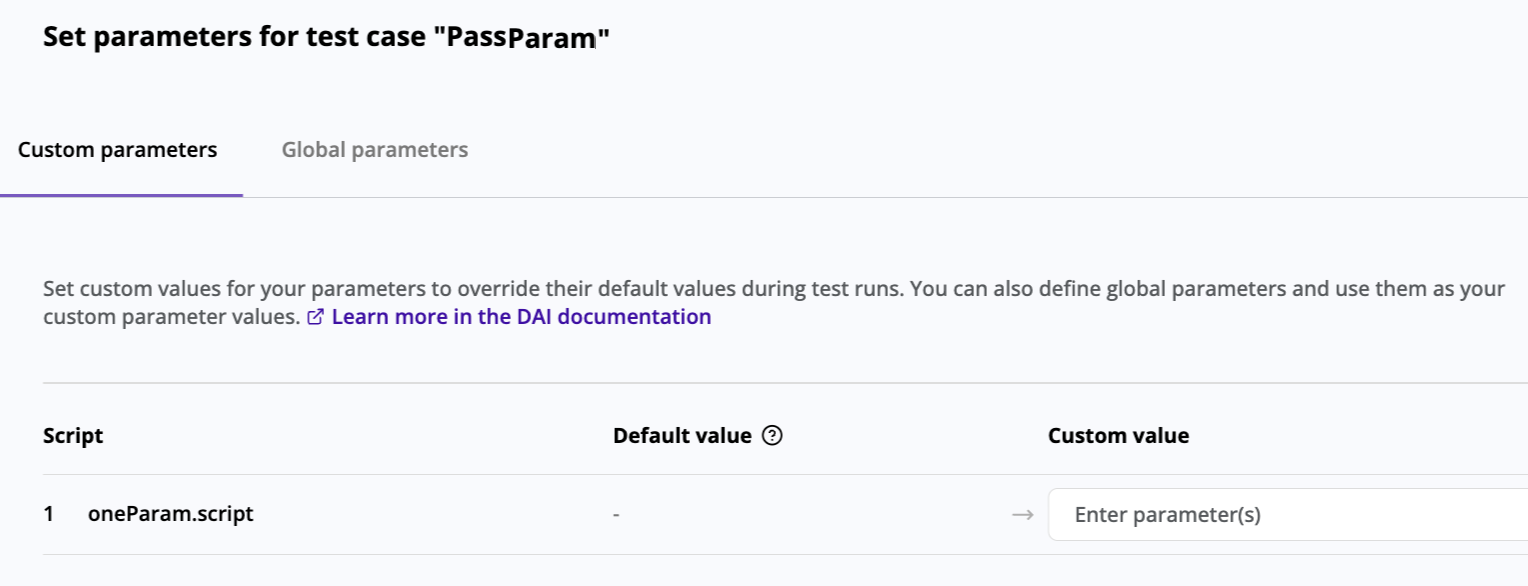
The Custom parameters tab on the Set parameters for test case panel where you can assign a custom parameter value in a script-based test config
Configuring Custom Parameter Values for Test Cases
As described above, DAI allows you to override a parameter's default value with a custom value in a test case/step of a script-based test config. DAI then uses the custom value when the test config runs the test case.
To configure a custom value for parameter in a test case/step:
-
Go to Controller >Test Config and then select and double-click the test config you want. The test config displays with the General tab in focus.
-
Click Steps /actions to display the tab.
-
Locate the test step (test case) you want under Steps added and click
 (the Edit parameter(s) button) at the end of a test step row. The Set parameters for test case panel slides out from the right showing the Custom parameters tab in focus as shown below.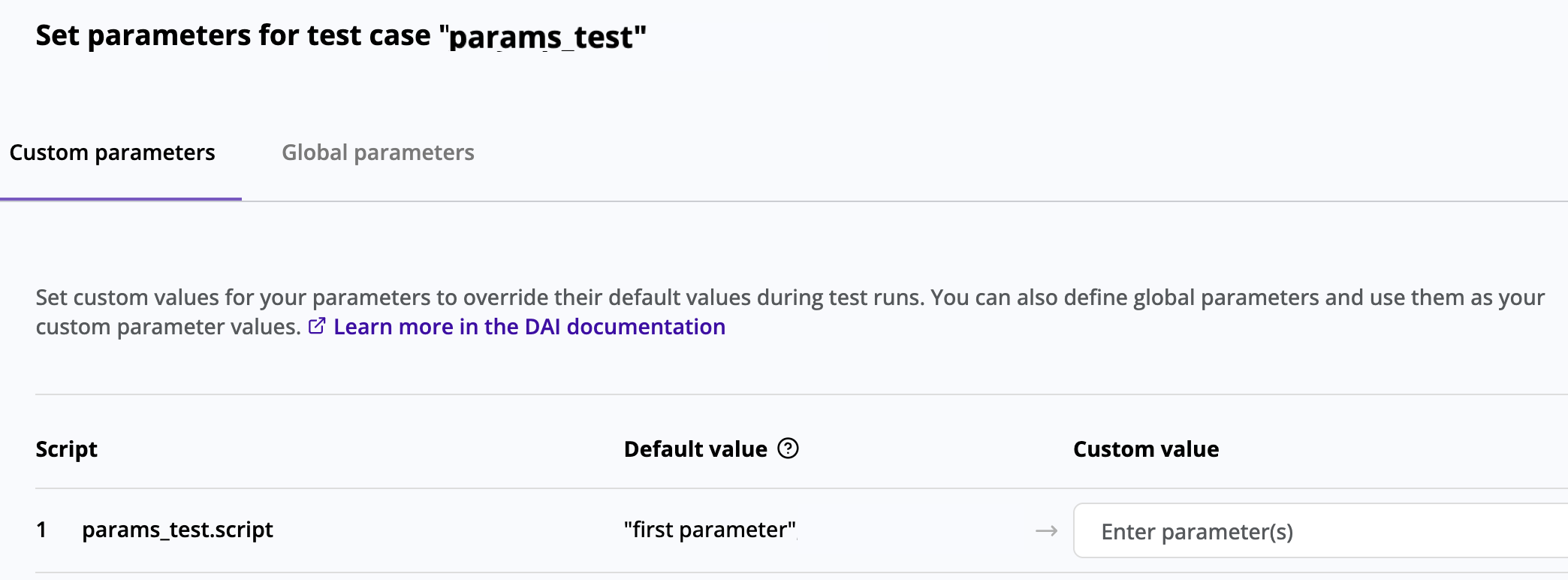
The Custom parameters tab on the Set parameters for test case slider panel for a test case/step in a script-based test config
-
Add a value in the Custom value field to overwrite the default parameter value, which may be defined in a snippet or test case. Note that DAI supports assigning a global parameter as a custom parameter value. See Using a Global Parameter as a Custom Parameter Value below for instructions.
-
Click Save.
Using Global Parameters in Script-Based Test Configs
DAI supports the use of global parameters in test configs for script-based tests. You create global parameters, and set values for them, in your test configs. The values of these global parameters are then available to all the steps within that test config.
The information on this page describes how global parameters work in script-based test configs specifically, where you can add global parameters. In model-based test configs, you cannot add global parameters; they can only be inherited from their model. See Using Parameters in Model Based Test Configs for information about how parameters work in model-based test configs.
Adding a Global Parameter to a Script-based Test Config
To Add a global parameter for script-based test config:
-
Go to Controller > Test Config and then select and double-click the test config you want. The test config displays with the General tab in focus.
-
Click Steps /actions to display that tab. Notice the Global parameters button on the right side of the tab, near the top, and the Edit parameter(s) button at the end of each test step row as highlighted in the sample Steps/actions tab below. You can use either of these buttons to navigate to a Global parameters panel. Also notice the number 1 in purple on each of these buttons. This number indicates the number of parameters set.

The Global parameters button on the Steps/actions tab of a script-based test config (note that the globe icon indicates a global parameter)
-
Use either the Global parameters or Edit parameter(s) button to navigate to a Global parameters tab. Note that the Edit parameter(s) button displays the Set parameters for test case panel, which also has a Global parameters tab.
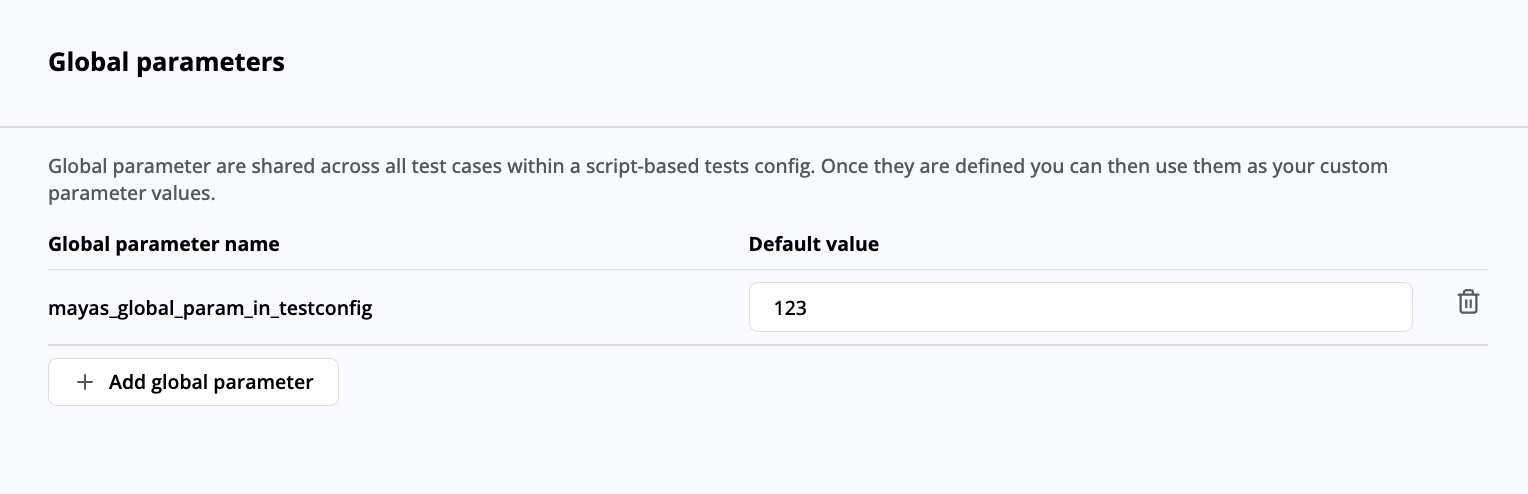
The Global parameters panel in a script-based test config showing a global parameter with a default value of 123
-
Once the Global parameters panel is visible, click + Add global parameter. The Add global parameter panel displays as shown below.

The Add global parameter panel in a script based test config
-
Enter a unique Global parameter name. You cannot specify a global parameter name that already exists.
-
Enter a Default value* for the parameter, which is required as indicated by the asterisk. Adding the default value enables the Add button at the bottom of the panel.
-
Click Add to add the new global parameter. The new parameter will be available in the Global parameters list.
Once you add a global parameter, you cannot edit its name. However, you can still change the default value directly from the global parameters' list.
Using a Global Parameter as a Custom Parameter Value
DAI also supports assigning a global parameter to be the custom value for a parameter in a test case/step in a script-based test config. Global parameters set in a test case are listed at the top of the Custom parameters tab on the Set parameters for test case panel where you can assign them as follows:
-
Go to Controller >Test Config and then select and double-click the test config you want. The test config displays with the General tab in focus.
-
Click Steps /actions to display the tab.
-
Locate the test step (test case) you want under Steps added and click
(the Edit parameter(s) button) at the end of the test step row. The Set parameters for test case panel slides out from the right with the Custom parameters tab, which includes a list of global parameters set for the test case, in focus.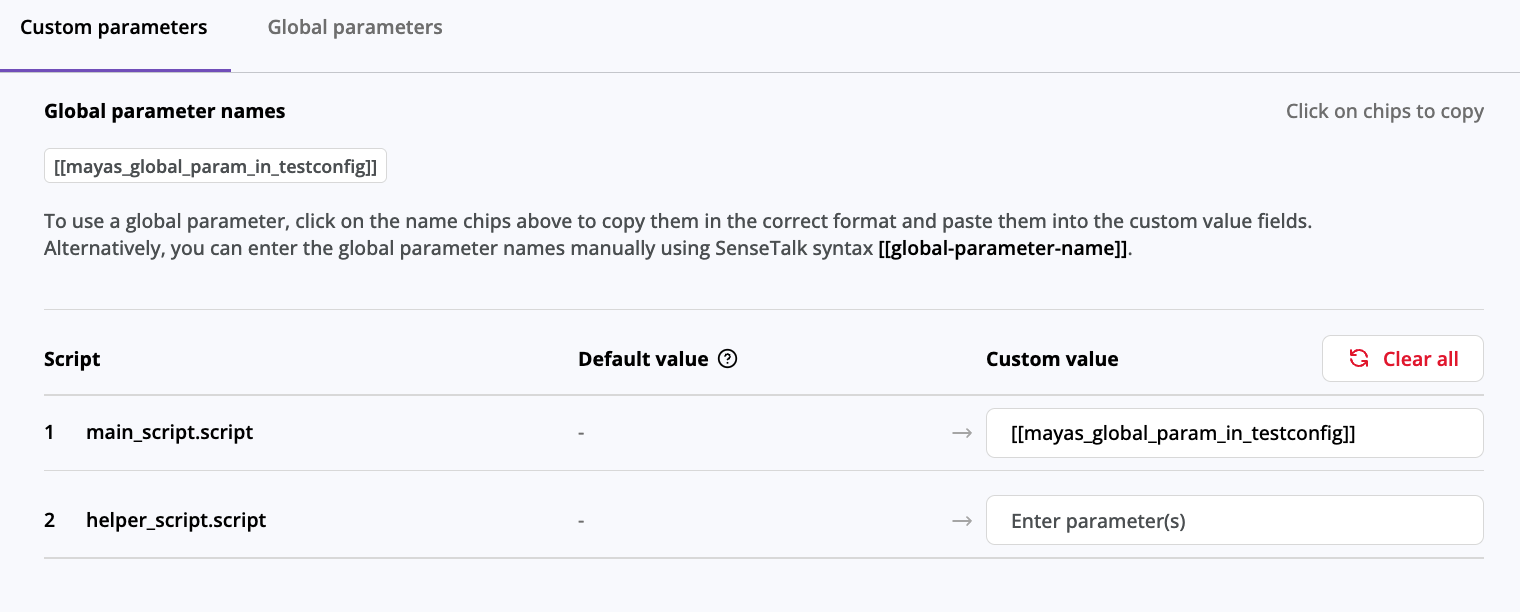
The Custom parameters tab on the Set parameters for test case slider panel showing a global parameter set for a Custom value
-
At the top of the Custom parameters tab, copy the name chip for the global parameter you want to assign as a script parameter value. (Note that the test case in the sample panel above only has one global parameter, but more global parameters would be listed here if there were more set for the test case.)
-
Paste the copied global parameter name chip into the Custom value field for the parameter you want.
noteClicking chips to copy parameters might not work as expected on an insecure website (for example, a website with a URL that begins with HTTP instead of HTTPS).
If you want to manually enter the global parameter as a custom parameter value, you must enter in it in the format of [[global_parameter_name]] as shown on the sample panel above.
-
Click Save before you leave the Set parameters for test cases panel. If you do not save your changes, the newly configured settings will not take effect when you are configuring the test config.
Removing a Global Parameter
To remove a global parameter from the global parameters' list in a script-based test config:
-
Display the Global parameters panel as described in steps 1-3 above.
-
Click the trash button at the end of the row of the global parameter you want to remove.

The trash button you click to remove a global parameter on the Global parameters panel