Overview of Using Parameters in DAI Models
Parameters are placeholders (or variables) that you can use to store data values in your DAI models. You can pass the parameters you set in a model to the SenseTalk scripts or handlers (called snippets in DAI) that you link to the states and actions in your model, and they are also inherited by the test cases and test configs that use the model.
Parameters are a very powerful capability in DAI that give you a lot of flexibility and reusability in your tests. For example, you can set parameter values in a model, and then override them in a linked snippet. You can also configure DAI to generate values for a parameter, and then later override those parameter values in a snippet, or with custom values in test cases and test configs.
For information about adding, editing, and removing DAI parameters, as well as how to override them, see Managing and Overriding Model Parameters. For an explanation of the model parameter settings, see Model Parameter Settings.
High-Level Walkthrough of Using Parameters in DAI Model-Based Tests
Below is a high-level walkthrough of how to use parameters in DAI model-based tests, followed by a table with more information about how and where to perform each step in the process, and then an explanation of the scope of the different DAI Model parameters.

How to use model-based parameters in DAI
| Step | Action | Location | Behavior |
|---|---|---|---|
| 1. | Create global, state, or action parameters in the model as described in Add a Parameter in the Model Editor. | DAI Model Editor | Creating parameters in a model makes them available to be passed to snippets linked to the model, and inherited by any test cases or test configs that use the model. - Choose a "generated" parameter option for the greatest flexibility. The generated options configure DAI to generate a parameter value at test run-time, and also allow you the flexibility to override the value later in a test case or test config. (Note that if you specify an Initial Value for a generated type parameter in the Model Editor, the value will be ignored.) - Choose a "non-generated" parameter option and specify a value to configure DAI to use a "fixed" value. You can only change non-generated parameter values in the Model Editor or a snippet. They do not appear in the parameter lists in test cases or test configs because you cannot change them there. For more information about generated, non-generated, and other parameter settings, see DAI Model Settings for more information. |
| 2. | Write code in the SenseTalk snippets to take parameter values as input from the model (or to be overridden later in a test case (step 4) or test config (step 6)). | Eggplant Studio or Eggplant Functional Script Editor | You can also write code in the snippet to override global, state, or action parameter values passed in from the model if you choose. |
| 3. | Link the appropriate snippets to model states or actions in the Model Editor as described in Linking Eggplant DAI Models to Snippets. | DAI Model Editor | You can learn about the scope of model parameters in Understand the Different Types of DAI Model Parameters below. |
| 4. | Create a model-based test case as described in Build a new Test Case and Define Your Model based Test Case. | DAI Test Cases page | The parameters you configure to be generated (changeable) will be available in the Test Case Builder. You can set default values for, or override the parameter values you see, in the Test Case Builder with Custom Values. |
| 5. | Run a model-based test case (Live Run) as described in Run Test Cases Against a Model. | DAI Test Cases page | DAI runs the test case with the parameter values inherited from the model, or any overriding values configured in the test case. |
| 6. | Create a test config as described in Creating Test Configurations. | DAI Test Configs page | The parameters you configure to be generated (changeable) will be available in the test config test steps/test cases, or overridden in the test cases or snippets. In the test config, you can override parameter values at the individual test step/case level. You can even have different values for the same parameter in different test steps. See Using Parameters in Model Based Test Configs for more information. For information about creating test configs, see Creating Test Configurations. |
| 7. | Run the test config as described in Running a Test Configuration, or create a schedule for running the test config as described in Using the Schedule. | DAI Test Configs or Schedule page | DAI runs the test config with the parameter values inherited from the model, or any overriding custom values from the test case or test config, or the snippets. |
Understand the Different Types of DAI Model Parameters and their Scope
DAI models support parameters with three different scopes: Action, State, and Global. Action and State parameters are for use with the Action and State objects in a DAI model. Global parameters apply to all objects in a model. You configure the parameters and assign values to them in the DAI Model Editor where you also create and edit your models.
The Action, State, and Global parameters each have a defined scope as follows:
- Action Parameters can be accessed by only that action.
- State Parameters can be accessed by that state and all actions within that state.
- Global Parameters can be accessed by all states and actions in a model.
Descriptions of the three parameter scopes, along with how to access and manage them, are provided below.
Action Parameters
The scope of Action parameters is that you can only access them from the snippets linked to that action.
To display the parameters set for an action:
- Select the action in the Model workspace. DAI highlights the selected action in orange and displays the Action Properties tab in the panel to the right of the workspace (where the Global Properties tab initially displayed) as shown below.
- Locate the Action Parameters on the Action Properties tab. You may need to scroll down to see them. Note that Action parameters are also listed on the All Model Parameters tab.

The Action Properties tab contains the Action Parameters where you specify parameters for a selected action (notice that an action is selected in the model)
State Parameters
The scope of State parameters is that you can use them in the snippets linked to that state as well as any actions within that state.
To display the parameters set for a state:
- Select the state in the Model workspace. DAI highlights the selected state in orange and displays the State Properties tab in the panel to the right of the workspace (where the Global Properties tab initially displayed) as shown below.
- Locate the State Parameters on the State Properties tab. You may need to scroll down to see them. Note that State parameters are also listed on the All Model Parameters tab.

The State Properties tab contains the State Parameters section where you specify parameters for a selected state (notice that a state is selected in the model)
Global Parameters
The scope of Global parameters is that they can be accessed with a snippet from anywhere in the model. Global parameters are available to the snippets linked to all the states and actions in a model, instead of being limited to a particular state or action.
To display the set global parameters:
-
Look at the panel to the right of the Model workspace. The Global Properties tab displays when you open a Model or do not have a state or action selected.
-
If the Global Properties tab is showing, locate the Global Parameters on the tab. You may need to scroll down to see the Global Parameters. If the Global Properties tab is not showing, click anywhere on the Model workspace canvas without selecting a state or action to display the Global Properties tab.
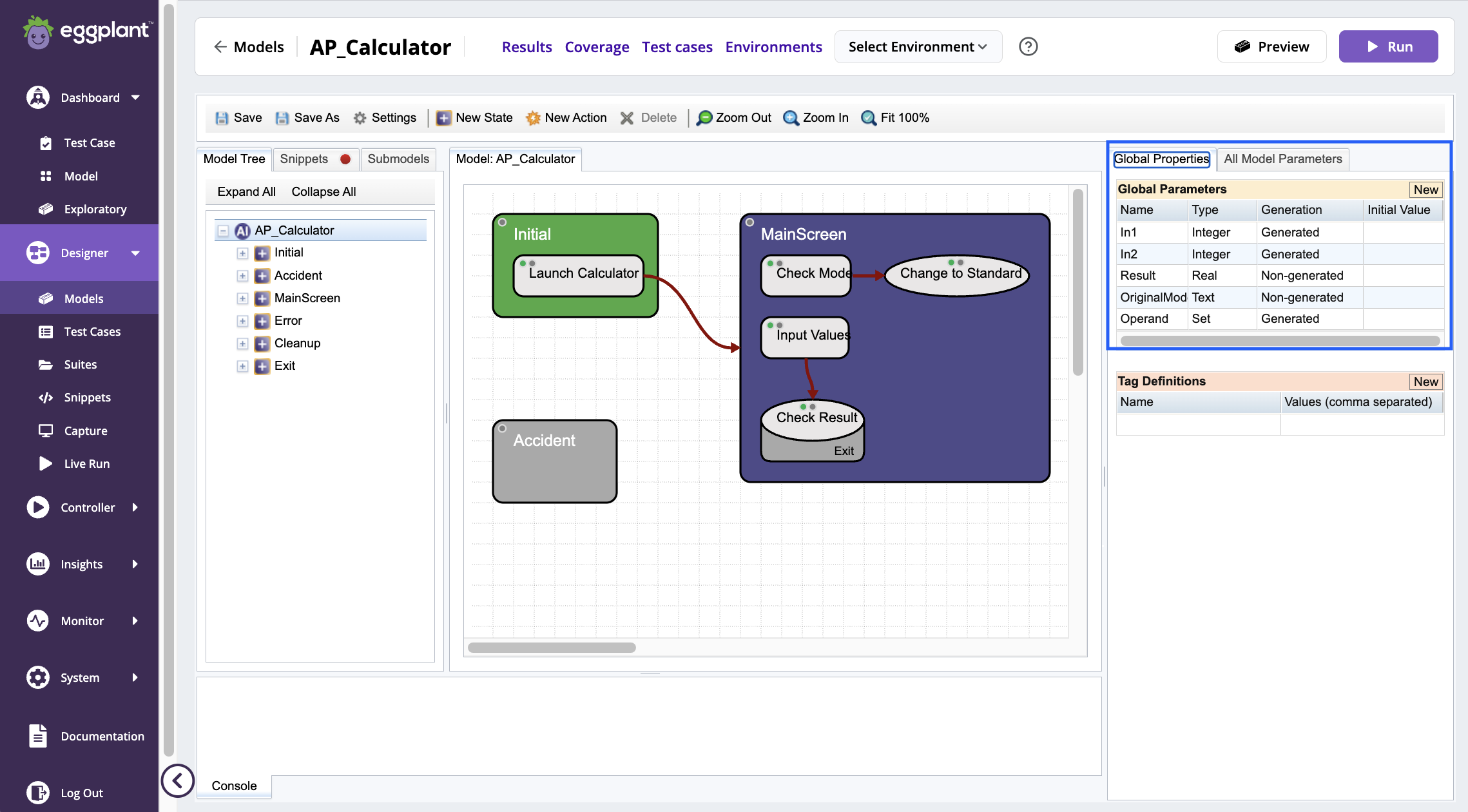
The DAI Global Parameters tab in the panel to the right of the Model workspace (notice none of the objects in the model are selected)
Next Steps
See Managing and Overriding Model Parameters for information more about creating, editing, deleting, and using model parameters in DAI tests.